How to Open a DLL File on Windows 10 Safely
A DLL file does not open like a photo, PDF, or Word document. On Windows 10, DLL files are usually loaded by programs in the background. If you double-click one, Windows may ask you to choose an app, or nothing useful may happen.
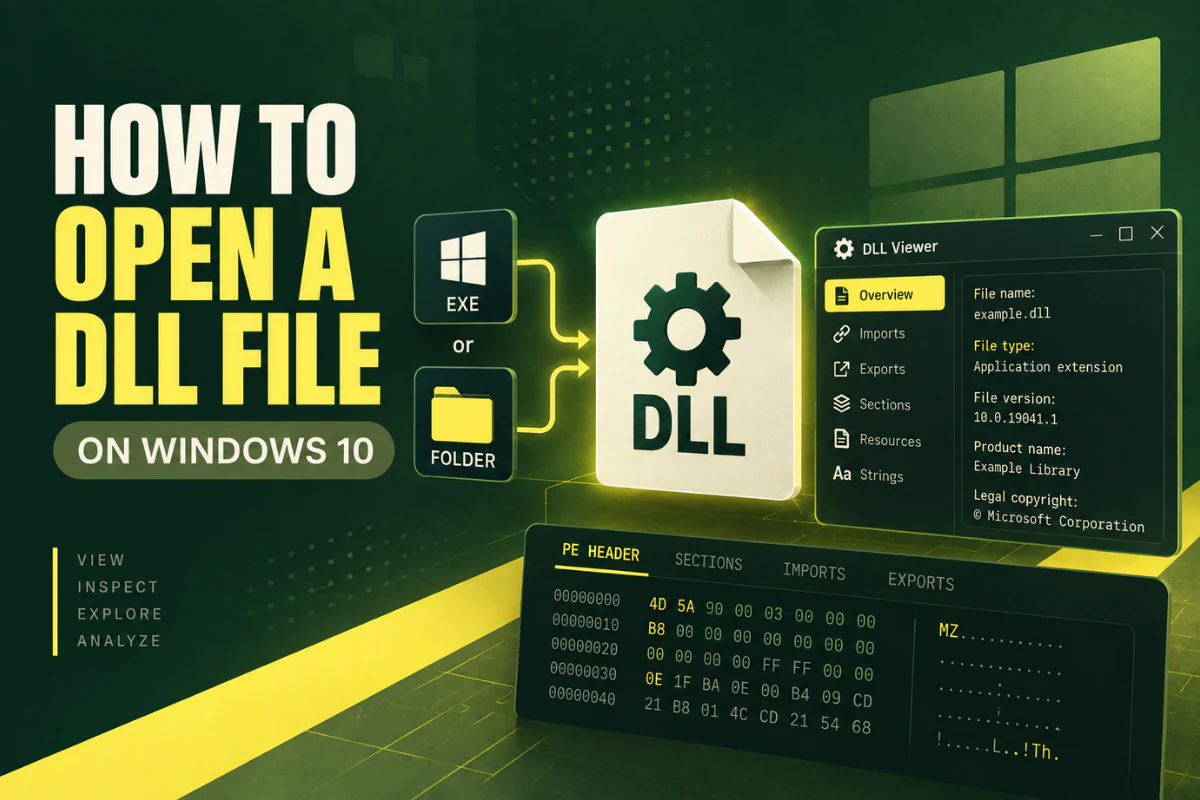
If your goal is to inspect the file, you do not need to run it. You can use a DLL viewer to check its architecture, imports, exports, sections, PE headers, and file hash.
This guide explains how to open a DLL file on Windows 10 in a safe and practical way. It also explains what each viewing method can and cannot show you.
Fastest method: If you only want to inspect a DLL, use our Open DLL File Online tool. It can show architecture, PE details, imports, exports, sections, and hashes without treating the DLL like a normal application.
On this page
First, Decide What You Mean by “Open”
People use the word open for several different tasks. With DLL files, that distinction matters.
For most people, “open a DLL” really means “view what is inside the file.” A viewer or analyzer is the right starting point.
What Is a DLL File in Windows 10?
DLL stands for Dynamic Link Library. A DLL can contain reusable code, resources, data, and functions that Windows programs can load when needed.
This design helps software avoid storing the same code in many places. One DLL may be used by one program, several related programs, or parts of Windows itself.
You will often find DLL files in folders such as:
C:\Windows\SysWOW64\
C:\Program Files\Application\
C:\Program Files (x86)\Application\
The file extension is .dll, but the filename alone does not tell you whether the file is 32-bit, 64-bit, native, managed, safe, or compatible with your application.
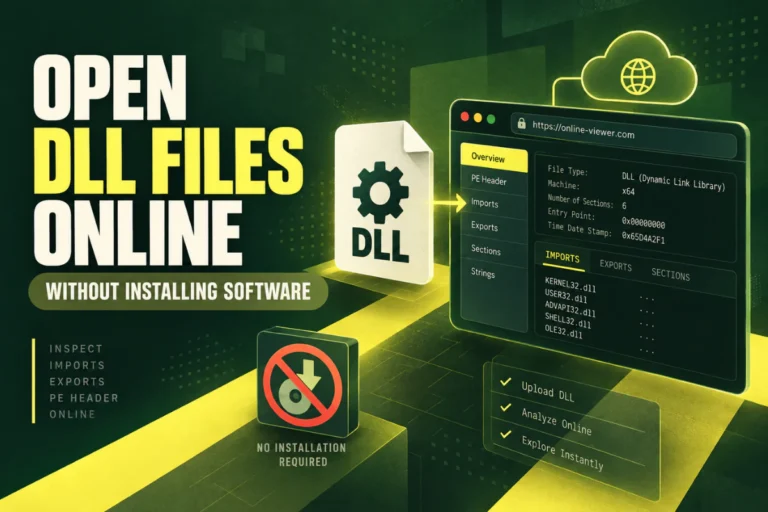
Method 1: Open a DLL File Online
If you want quick technical information, an online DLL viewer is the easiest method. You do not need to install Visual Studio, a debugger, or a reverse-engineering suite.
Follow these steps:
- Open the DLL viewer.
- Choose the DLL file from your Windows 10 computer.
- Upload it for analysis.
- Review the architecture and PE format.
- Check imports, exports, sections, and the SHA-256 hash.
This method is useful if you found an unfamiliar DLL and want basic facts before doing anything with it.
What an Online DLL Viewer Can Show
x86, x64, ARM, or another supported machine type.
Commonly PE32 or PE32+.
Libraries referenced by the DLL.
Named functions exposed by the DLL.
Regions such as .text, .data, and .rsrc.
A SHA-256 fingerprint for comparing files.
If you later move to Windows 11, the basic process is similar. See our guide on how to open a DLL file on Windows 11.
Method 2: Check Whether the DLL Is 32-Bit or 64-Bit
Architecture is one of the first things to check when a DLL will not load.
A 32-bit application normally expects native 32-bit libraries. A 64-bit application normally expects native 64-bit libraries. If the architectures do not match, the program may fail to load the DLL.
A DLL viewer reads the machine type from the Portable Executable header. Common results include:
- x86, commonly used for 32-bit Windows applications
- x64, commonly used for 64-bit Windows applications
- ARM or ARM64, used on supported ARM devices
You may also see PE32 or PE32+. PE32 is normally associated with 32-bit images. PE32+ is used for 64-bit images.
A DLL inside Program Files (x86) may be 32-bit, but do not rely on the folder name alone. Check the actual PE architecture.
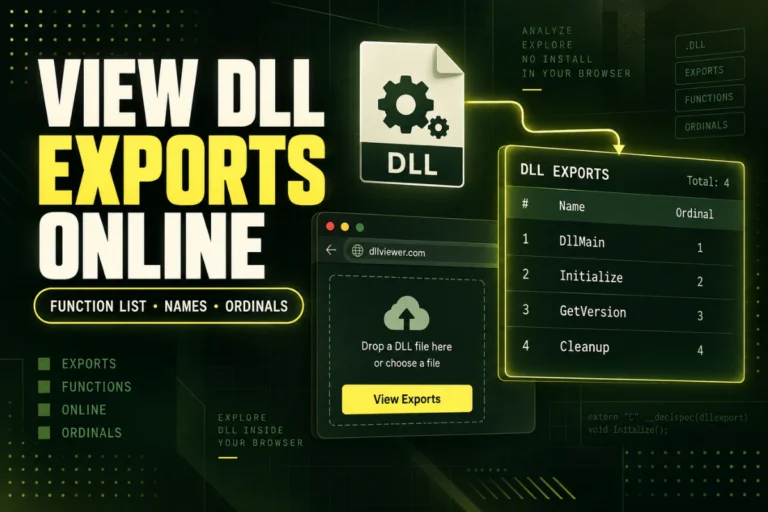
Method 3: View DLL Exports
A DLL can expose functions that other programs are allowed to call. These are known as exports.
Suppose a plugin DLL is expected to provide these functions:
GetPluginVersion
ProcessRequest
ClosePlugin
If the program expects InitializePlugin but your copy of the DLL does not export that function, you may have the wrong version.
A DLL export viewer reads the export directory and lists available names when they exist.
Not every DLL has many named exports. Some functions are exported by ordinal. Others are internal and are not exported at all.
Method 4: Check DLL Imports and Dependencies
The import table shows libraries that the DLL references.
Common Windows imports may include:
USER32.dll
ADVAPI32.dll
GDI32.dll
WS2_32.dll
These names are normal in many Windows programs. The list can also include third-party runtime libraries.
Imports can help when you are investigating a loading error. A missing dependency is one possible reason a program cannot use a DLL.
Other causes include a corrupt file, the wrong architecture, the wrong library version, a missing runtime package, or application-specific settings.
Method 5: Use Notepad Only for a Quick Text Glance
You can right-click a DLL in Windows 10, choose Open with, and select Notepad.
This is usually not useful.
Most of the file will look like random symbols because Notepad is reading binary data as text. You may still spot readable strings such as error messages, URLs, paths, library names, or product names.
That can sometimes provide a clue, but it does not give you a structured view of the DLL.
If you want meaningful technical information, use a PE viewer instead.
Should You Use regsvr32 to Open a DLL?
No.
regsvr32 is not a DLL viewer. It is a Windows utility used to register and unregister certain COM components.
You may see commands like this in old troubleshooting guides:
Do not run this command simply because you want to inspect an unknown DLL. Registration can make system changes, and not every DLL is designed for regsvr32.
If you only want to view the file, a DLL analyzer is the safer and more relevant tool.
Can You Read DLL Source Code?
A normal DLL viewer does not show the original source code.
Native DLLs written in C or C++ are compiled into machine code. The finished binary does not contain the original project in the same form the developer wrote it.
Specialized disassemblers and decompilers can analyze compiled code, but their output is not the same as the original source.
.NET DLLs are different because they often contain Common Intermediate Language and metadata. Dedicated .NET decompilers can often reconstruct readable class and method structures.
If you only want to check architecture, imports, exports, or PE information, you do not need to decompile the DLL.
What Do DLL Sections Mean?
Windows PE files are divided into sections. Each section stores a specific type of data or has specific memory properties.
| Section | Typical contents |
|---|---|
.text | Executable code |
.data | Writable initialized data |
.rdata | Read-only data and tables |
.rsrc | Icons, manifests, strings, and resources |
.reloc | Relocation data |
These names are common conventions. They are not security labels. A file can use custom section names, and a normal-looking section name does not prove that a DLL is safe.
How to Handle a “DLL Not Found” Error
If you are trying to open a DLL because Windows says a file is missing, do not immediately download a replacement from a random DLL website.
Try these steps first:
- Restart the program. A temporary loading issue may clear.
- Repair or reinstall the application. This can restore the correct DLL version.
- Install Windows updates. Some components are delivered through system updates.
- Check the required runtime. Some apps depend on Microsoft Visual C++ or .NET components.
- Check architecture. Make sure the application and required native DLL are compatible.
Downloading a file with the same name is not always a fix. Different applications can use different builds of a DLL with the same filename.
Is It Safe to Open an Unknown DLL?
DLL files can contain executable code. Treat unknown files with care.
Reading metadata is different from loading the library into an application. Still, you should avoid replacing system files, registering unknown DLLs, or copying them into software folders without knowing where they came from.
A DLL can have normal headers, familiar imports, and ordinary section names and still be unsafe. Use reputable security tools when you need a malware assessment.
Windows 10 DLL Troubleshooting Checklist
If a DLL will not load, work through this short checklist:
- ✓ Confirm the file is actually a valid PE/DLL.
- ✓ Check whether it is x86 or x64.
- ✓ Review imported libraries.
- ✓ Confirm expected exported functions exist.
- ✓ Compare its SHA-256 hash if you have a known-good copy.
- ✓ Reinstall the original application if the DLL is missing or corrupt.
The online DLL analyzer can help with several of these checks.
Frequently Asked Questions
What program can open a DLL file on Windows 10?
Windows 10 does not include a normal document-style DLL viewer. Use a PE or DLL analyzer to inspect the file. Developers may use more advanced tools for debugging or decompilation.
Why does Notepad show strange characters in a DLL?
DLL files contain binary data. Notepad is a text editor, so it tries to display binary bytes as characters. The result is mostly unreadable.
Can I open a DLL without running it?
Yes. A viewer can parse the DLL as data and display its structure without loading it as a Windows library.
How do I know if a DLL is 32-bit or 64-bit?
Check the PE machine type. x86 commonly means 32-bit, while x64 means 64-bit. An online DLL viewer can read this information for you.
Can I view functions inside a DLL?
You can view functions listed in the export table when names are available. Internal functions that are not exported will not appear in a basic export list.
Can Windows 10 open a DLL by double-clicking it?
Not in a useful document-style way. DLLs are designed to be loaded by software, not opened like text files or images.
Should I download a missing DLL from another website?
It is usually safer to repair or reinstall the original application from its official source. A random DLL download may be the wrong version, the wrong architecture, or unsafe.
The Best Way to Open a DLL File on Windows 10
If your goal is to inspect a DLL, start with a viewer instead of trying to execute, register, or modify the file.
A good DLL viewer can quickly answer the most useful questions. Is the file 32-bit or 64-bit? Which libraries does it reference? Which functions does it export? What sections are present? What is its file hash?
Those details are often enough to identify a file, compare versions, or start troubleshooting a loading problem.
When you need deeper code analysis, move to a dedicated decompiler, disassembler, or debugger. But for basic inspection, there is no need to make the process complicated.
Have a DLL file to check?
Use our online viewer to inspect the file’s architecture, imports, exports, PE structure, sections, and hash.