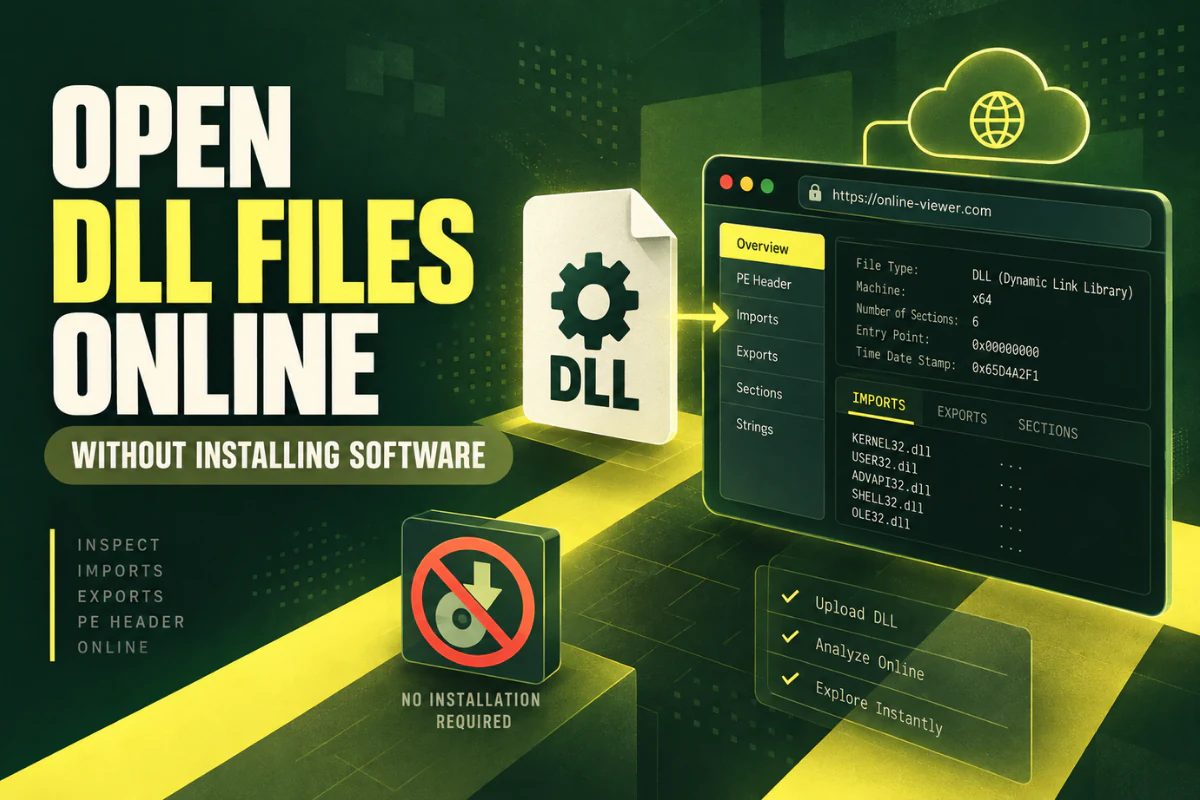
How to Open DLL Files Online Without Installing Software
You do not need to install Visual Studio, a debugger, or a large reverse-engineering program just to inspect a DLL file. If you only want to check the file type, architecture, imports, exports, sections, or hash, an online DLL viewer can do the basic work in your browser.
The key is knowing what an online tool can show you and what it cannot. A DLL is a Windows binary file, not a normal document. Opening it online usually means reading its structure, not running the code inside it.
This guide shows you how to open DLL files online without installing software, what to look for in the results, and when a desktop tool is still the better choice.
On this page
What Does It Mean to Open a DLL File Online?
When people say they want to open a DLL, they often mean one of four things:
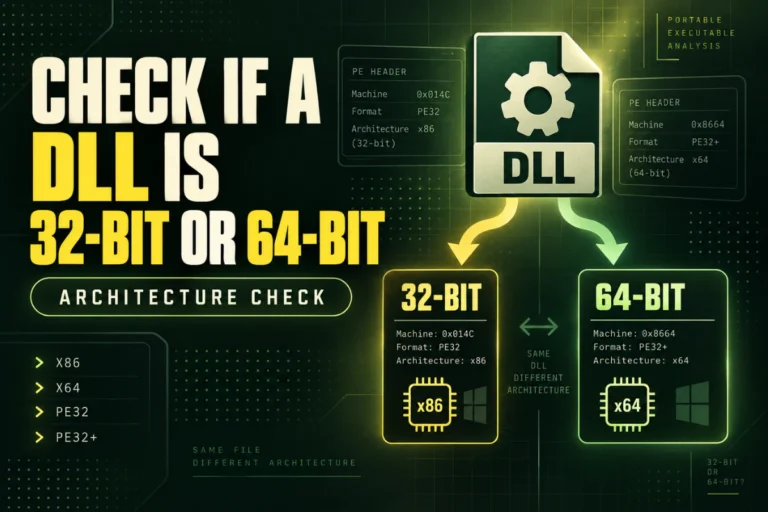
- Check whether the DLL is 32-bit or 64-bit.
- See which functions the DLL exports.
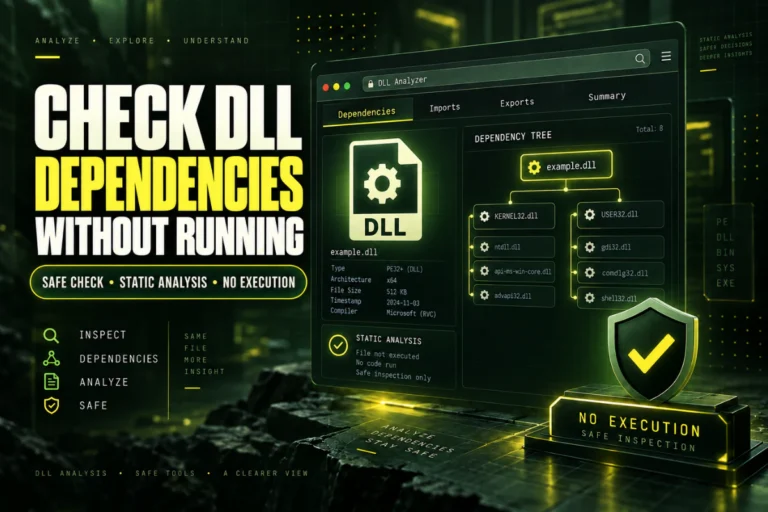
- Check which other libraries it depends on.
- View technical information inside the PE header.
An online DLL viewer is designed for these tasks. It reads the binary structure and converts key fields into readable results.
That is different from launching the DLL. A DLL normally runs only when another program loads it. A viewer does not need to use the DLL in that way. It can inspect the file as data.
Use our Open DLL File Online tool to inspect PE details, architecture, imports, exports, sections, and file hashes.
How to Open a DLL File Online
The process is simple. You do not need to change the DLL extension or convert the file first.
Locate the DLL on your computer. Do not rename it to TXT, ZIP, or another file type.
Select the file in the upload box. A proper DLL analyzer should validate that the file contains a supported PE structure.
Start with architecture, PE format, file size, and hash.
These tables can tell you what the DLL depends on and which functions it exposes.
If you are troubleshooting software, compare the results with the application requirements or a known-good copy of the DLL.
What Can an Online DLL Viewer Show?
A basic DLL analyzer can answer many useful questions without any local software installation.
| Result | What it tells you | Why it matters |
|---|---|---|
| Architecture | x86, x64, ARM, or another machine type | Helps spot 32-bit and 64-bit mismatches |
| PE format | PE32 or PE32+ | Shows the executable image format |
| Imports | Referenced DLL libraries | Useful for dependency checks |
| Exports | Functions exposed by the DLL | Useful when checking library APIs |
| Sections | Regions such as .text, .rdata, and .rsrc | Shows how the binary is organized |
| SHA-256 hash | A fingerprint of the exact file | Helps compare two copies |
Example: Reading a DLL Result
Imagine you upload a DLL and the analyzer gives you these values:
Architecture: x64
Format: PE32+
Section count: 6
Imports: KERNEL32.dll, USER32.dll
Exports: Initialize, ProcessData, Shutdown
SHA-256: 2f19…a83c
You can learn several things from this small report.
The DLL is a 64-bit image. It imports common Windows libraries. It exposes three named functions. The SHA-256 value gives you a way to compare this exact copy with another file.
If a 32-bit program is trying to load this 64-bit DLL, the architecture mismatch may explain why it fails. If the program expects an export called GetVersion and that function is missing, you may have the wrong DLL version.
Why Use an Online DLL Viewer Instead of Installing Software?
A desktop analysis tool is useful when you need advanced features. But many DLL questions are simple. Installing a large program just to answer one small question can be unnecessary.
An online viewer makes sense when you want to:
- Check one or two DLL files quickly.
- Identify a DLL architecture.
- Look for an exported function.
- Review common dependencies.
- Check a file hash.
- Inspect a file from a computer where you cannot install software.
It can also be useful when helping someone remotely. Instead of explaining how to install and configure a developer tool, you can ask them to inspect the file and share the technical result.
Online DLL Viewer vs Desktop DLL Tools
Neither option is always better. The right choice depends on the job.
If you only need metadata, an online tool is usually enough. If you need to debug code, trace execution, inspect memory, or perform deep reverse engineering, use a specialist desktop application.
Can You View DLL Exports Online?
Yes. A DLL export viewer reads the export directory in the PE file.
Exported functions are entry points that other programs can call. A library may expose names such as:
LoadSettings
ConvertFile
CloseSession
Seeing these names can help you check whether you have the correct build of a DLL.
Keep in mind that not every function inside a DLL is exported. Some exports may use ordinals instead of readable names. C++ names can also appear decorated or mangled.
Can You Check DLL Dependencies Online?
Yes, at least at the import-table level.
A DLL may reference libraries such as:
USER32.dll
ADVAPI32.dll
VCRUNTIME140.dll
This can provide a useful starting point when an application fails to load.
For example, a third-party runtime import may indicate that the program needs an additional runtime package. An import list alone does not prove that every dependency is installed or compatible, but it tells you what the binary expects.
Can You Read DLL Source Code Online?
Not with a basic DLL viewer.
Native DLLs are compiled into machine code. The original C or C++ source files are not stored inside the DLL in their original form.
A disassembler can convert machine instructions into assembly language. A decompiler attempts to reconstruct higher-level code. Those jobs require more advanced analysis than simply reading PE metadata.
.NET DLLs are often easier to inspect because they contain managed metadata and intermediate language. A dedicated .NET decompiler can sometimes produce readable class and method code.
If you only need to identify the file, check its architecture, view exports, or inspect dependencies, a normal online DLL viewer is the simpler choice.
Check Privacy Before Uploading a DLL
An online tool requires you to send the file to a website unless all processing happens locally in your browser. That means you should think about what the DLL contains before uploading it.
A good rule is simple: do not upload confidential software, proprietary company libraries, private client code, unreleased products, or files covered by a confidentiality agreement unless you are allowed to do so.
- Is this DLL public or non-sensitive?
- Do I have permission to upload it?
- Does the service explain how files are handled?
- Is the file deleted after analysis?
- Do I need only metadata, or should I use a local tool instead?
Our DLL analyzer is designed for temporary inspection rather than permanent file storage. Still, avoid uploading sensitive DLLs to any online service when a local analysis tool is more appropriate.
Do Not Use regsvr32 Just to View a DLL
A common mistake is to search for a way to “open” a DLL and end up following instructions that use regsvr32.
That utility is not a viewer.
It is used to register certain COM DLL components. Running it against an unknown DLL is not a sensible way to inspect a file.
If your purpose is simply to see architecture, imports, exports, or PE information, use a viewer.
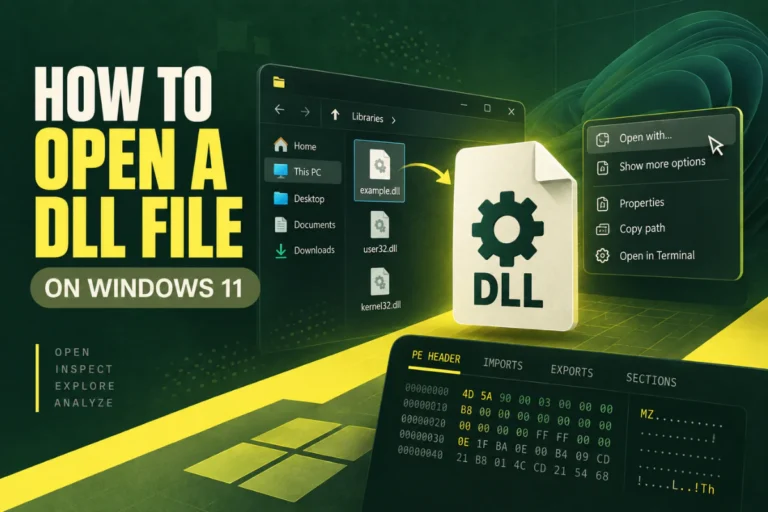
What If You Are Using Windows 10 or Windows 11?
The online method is almost the same on both systems because the browser handles the upload.
If you need operating-system-specific details, see these guides:
Those guides cover local behavior, common Windows errors, architecture checks, and why double-clicking a DLL does not work like opening a normal document.
When an Online DLL Viewer Is Not Enough
There are times when you should move to a desktop tool.
You will need something more advanced if you want to:
- Debug a DLL while a program is running.
- Step through assembly instructions.
- Inspect memory or registers.
- Decompile managed code in depth.
- Modify resources or binary structures.
- Analyze malware in a controlled environment.
An online viewer is best for quick inspection. It gives you useful facts without turning a small task into a full reverse-engineering project.
Frequently Asked Questions
Can I open a DLL file without installing anything?
Yes. A browser-based DLL viewer can inspect common PE information without requiring a desktop installation.
Can I open a DLL file in Chrome or Edge?
You can use Chrome, Edge, Firefox, or another modern browser to access an online DLL viewer. The browser itself does not understand DLL structure, so the viewing website performs the analysis.
Can an online DLL viewer tell me if a file is 32-bit or 64-bit?
Yes. The viewer can read the machine type and PE format from a valid Windows Portable Executable file.
Does opening a DLL online execute it?
A properly designed metadata viewer should parse the file as data rather than load it as a Windows library. That is different from executing or registering the DLL.
Can I see exported DLL functions online?
Yes, when the DLL has a readable export table. A viewer can list named exports and other available export information.
Is an online DLL viewer a virus scanner?
No. PE metadata can help you understand a file, but it does not prove whether the DLL is safe. Use reputable security tools for malware scanning and deeper security analysis.
A Simple Way to Inspect DLL Files
You do not need a full developer setup to answer basic questions about a DLL.
If you want to know whether the file is 32-bit or 64-bit, which libraries it imports, which functions it exports, how its PE sections are arranged, or what its SHA-256 hash is, an online DLL analyzer is a practical first step.
Use desktop tools when you need deeper code analysis. Use an online viewer when you need quick facts.
Inspect your DLL without installing software
Upload a DLL and check its architecture, imports, exports, sections, PE details, and file hash.
Open DLL File Online