How to Find Exported Functions in a DLL
If a Windows program depends on a DLL, it may call functions that the library exposes through its export table. Those functions can often be listed without running the DLL.
This is useful when you need to check whether a function exists, compare two DLL versions, troubleshoot an entry point error, or understand the public interface of a library.
This guide explains how to find exported functions in a DLL, how named exports differ from ordinals, why some names look unusual, and what to do if the function you expect is missing.
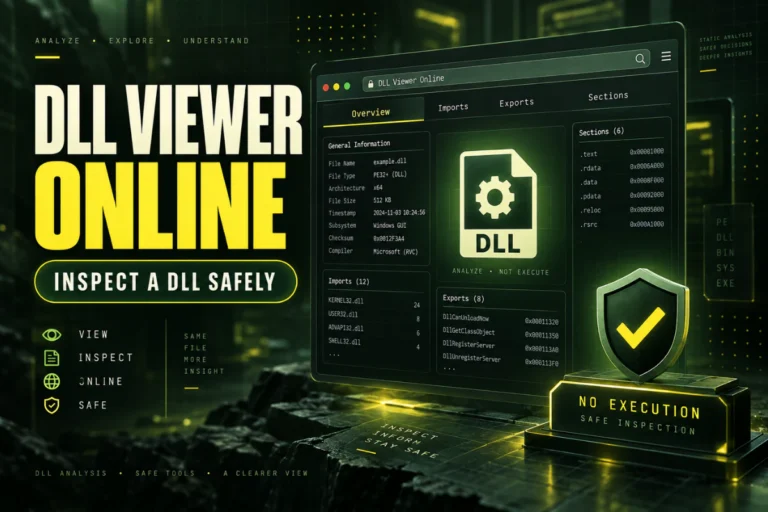
Use our DLL export viewer to inspect the file. Upload the DLL, open the exports section, and look for the function name you need.
On this page
What Is an Exported Function?
An exported function is a function that a DLL makes available to other software.
Imagine a graphics library that offers these functions:
LoadTexture
DrawImage
GetRendererVersion
ShutdownRenderer
Another program can load the DLL and call these exported functions if it knows their names or ordinals and uses the correct calling interface.
The DLL may contain many more internal functions, but only the exported ones are part of its public interface.
Why You Might Need to Find Exported Functions
There are several common reasons to inspect a DLL export list.
Confirm that the library provides the function your application expects.
See which exports were added, removed, or renamed.
A missing export can explain an entry point or procedure error.
Review the functions a plugin exposes to its host application.
How to Find Exported Functions in a DLL Online
You do not need to install a full developer tool just to read the export table.
- Open the Open DLL File Online tool.
- Select the DLL you want to inspect.
- Upload the file for analysis.
- Find the section labeled exports or exported functions.
- Search the list for the function name you need.
- If the name is missing, check for ordinals, decorated names, or a different DLL version.
This process reads the DLL structure. It does not need to call the exported functions.
For a broader guide, see How to View DLL Exports Online.
What the Export Table Actually Stores
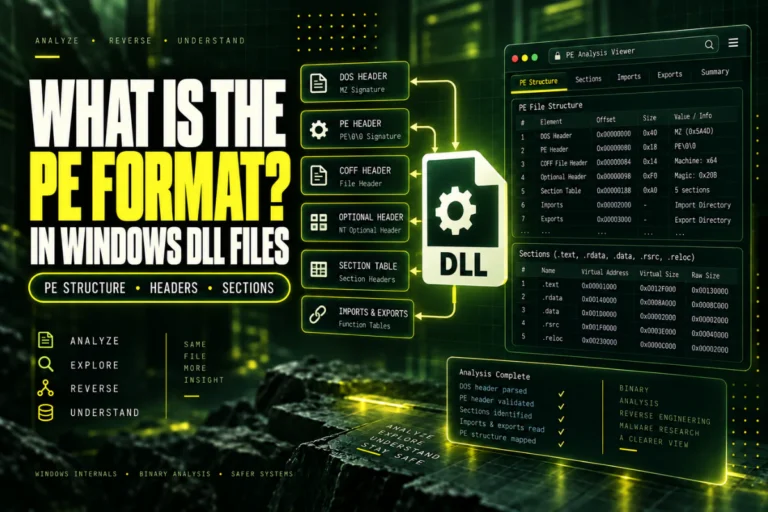
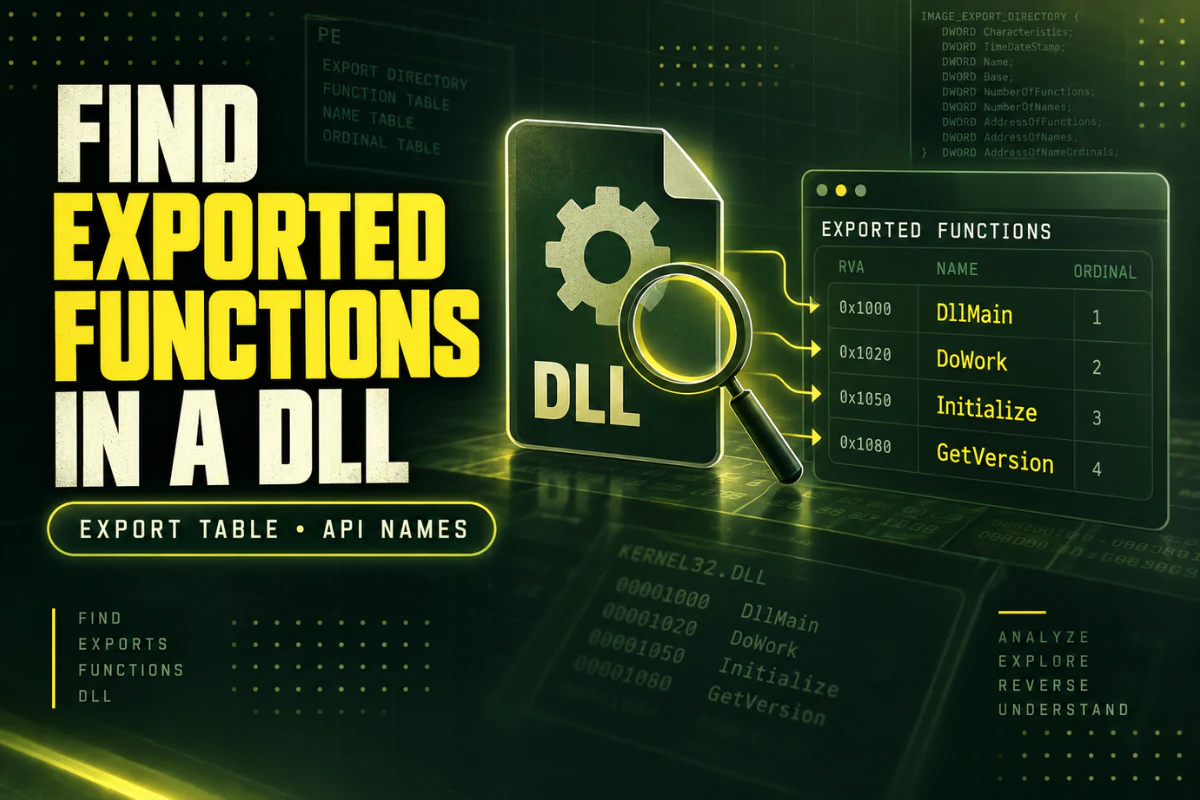
The Windows Portable Executable format includes an export directory that can contain information about public functions and symbols.
A viewer may display:
- Exported names
- Ordinals
- Relative virtual addresses
- The library name
- The total number of exported functions
Not every DLL uses all of these fields in the same way.
Named Functions Are the Easiest to Find
A named export has a readable name such as:
CreateSession
OpenFile
CloseFile
If your application documentation says it needs GetVersion, you can check the export list directly for that name.
If the function is present, you have confirmed that the DLL exposes it under that name.
If it is absent, you need to investigate further.
Some Exports Use Ordinals Instead of Names
A DLL can export a function by a numeric ordinal.
An ordinal might look like this:
Ordinal 2
Ordinal 17
Ordinal 42
Ordinals are compact and can be useful when software is designed around stable numeric identifiers.
They are harder for a person to understand because the number does not explain what the function does.
| Export style | Example | Easy to understand? |
|---|---|---|
| Named | GetVersion |
Yes |
| Ordinal | #17 |
Usually not |
Why Export Names Sometimes Look Strange
C++ compilers often decorate function names.
You may expect a simple name like:
But the export table may contain something like:
This is called name decoration or name mangling.
The compiler can encode information about the function signature into the exported name.
If the function you need appears to be missing, check whether it may exist under a decorated name.
What If the Function Is Not in the Export List?
A missing name does not always mean the function does not exist anywhere in the file.
Possible reasons include:
The function is internal. Internal functions are not listed in the export directory.
The function is exported by ordinal. There may be no readable name.
The name is decorated. C++ symbols may look different from the source-level function name.
You have the wrong version. The function may only exist in another build.
You have the wrong architecture. Separate x86 and x64 builds may not expose identical interfaces.
How to Compare Exported Functions Between Two DLLs
Export comparison is a quick way to spot differences between versions.
Suppose the older DLL exports:
OpenDocument
SaveDocument
Close
The newer DLL exports:
OpenDocument
SaveDocument
ExportDocument
Close
The second version adds ExportDocument.
If a new application requires that function, the older DLL may not be compatible even if both files have the same filename.
Exported Functions and Entry Point Errors
Windows applications sometimes show an error saying a procedure entry point could not be located in a DLL.
This usually means the application tried to find a specific exported function and did not find the expected name in the loaded library.
For example:
DLL exports: CreateRenderer, DestroyRenderer
CreateRendererV2 found: No
That points to a version or compatibility issue.
It does not necessarily mean the DLL is corrupt.
Check Architecture When Exports Differ
Some software vendors provide separate x86 and x64 libraries.
The two files may have similar names but different export lists.
If you are comparing DLLs, also check their architecture.
Use How to Check Whether a DLL Is 32-Bit or 64-Bit if you are not sure which build you have.
Exports Are Not the Same as Imports
An export tells you what the DLL provides.
An import tells you what the DLL needs from other libraries.
The next article in this series will cover DLL imports and dependencies in more detail.
Can You Find Every Function in a DLL This Way?
No.
The export table shows only functions made available to other software.
Internal functions are not listed.
If you need to inspect internal native functions, you need a disassembler or decompiler. If the DLL is a managed .NET assembly, a .NET decompiler can often show classes and methods more clearly.
For a broader overview, read Best Ways to Read a DLL File.
Do Not Execute a DLL Just to Inspect Its Exports
You do not need to load or register a DLL to read the export table.
A PE viewer can inspect the data directly.
Do not use regsvr32 or another execution method just because you want to see exported functions. Those actions serve different purposes and may change the system.
A Good Export-Checking Workflow
If you are troubleshooting a DLL, use this order:
- Check architecture. Confirm that the DLL matches the application.
- Open the export list. Look for the expected name.
- Check decorated names. Especially for C++ libraries.
- Check ordinals. The export may not have a readable name.
- Compare versions. A different build may contain the function you need.
- Review imports if loading still fails. A missing dependency may be the real problem.
What to Check If the Export Exists but the Program Still Fails
Finding the function in the export list is useful, but it does not guarantee that the application can call it successfully.
The program may still fail if the DLL uses a different calling convention, if the function signature changed, if another dependency is missing, or if the application loads a different copy of the DLL from another folder.
When that happens, check the DLL path, architecture, version, and imports. If several copies of the same DLL exist on the system, confirm which one the application actually loads.
This is also where a file hash can help. Two files with the same name may be completely different builds. Comparing SHA-256 hashes gives you a quick way to tell whether the files are byte-for-byte identical.
Frequently Asked Questions
How do I find exported functions in a DLL?
Use a DLL export viewer to read the PE export directory and list named exports and available ordinal information.
Can I find DLL exports without running the file?
Yes. The export table can be read directly from the file as data.
Why does a DLL have no named exports?
It may export only by ordinal, use another interface, or expose no traditional PE exports at all.
Can an exported function have a different name than expected?
Yes. C++ compilers can decorate symbol names, and vendors can rename functions between versions.
Does every function inside a DLL appear in the export list?
No. Only functions exposed through the export directory appear there.
Can I compare exports between two DLLs?
Yes. Comparing the export lists can reveal added, removed, or renamed functions between versions.
The Simple Way to Find DLL Functions
If you need to know what a DLL exposes, start with the export table.
Look for the function name you need. If it is not present, check ordinals, decorated names, architecture, and library version before assuming the file is broken.
This gives you a fast and reliable way to understand the public interface of a DLL without trying to run it.
Find exported functions in your DLL
Upload a DLL and inspect its exports, architecture, imports, sections, PE details, and hashes.
View DLL Exported FunctionsFurther reading
Related guides: