“Entry Point Not Found” DLL Error: Causes and Fixes
An “Entry Point Not Found” DLL error usually means an application loaded a DLL but could not find a function it expected that DLL to export.
This is different from a simple missing-DLL error. The file may be present, valid, and even the correct architecture, but still be the wrong version or expose a different API.
This guide explains what an entry point not found DLL error means, the most common causes, and the safest ways to fix it without downloading random replacement files.
Check the DLL version and export table first. If the application expects a function that is missing, you probably have the wrong DLL build, a version mismatch, or an incomplete software update. Repair or reinstall the application from its official source.
On this page
What Does “Entry Point Not Found” Mean?
When an application uses a DLL, it may ask Windows to resolve a function by name or ordinal.
For example, the application may expect a function called:
If the loaded DLL does not export that function, Windows cannot complete the lookup.
You may see a message similar to:
This Error Usually Involves Exports, Not the PE Loader Entry Point
The wording can be confusing.
“Entry point” in this error usually refers to a callable exported function that the application expects.
It is not normally referring to the PE AddressOfEntryPoint used by the Windows loader for DLL initialization.
| Term | Meaning |
|---|---|
| PE entry point | Loader initialization location, often related to DllMain |
| Procedure entry point | A function the application expects to find in a DLL export table |
For the loader concept, read What Is a DLL Entry Point?.
Cause 1: You Have the Wrong DLL Version
This is one of the most common causes.
Imagine version 4.0 of an application expects:
ProcessDataV2
ShutdownEngine
But the installed DLL is from version 3.1 and exports:
ProcessData
ShutdownEngine
The program may start loading the DLL successfully but fail when it looks for ProcessDataV2.
Fix 1: Repair or Reinstall the Application
The safest first fix is to repair or reinstall the affected software from its official source.
This restores the application EXE and its DLLs as a matched set.
That is better than replacing one file manually because the installer also restores related dependencies and configuration.
Cause 2: A Partial Update Mixed Old and New Files
Entry-point errors often appear after an update that did not complete cleanly.
You can end up with:
DLL: version 7.9
Result: export mismatch
The application expects functions added in the newer DLL, but the older DLL remains on disk.
Fix 2: Complete the Official Update
Run the application’s updater again or reinstall the latest official build.
If the software supports a repair option, use it before manually copying files.
Also restart Windows if the update replaced DLLs that were previously in use.
Cause 3: The Wrong Same-Named DLL Is Being Loaded
Two unrelated DLLs can have the same filename.
Windows or the application may locate a copy from a different folder than the one you expect.
Example:
The second DLL may be perfectly valid but expose a different export set.
Fix 3: Check the Full DLL Path
When troubleshooting, identify the exact DLL file being loaded.
Compare:
- Full path
- FileVersion
- ProductVersion
- SHA-256
- Architecture
- Exports
Do not troubleshoot only by filename.
Cause 4: The Export Name Changed
Software vendors can rename, remove, or replace exported functions between releases.
For example:
New export: ProcessDataEx
If an older application expects the old name but only the newer DLL is installed, the lookup can fail.
Cause 5: The Function Is Exported by Ordinal Instead of Name
DLL exports can be exposed by name, ordinal, or both.
An ordinal is a numeric identifier.
Ordinal 2
Ordinal 17
If an application expects a named export but the DLL exposes only an ordinal, or if the ordinal mapping changed between versions, compatibility can break.
Cause 6: C++ Name Decoration Changed
C++ functions can have decorated export names that encode details such as parameter types and calling conventions.
A small code or build change can therefore alter the exported symbol name.
Example:
If the application was built against one decorated symbol but the DLL exports another, the lookup may fail.
This is one reason stable C-style exported APIs are often preferred for plugin interfaces.
Cause 7: Architecture Mismatch Can Produce Related Errors
An x86/x64 mismatch usually causes a load-format error rather than a classic procedure-entry-point message.
But architecture should still be checked because troubleshooting often involves manually swapped files.
| Host | Native DLL | Compatible? |
|---|---|---|
| x86 | x86 | Yes |
| x86 | x64 | No |
| x64 | x64 | Yes |
See How to Fix 32-Bit and 64-Bit DLL Mismatch Errors.
Cause 8: The DLL Depends on Another Incompatible DLL
The top-level DLL may expose the correct function but fail internally because one of its own dependencies is wrong.
Example:
└─ engine.dll
└─ vendor_runtime.dll
If vendor_runtime.dll is outdated, engine.dll may fail while resolving its own imports.
This can produce a different loader error, but it can appear alongside version-mismatch problems.
See How to Check DLL Dependencies Without Running the File.
Cause 9: A Windows Update or Runtime Update Changed Compatibility
Sometimes an application depends on a runtime or system API that changed through servicing, software updates, or an incomplete installation.
The right fix is usually to update or repair the application and its supported runtime packages.
Do not replace Windows system DLLs manually with copies from another PC unless you are using supported system repair methods.
Cause 10: A Random DLL Replacement Broke the Export Set
This is a common self-inflicted cause.
A user sees a missing DLL error, downloads a same-named file from an unrelated website, and copies it into the application folder.
The application then finds the file but reports “Entry Point Not Found” because the replacement exports a different API.
Read Why You Should Avoid Random DLL Download Websites.
How to Inspect the DLL Export Table
A static PE viewer can show the exported names and ordinals without executing the DLL.
You may see something like:
Compare this list with the function named in the error message.
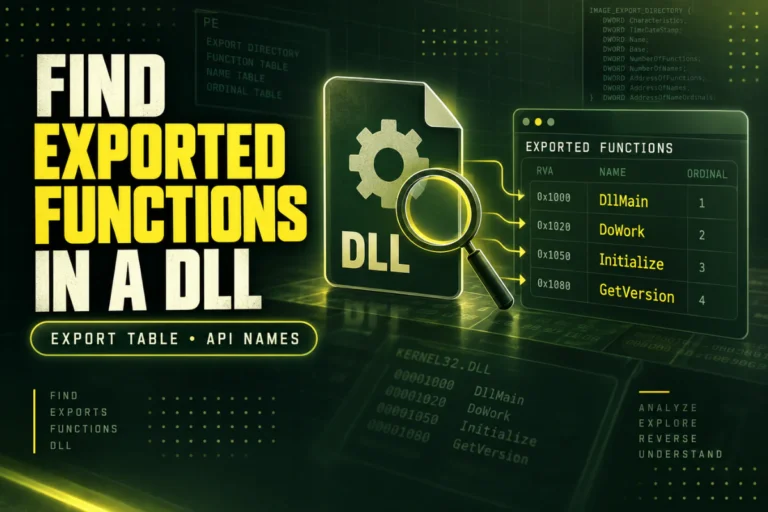
For the full process, read How to Find Exported Functions in a DLL.
Check Version Information Alongside Exports
If the expected function is missing, version information can help explain why.
Compare:
- FileVersion
- ProductVersion
- OriginalFilename
- CompanyName
For example, an application updated to version 10.4 may accidentally be loading a DLL from version 9.8.
See How to Check DLL Version Information.
Use SHA-256 to Confirm Which DLL You Have
If you have a known-good installation, compare SHA-256 hashes.
Problem DLL: 4C32…D110
Result: different files
A different hash proves the binaries differ, though it does not by itself tell you which one is correct.
Compare version, source, architecture, and exports next.
Can a .NET DLL Cause an Entry Point Error?
Yes, especially when native code expects a traditional exported function but receives a normal managed assembly instead.
Managed public methods are not usually the same as native PE exports.
If the host expects InitializePlugin as a native export, a C# method with the same name is not automatically a drop-in replacement.
See Native DLL vs .NET DLL: What Is the Difference?.
Do Not Use regsvr32 to Fix a Missing Export
regsvr32 registers certain COM DLLs.
It does not add missing exports to a DLL and does not make an incompatible version compatible.
If the DLL does not expose the procedure your application expects, registration will not fix that API mismatch.
A Safe Fix Order
A Quick Cause-to-Fix Matrix
| What you find | Likely cause | Best fix |
|---|---|---|
| Expected export is missing | Wrong DLL version | Repair/reinstall app |
| Same filename, wrong path | Wrong copy loaded | Fix install/search path |
| Different SHA-256 from working PC | Different binary | Compare version/source |
| Correct export, child DLL outdated | Dependency mismatch | Repair runtime/application |
When a DLL Viewer Helps
A static viewer is ideal for this error because you usually need to inspect the export table, version, architecture, and dependencies.
Our Open DLL File Online tool can inspect PE format, architecture, imports, exports, sections, SHA-256, and basic .NET indicators without executing the DLL.
That can quickly show whether the procedure named in the error is actually present.
Frequently Asked Questions
What does “Entry Point Not Found” mean?
It usually means the application expected a function exported by a DLL, but the loaded DLL does not provide that function under the expected name or ordinal.
Is this the same as the DLL PE entry point?
No. The error usually refers to an exported procedure, not the PE AddressOfEntryPoint used during DLL initialization.
Can the wrong DLL version cause this error?
Yes. It is one of the most common causes.
Can a partial update cause an entry-point error?
Yes. Mixing a newer application executable with an older DLL can create an export mismatch.
Can architecture mismatch cause a similar problem?
Architecture mismatch more often causes a load-format error, but it should still be checked when DLLs have been replaced manually.
What is the safest fix?
Repair or reinstall the application from its official source so the EXE, DLLs, exports, versions, and dependencies are restored as a matched set.
The Best Way to Fix an Entry Point Not Found Error
Start with the exact function name from the error message.
Inspect the DLL export table and confirm whether that function exists. Then compare the DLL version, full path, architecture, dependencies, and SHA-256 against a known-good installation if possible.
If the export is missing or the files are from mixed releases, repair or reinstall the application instead of downloading a standalone DLL.
Check whether the DLL exports the missing function
Inspect exports, imports, architecture, PE format, sections, SHA-256, and basic .NET indicators without running the DLL.
Inspect DLL Exports