How to Check DLL Dependencies Without Running the File
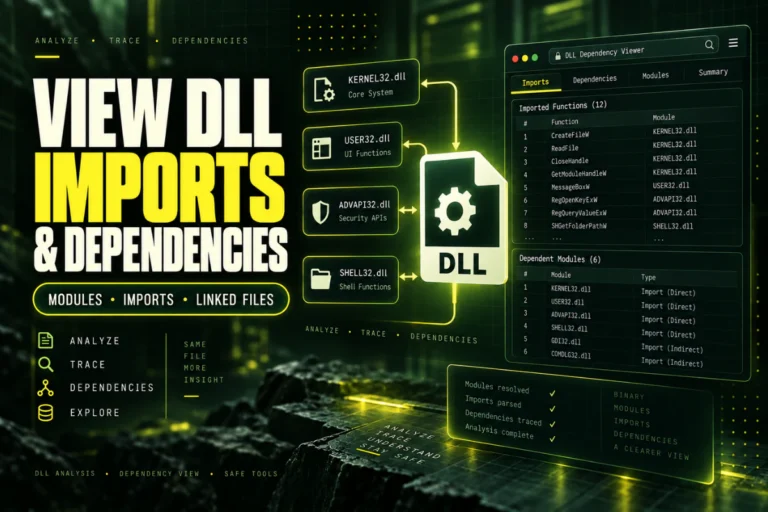
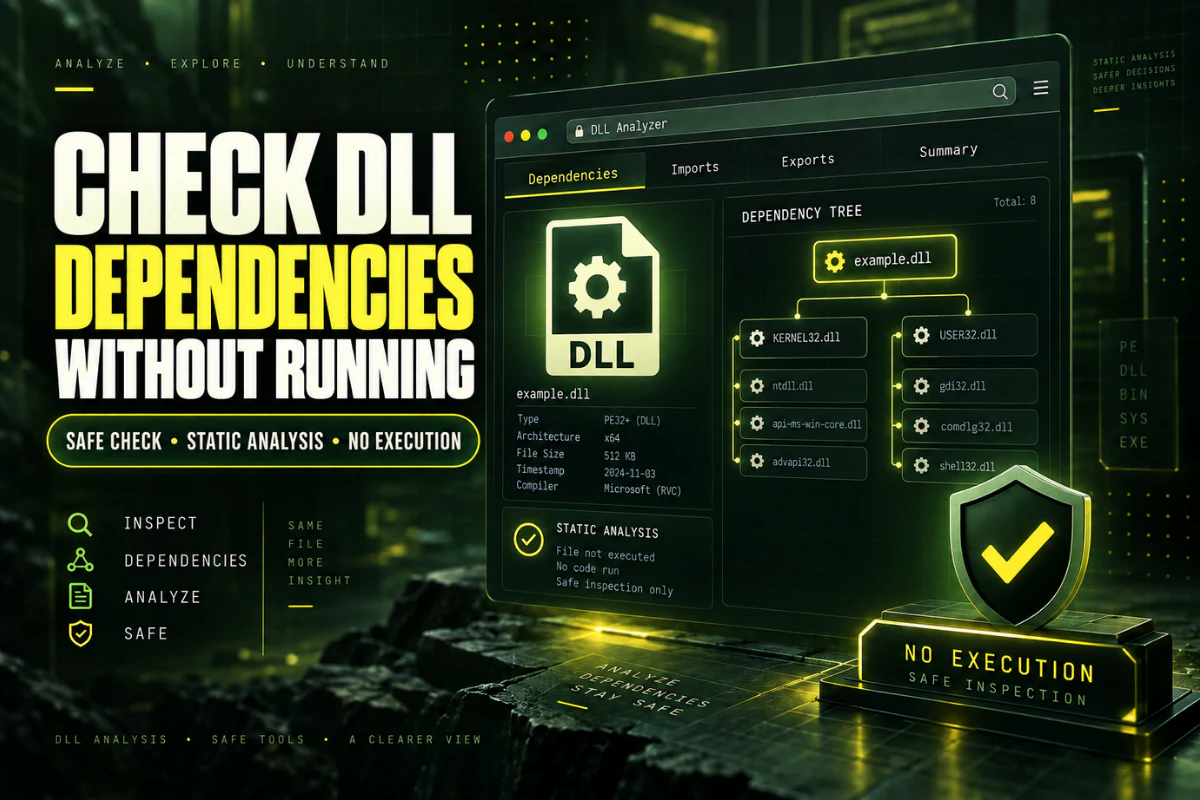
You do not need to run a DLL to find many of its dependencies. Windows DLL files usually store import information inside the Portable Executable structure. A static analyzer can read that information and show which libraries the file expects to use.
This is useful when a program fails to load a DLL, when you want to identify missing runtime files, or when you need to inspect an unfamiliar library without executing it.
This guide explains how to check DLL dependencies without running the file, what static dependency analysis can reveal, what it can miss, and how to use the results for troubleshooting.
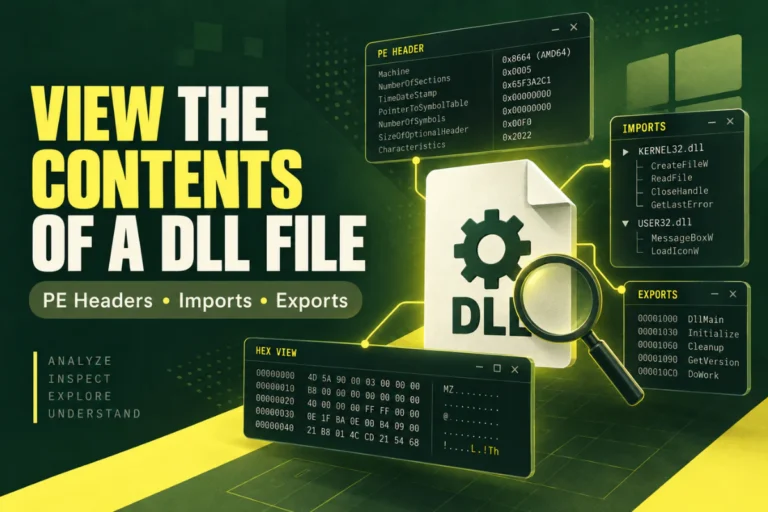
Use our DLL dependency checker to inspect the file’s imported libraries, architecture, PE details, exports, sections, and hash without running the DLL.
On this page
What Is a DLL Dependency?
A DLL dependency is another library or component that a DLL expects to use.
For example, a DLL may need Windows system libraries, Microsoft runtime files, or another DLL that belongs to the same application.
A simple dependency list could include:
USER32.dll
VCRUNTIME140.dll
customengine.dll
The first two are common Windows libraries. VCRUNTIME140.dll points to a Microsoft Visual C++ runtime. customengine.dll looks like an application-specific dependency.
Why Check Dependencies Without Running the DLL?
Running an unknown DLL is not necessary when your goal is only to inspect its structure.
Static analysis lets you learn useful information without loading the file into a process.
Read dependency metadata without calling DLL code.
Spot missing runtimes and third-party libraries quickly.
Use an online viewer instead of installing a developer tool.
See whether two DLL versions depend on different libraries.
How to Check DLL Dependencies Online
The easiest method is to inspect the import table.
- Open the Open DLL File Online tool.
- Choose the DLL you want to inspect.
- Upload it for static analysis.
- Find the imports or dependencies section.
- Review the listed DLL names.
- Check architecture and PE format if the file still will not load.
This gives you a first-level dependency map without trying to execute the library.
For a broader import guide, read How to View DLL Imports and Dependencies.
What Static Dependency Analysis Can Show
| Check | What you learn |
|---|---|
| Imported DLL names | Libraries referenced directly by the file |
| Imported functions | Functions the DLL expects from those libraries |
| Architecture | x86, x64, ARM, or another target |
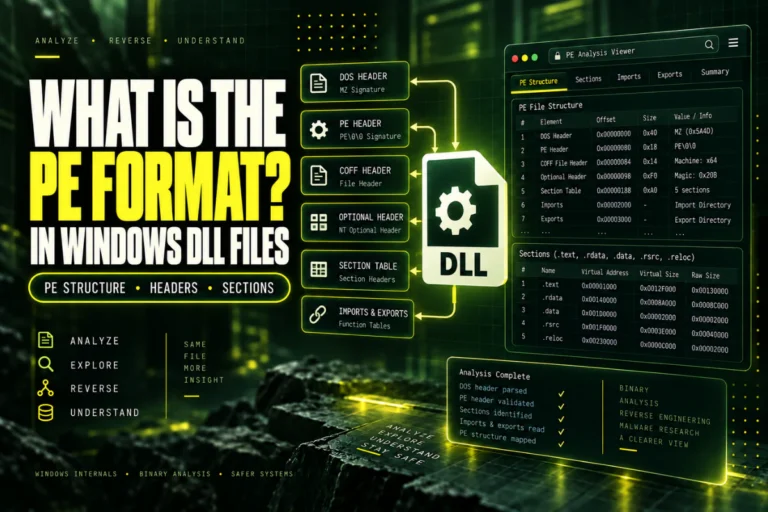
| PE format | PE32 or PE32+ |
| Hash | A fingerprint for comparing DLL copies |
Start With Imported Libraries
The import table is the most useful place to begin.
Common Windows imports include:
USER32.dll
ADVAPI32.dll
GDI32.dll
WS2_32.dll
These are normal in many applications.
More interesting clues often come from runtime or application-specific names.
Look for Runtime Dependencies
Some imports point to software runtimes that must be installed correctly.
Common examples include:
MSVCP140.dll
ucrtbase.dll
If a program reports that one of these files is missing, the safest fix is usually to install or repair the correct Microsoft runtime package from an official source.
Do not download a random copy of a runtime DLL from an unrelated website.
Check Application-Specific Dependencies
A DLL may also depend on libraries that belong only to the application.
For example:
licenseengine.dll
pluginhost.dll
If one of these is missing, reinstalling the original application is often a better fix than searching the internet for individual files.
Architecture Is Part of Dependency Troubleshooting
A dependency can exist on the computer and still be unusable if its architecture does not match.
For example:
Dependency: x86
Result: native architecture mismatch
If you suspect this problem, read How to Check Whether a DLL Is 32-Bit or 64-Bit.
A Static Import List Is Not the Full Dependency Story
Static analysis is powerful, but it has limits.
Some applications load libraries dynamically while they run. Those dependencies may not appear in the normal import table.
A program can also delay loading a library until a specific feature is used.
This means a static dependency checker is the best first step, not always the final step.
How to Troubleshoot a Missing Dependency
If the import list points to a file you cannot find, use a structured process.
What About “Module Could Not Be Found” Errors?
A Windows message saying a module could not be found does not always mean the main DLL is missing.
The file you are trying to load may be present, but one of its dependencies may be missing.
This is why dependency inspection is useful. It can reveal supporting libraries that the original error message does not name clearly.
Can You Check Dependencies With Notepad?
Not reliably.
You may see library names as readable strings if you open a DLL in a text editor, but you will not get a clean dependency structure.
A PE or DLL analyzer is much better because it understands the import table.
For general viewing, see Best Ways to Read a DLL File.
Do Not Use regsvr32 for Dependency Checking
regsvr32 is not a dependency checker.
It is a Windows utility used to register certain COM components.
Running an unknown DLL through regsvr32 just to see whether it works is not the right approach.
Read the import table first. Use runtime analysis only if the static dependency list does not explain the problem.
When You Need Runtime Dependency Analysis
Static checking is enough for many DLL problems.
You may need a runtime tool if:
- The program loads libraries dynamically.
- The dependency appears only when a feature is used.
- The static import list looks complete but loading still fails.
- You need to see the exact DLL path chosen by Windows.
At that point, a debugger, process monitor, or desktop dependency tool can provide more detail.
Start static. Move to runtime analysis only when needed.
How Hashes Help When Dependency Files Have the Same Name
Sometimes the dependency exists, but it is still the wrong file.
This happens when two applications ship different versions of a DLL with the same filename. Windows may find one copy, but that copy may not match what the program expects.
A SHA-256 hash helps you compare exact files. If two DLLs have different hashes, they are not byte-for-byte identical even if their filenames and version labels look similar.
Copy A SHA-256: 91b4…2f10
Copy B SHA-256: 7c82…aa63
Same filename: Yes
Same file: No
This can help when you are comparing a working computer with a broken one, or when a software update replaced one dependency but not another.
Check the Main DLL and Its Dependencies Together
Do not inspect only the missing or failing dependency. Check the main DLL too.
The main DLL architecture, version, imports, and exports can explain why it expects a particular dependency. A 64-bit build may require a different supporting library than a 32-bit build. A newer release may import functions that an older dependency does not provide.
Looking at both sides gives you a clearer picture than checking one file in isolation.
Frequently Asked Questions
Can I check DLL dependencies without running the file?
Yes. A static DLL analyzer can read the import table and list many direct dependencies without executing the DLL.
Does the import table show every dependency?
No. Dynamically loaded and delayed dependencies may not appear in the normal static import list.
What is the safest way to check DLL dependencies?
Start with static PE analysis. Inspect imports, architecture, and runtime clues before trying any execution-based troubleshooting.
Why does Windows say a DLL is missing when the file exists?
One of the DLL’s own dependencies may be missing, incompatible, or the wrong architecture.
Can I fix a missing dependency by downloading the DLL?
It is safer to reinstall or repair the original application or runtime from its official source.
Can architecture cause a dependency error?
Yes. A dependency can be present but unusable if its architecture does not match the process that needs it.
The Best Way to Check DLL Dependencies Safely
Start with static analysis.
Read the import table, identify system and runtime libraries, check application-specific dependencies, and confirm the DLL architecture.
If the problem remains, move to runtime analysis to see what Windows actually loads.
This approach gives you useful technical information without executing an unfamiliar DLL just to see what happens.
Check DLL dependencies without running the file
Inspect imports, architecture, PE details, exports, sections, and hashes with our browser-based DLL analyzer.
Check DLL Dependencies