How to Check Whether a DLL Is 32-Bit or 64-Bit
A DLL can look perfectly normal in File Explorer and still be the wrong architecture for the program that needs it. A 32-bit DLL and a 64-bit DLL can have the same filename, similar file sizes, and even similar version numbers.
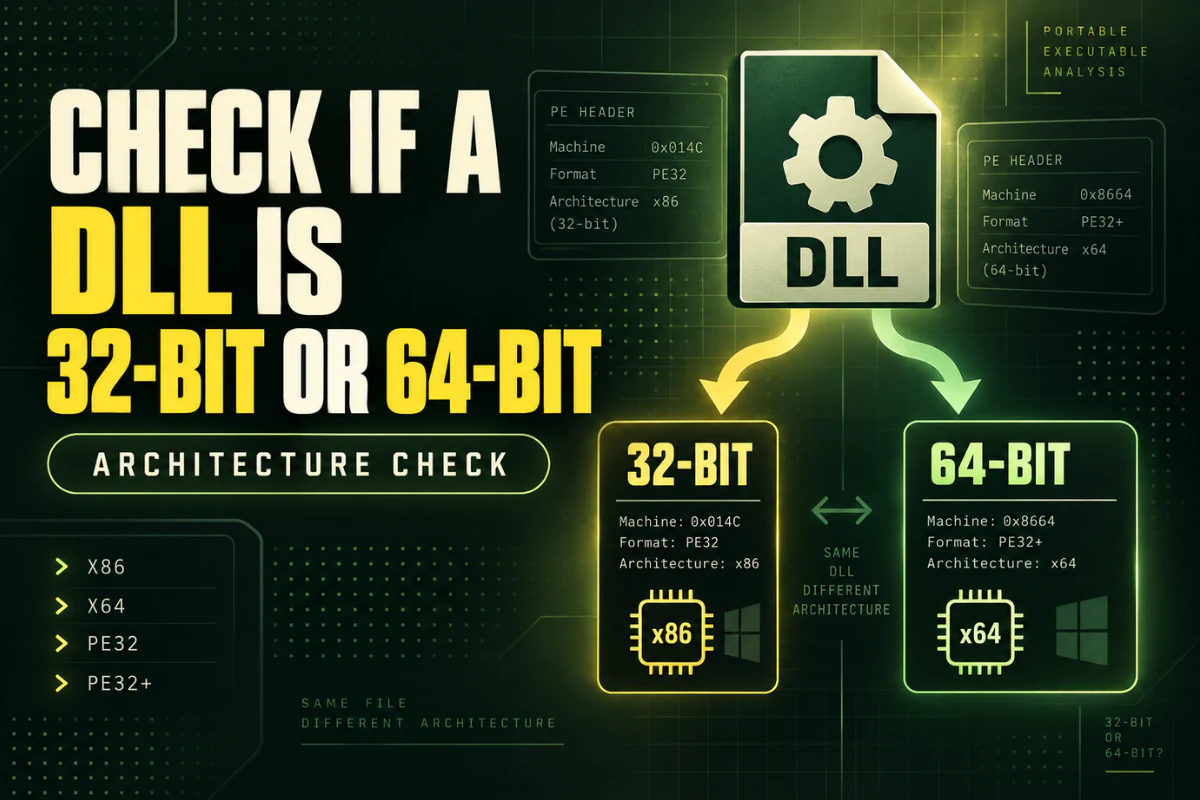
The reliable way to tell them apart is to read the DLL’s Portable Executable header. That header contains the machine type and format information Windows uses when loading the file.
This guide explains how to check whether a DLL is 32-bit or 64-bit, what x86 and x64 mean, how PE32 differs from PE32+, and why folder names alone are not enough.
Use a DLL or PE viewer and check the machine type. x86 normally means 32-bit. x64 means 64-bit. You can use our Open DLL File Online tool to check the architecture without installing software.
On this page
Why DLL Architecture Matters
Windows applications load native DLL files that match the architecture of the process.
A 32-bit application normally expects 32-bit native DLLs. A 64-bit application normally expects 64-bit native DLLs.
If the architectures do not match, the program may fail to load the library.
A simple mismatch can look like this:
DLL: x64 (64-bit)
Result: incompatible architecture
This is one reason architecture should be one of your first checks when troubleshooting a DLL loading problem.
The Quickest Way to Check a DLL
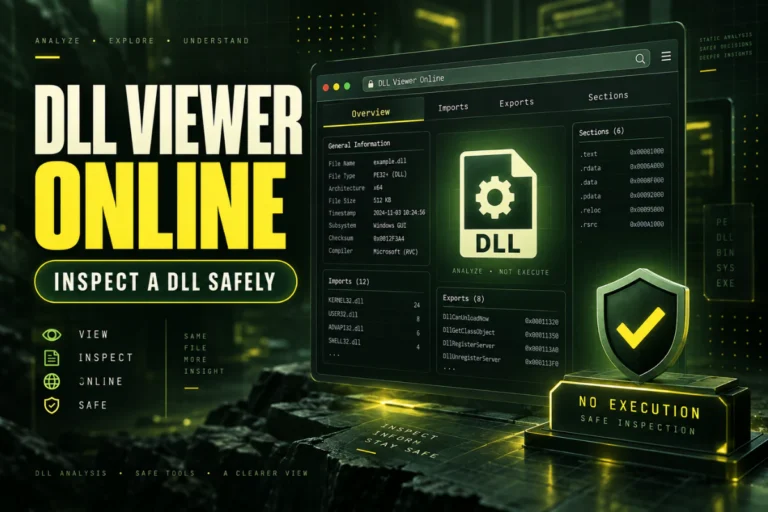
The easiest method is to use a DLL viewer that reads the PE header for you.
- Open the DLL architecture viewer.
- Select the DLL file from your computer.
- Upload it for analysis.
- Look for the architecture or machine type result.
- Confirm whether it says x86, x64, ARM, ARM64, or another supported type.
This is usually enough for a quick answer.
If you also want to inspect imports, exports, sections, and file hashes, the same analysis can give you more context about the DLL.
What x86 and x64 Mean
The two most common architecture labels on Windows PCs are x86 and x64.
| Architecture | Common meaning | Typical use |
|---|---|---|
| x86 | 32-bit | Older or 32-bit Windows applications |
| x64 | 64-bit | Modern 64-bit Windows applications |
| ARM | 32-bit ARM | Older ARM-based Windows software |
| ARM64 | 64-bit ARM | Modern Windows on ARM systems |
If you are checking a normal Intel or AMD Windows computer, x86 and x64 are the values you are most likely to see.
PE32 vs PE32+: What Is the Difference?
You may also see the terms PE32 and PE32+ in a DLL analyzer.
These values describe the format of the PE optional header.
- PE32 is commonly used for 32-bit Windows images.
- PE32+ is used for 64-bit Windows images.
The plus sign does not mean “newer” or “better.” It indicates the 64-bit version of the PE optional header format.
For most practical checks, machine type is the clearest answer. PE32 and PE32+ are useful supporting details.
How the PE Header Identifies Architecture
Windows DLL files normally use the Portable Executable format. Near the beginning of the file is a set of headers that describe the image.
One of those fields is the machine type.
Typical values include:
0x8664 = x64
0x01C0 = ARM
0xAA64 = ARM64
You do not need to memorize these values if you use a viewer. The tool can translate them into readable names.
Still, it helps to know that architecture is not guessed from the filename. It comes from data stored inside the DLL.
Do Not Trust the Folder Name Alone
Windows folder names often confuse people.
On a 64-bit Windows system:
C:\Program Files (x86)\
Program Files is commonly used by 64-bit applications. Program Files (x86) is commonly used by 32-bit applications.
That is useful context, but it is not proof of a DLL’s architecture.
Files can be copied into the wrong folder. Portable software may use a custom directory. Developers can organize files however they choose.
Always check the DLL itself.
System32 and SysWOW64 Can Be Misleading
Windows system folder names are even more confusing.
On 64-bit Windows, System32 normally contains 64-bit system components, while SysWOW64 normally contains 32-bit components used for compatibility.
The naming is historical and often surprises users.
If you find this confusing, you are not alone. The safest approach is still to read the file’s PE architecture directly.
How to Check a DLL Without Installing Software
If you do not want to install a PE analysis program, use an online DLL viewer.
This works well when you need a quick answer and the file is not confidential.
You can inspect:
- Architecture
- PE32 or PE32+ format
- Imports
- Exports
- Sections
- SHA-256 hash
See our full guide on how to open DLL files online without installing software.
How to Confirm the Program Architecture Too
Checking the DLL is only half the job if you are troubleshooting a compatibility problem.
You also need to know whether the application loading it is 32-bit or 64-bit.
A common case looks like this:
plugin.dll = x64
Architecture match = yes
Compare that with:
plugin.dll = x64
Architecture match = no
If the application and native DLL architectures do not match, the DLL may not load.
What Error Can an Architecture Mismatch Cause?
The exact error depends on the application and Windows version.
You may see messages that mention:
- Bad image
- Invalid Win32 application
- Unable to load DLL
- Module could not be found
- Application failed to start
These messages do not always mean an architecture mismatch. They can also be caused by missing dependencies, corruption, or an incompatible version.
That is why you should check the architecture first, then inspect imports and other details if needed.
What About .NET DLL Files?
.NET assemblies can make architecture checks more complicated.
A managed DLL may target Any CPU or use settings that allow it to run differently depending on the process and runtime.
In these cases, the simple x86 versus x64 rule used for native DLLs may not tell the whole story.
If a file appears to be a .NET assembly, you may need a dedicated .NET inspection tool to check its target platform and build settings.
For a general explanation of DLL file types, read What Is a DLL File and What Does It Do?.
Common Mistakes When Checking DLL Bitness
A Reliable Checklist
If you need a trustworthy answer, use this order:
- Read the machine type. This is the main architecture field.
- Check PE32 or PE32+. Use it as supporting information.
- Check whether the DLL is native or managed.
- Compare the DLL architecture with the application architecture.
- Inspect imports if the file still will not load.
If you want to understand more than bitness, read How to View the Contents of a DLL File or Best Ways to Read a DLL File.
Windows 10 and Windows 11
The PE architecture check works the same way on both Windows 10 and Windows 11.
If you want broader instructions for opening and inspecting DLL files on each system, see:
Frequently Asked Questions
How do I know if a DLL is 32-bit or 64-bit?
Read the DLL’s PE machine type with a DLL viewer. x86 normally means 32-bit. x64 means 64-bit.
Does PE32 mean 32-bit?
PE32 is commonly used for 32-bit Windows images. PE32+ is used for 64-bit images. Check the machine type as well for a clear architecture result.
Can a 32-bit program load a 64-bit DLL?
A native 32-bit Windows process cannot directly load a native 64-bit DLL into the same process.
Can a 64-bit program load a 32-bit DLL?
A native 64-bit Windows process cannot directly load a native 32-bit DLL into the same process.
Can I tell DLL bitness from Program Files?
The folder can provide a clue, but it is not reliable proof. Read the architecture from the file itself.
Can I check DLL architecture online?
Yes. An online DLL viewer can read the PE header and report common architectures such as x86 and x64.
The Best Way to Check DLL Architecture
The most reliable way to check whether a DLL is 32-bit or 64-bit is to read its PE header.
Do not rely on the filename, folder location, or file size. Those can all be misleading.
Start with the machine type. Confirm the PE format. Then compare the DLL architecture with the application that needs to load it.
This simple check can save a lot of time when troubleshooting plugin, application, and dependency errors.
Check your DLL architecture now
Upload a DLL and see whether it is x86, x64, ARM, or another supported type. You can also inspect its imports, exports, sections, PE format, and hash.
Check DLL Architecture