Best Ways to Read a DLL File Safely and Understand Its Contents
There is no single best way to read a DLL file. The right method depends on what you want to learn.
If you only need to know whether a DLL is 32-bit or 64-bit, a full decompiler is overkill. If you want to inspect exported functions, a DLL export viewer is enough. If you need to study actual program logic, you may need a decompiler or disassembler.
This guide explains the best ways to read a DLL file based on the task. It also shows what each method can reveal and where its limits are.
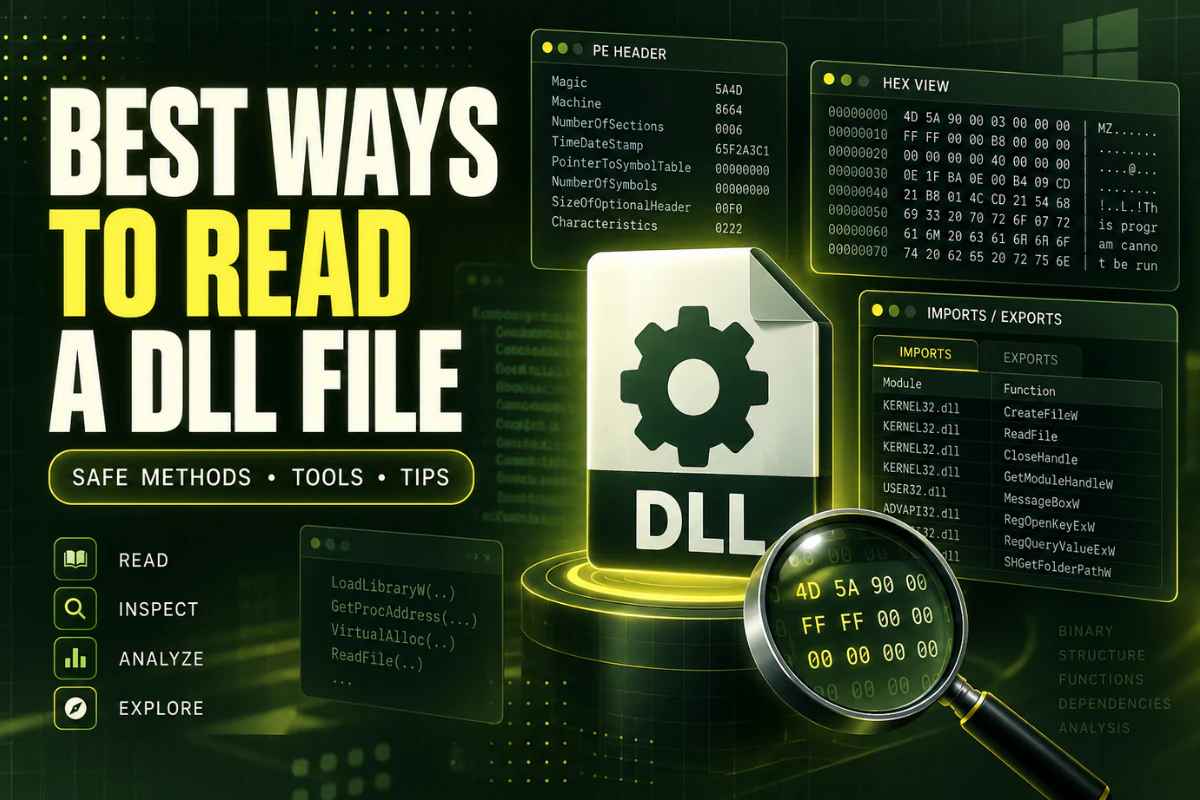
Use a DLL viewer first. It can show architecture, PE format, imports, exports, sections, and hashes without trying to run the DLL. You can use our Open DLL File Online tool for this basic inspection.
On this page
Start With the Question You Want Answered
Before choosing a tool, decide what you are trying to learn from the DLL.
| Your question | Best way to read the DLL |
|---|---|
| Is this DLL 32-bit or 64-bit? | PE or DLL viewer |
| Which functions does it expose? | DLL export viewer |
| Which libraries does it depend on? | DLL import viewer |
| What readable text is inside? | Strings viewer |
| Does it contain icons or version data? | Resource viewer |
| Can I understand the actual code? | Decompiler or disassembler |
This simple step saves time. You do not need an advanced reverse-engineering setup for every DLL question.
Read the DLL Structure First
For most people, the best first step is to read the DLL as a Portable Executable file.
A PE viewer can tell you basic facts such as:
- The target architecture
- PE32 or PE32+ format
- The number of sections
- The image base
- The entry point
- Imported libraries
- Exported functions
- A SHA-256 hash
This is often enough to identify the file and understand how it fits into an application.
If you only want a quick inspection, read our guide on how to open DLL files online without installing software.
Read the Architecture Before Anything Else
Architecture is one of the most useful details in a DLL.
A native DLL may target x86, x64, ARM, or another machine type. If an application cannot load a library, architecture mismatch is one of the first things worth checking.
For example:
DLL: 64-bit x64
Result: incompatible native architectures
The filename does not reveal this. Two files called plugin.dll can target different architectures.
A DLL reader can check the machine type directly from the PE header.
Read Exported Functions When You Need the DLL API
Exports are functions or symbols that the DLL makes available to other software.
Imagine a program expects these functions:
OpenProject
ProcessData
GetStatus
CloseLibrary
If your DLL does not export one of those names, the application may be using the wrong build.
A DLL export viewer is useful for:
- Checking whether a function exists
- Comparing two library versions
- Confirming plugin compatibility
- Understanding the public API of a library
Not every exported function has a clean readable name. Some exports use ordinals. C++ symbols may also be decorated.
Read Imports to Understand Dependencies
The import table shows other libraries the DLL expects to use.
A common import list might contain:
USER32.dll
ADVAPI32.dll
VCRUNTIME140.dll
The first three are common Windows libraries. The last example may indicate a Microsoft Visual C++ runtime dependency.
Import information is useful when a DLL fails to load. It can point you toward missing runtimes or third-party dependencies.
It does not tell you whether every dependency is installed. It only tells you what the binary references.
Read Strings for Quick Clues
A strings view extracts readable text from a binary file.
This can reveal useful clues such as:
- Error messages
- File paths
- Configuration names
- URLs
- Registry paths
- Version strings
- Library names
For example, you might find text like this:
C:\ProgramData\ExampleApp\
https://api.example.com/v2/
Plugin version 4.1.0
Strings can be helpful, but they are only clues. They do not show how the code uses the text.
They can also include unused strings or data left behind by the compiler.
Read Resources for Icons, Version Data, and Manifests
DLL files can contain resources as well as code.
Common resources include:
Application or component graphics
Product names and version numbers
User interface text and labels
Application and compatibility metadata
A resource viewer can make these items easier to inspect.
If you are only reading resources, avoid modifying them unless you understand the effect. Editing a DLL can break a signature or stop the program from accepting the file.
Read the PE Sections to Understand the Layout
PE files are divided into sections.
Common section names include:
Section names are conventions, not guarantees. A program can use custom names.
That is why section names alone should not be used to judge whether a file is safe.
Use a .NET Decompiler for Managed DLL Files
If the DLL is a .NET assembly, you may be able to read much more than headers and exports.
.NET assemblies often contain Common Intermediate Language and metadata that describe:
- Namespaces
- Classes
- Methods
- Properties
- Fields
- Referenced assemblies
A dedicated .NET decompiler can often reconstruct readable C#-like code.
This does not mean you are seeing the exact original source project. Comments, local variable names, formatting, and build-time details may be missing.
Still, managed DLLs are usually easier to inspect at a high level than native DLLs.
Use a Disassembler for Native Code
Native DLL files are different.
They contain machine instructions for a processor architecture such as x86 or x64. To study the actual code, you need a disassembler or native-code decompiler.
This level of analysis is much more advanced.
You may need to understand:
- Assembly language
- Calling conventions
- Registers
- Memory addressing
- Compiler patterns
- Windows APIs
If your goal is simply to identify a DLL, check its exports, or confirm its architecture, do not start here. A PE viewer is faster and easier.
Do Not Confuse Reading a DLL With Running It
Reading a DLL means inspecting its data and structure.
Running code from a DLL is different.
For example, using a viewer to list imports is a reading task. Registering a DLL with regsvr32 is not.
Do not register, load, or replace an unknown DLL just because you want to see what is inside it. Use a viewer or analyzer instead.
Can You Read a DLL With Notepad?
You can open a DLL in Notepad, but it is rarely useful.
Most of the file is binary data, so the result will look like random characters.
You may see a few readable strings, but you will not get organized information about headers, sections, exports, or imports.
If you want to understand what is inside the file, a proper DLL viewer is much easier.
The Best Reading Method for Common Tasks
If you are still unsure which method to use, this shortlist covers most cases.
How This Connects to Other DLL Tasks
If you are new to DLL files, start with What Is a DLL File and What Does It Do?.
If your goal is to inspect everything a viewer can show, read How to View the Contents of a DLL File.
If you use Windows 10 or Windows 11 and want operating-system-specific guidance, see:
Frequently Asked Questions
What is the easiest way to read a DLL file?
Use a DLL or PE viewer. It can show architecture, imports, exports, sections, and other metadata without requiring code-level analysis.
Can I read a DLL online?
Yes. An online DLL analyzer can read common PE information and display it in a browser.
Can I read DLL source code?
Not directly. Native DLLs contain compiled machine code. .NET DLLs can often be decompiled into a readable higher-level representation.
What can a DLL export viewer show?
It can show functions or symbols listed in the DLL export directory. Some exports may use ordinals or decorated names.
What can I learn from DLL imports?
Imports show libraries and functions the DLL expects to use. This can help you understand dependencies and troubleshoot loading problems.
Is opening a DLL in Notepad useful?
Only for a very quick look at readable strings. Notepad does not understand the DLL structure, so most content will be unreadable.
The Best Way to Start
The best way to read a DLL is to begin with the simplest tool that can answer your question.
For most people, that means a DLL viewer. Check the architecture, imports, exports, PE format, sections, and hash first.
If those details are not enough, move to a resource viewer, strings tool, .NET decompiler, or native-code disassembler.
This approach saves time and keeps the task focused.
Read your DLL file without installing a full toolset
Inspect architecture, PE details, imports, exports, sections, and hashes with our browser-based DLL viewer.
Open DLL File Online