How to Check If a DLL Is a .NET Assembly
A DLL can be a native Windows library, a managed .NET assembly, or in some cases a mixed-mode binary containing both managed and native code.
The most reliable way to tell whether a DLL is a .NET assembly is to look for CLR metadata inside the Portable Executable file. In PE terms, managed assemblies normally contain a valid CLR Runtime Header referenced by the COM Descriptor data directory.
This guide explains how to check if a DLL is .NET, which PE fields matter, which Windows and .NET tools can help, and why architecture labels such as PE32 or x64 do not answer the managed-vs-native question by themselves.
A .NET DLL normally contains a CLR Runtime Header and managed metadata. A PE analyzer can detect this without executing the file. You can also inspect the assembly with .NET-specific tools such as ILDasm or a decompiler.
On this page
What Is a .NET Assembly?
A .NET assembly is a compiled unit used by the .NET runtime.
It can contain:
- Intermediate Language, often called IL
- Managed metadata
- Type definitions
- Method definitions
- Assembly references
- Resources
- Version information
A .NET assembly can use a .dll or .exe extension.
The important difference is that its code and metadata are designed to be understood by the Common Language Runtime rather than being only native machine code.
The Key PE Clue: COM Descriptor
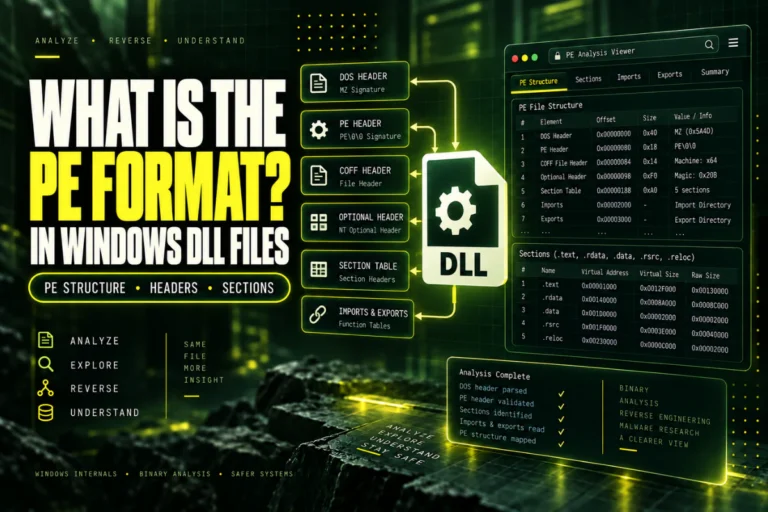
Windows PE files contain a table of data directories.
One of those entries is commonly called the COM Descriptor.
For a managed .NET assembly, this entry normally points to the CLR Runtime Header.
RVA: non-zero
Size: non-zero
Result: CLR metadata is likely present
A native DLL normally does not contain a valid CLR Runtime Header.
This makes the COM Descriptor one of the strongest static indicators that a DLL is managed.
What Is the CLR Runtime Header?
The CLR Runtime Header is a PE structure used by managed assemblies.
It contains information that helps the .NET runtime locate the assembly metadata and understand how the file should be loaded.
Important information can include:
- Runtime version information
- Metadata location
- Managed entry point information
- Assembly flags
- Managed resources
- Strong-name signature information
If a PE analyzer detects this structure correctly, that is strong evidence that the DLL is a .NET assembly.
How to Check a DLL Online
You can inspect the PE structure without running the DLL.
- Open the Open DLL File Online tool.
- Choose the DLL.
- Upload it for static analysis.
- Look for .NET or CLR detection in the report.
- Check architecture and PE format at the same time.
A basic analyzer may only tell you whether managed metadata appears to be present. A dedicated .NET decompiler can go much deeper.
Managed DLL vs Native DLL
| Feature | Managed .NET DLL | Native DLL |
|---|---|---|
| CLR metadata | Usually present | Usually absent |
| Code form | Commonly IL | Native machine code |
| .NET metadata | Types, methods, references | Not in CLR metadata form |
| Typical deep-inspection tool | .NET decompiler | Disassembler or native decompiler |
PE32 Does Not Automatically Mean Native
This is an important source of confusion.
A managed DLL can still use the PE32 format.
For example, a .NET assembly may show:
CLR metadata: present
Result: managed .NET assembly
PE32 describes the PE Optional Header format. It does not tell you whether the code is managed or native.
For PE32 and PE32+ details, read PE32 vs PE32+: What Is the Difference?.
x86 or x64 Does Not Answer the Whole Question Either
Architecture is also separate from managed status.
A .NET DLL may target:
- x86
- x64
- Any CPU
- ARM
- ARM64
That means you should answer two different questions:
Question 2: What architecture or platform target does it use?
Do not combine them into one assumption.
What Does Any CPU Mean?
Some managed assemblies are built with an Any CPU target.
This means the assembly is intended to run under more than one process architecture, depending on runtime and project settings.
That is different from an ordinary native DLL, which normally targets a specific processor architecture.
A PE header alone may not fully explain how an Any CPU assembly will behave. Managed metadata and assembly flags matter too.
Method 2: Use ILDasm
Microsoft’s IL Disassembler, commonly called ildasm, is designed for managed assemblies.
If the file opens successfully as a managed assembly, you can inspect:
- Assembly metadata
- Namespaces
- Classes
- Methods
- Assembly references
- IL instructions
A native-only DLL will not expose normal managed assembly metadata in the same way.
Method 3: Use a .NET Decompiler
Tools designed for .NET can often reconstruct readable high-level code from managed IL.
When a DLL is managed, a decompiler may show:
└─ Namespace
└─ Class
├─ Method
├─ Property
└─ Field
This structured view is very different from examining native machine code.
The reconstructed source is still not guaranteed to be identical to the original developer source.
Method 4: Check With PowerShell and .NET
PowerShell can sometimes load assembly metadata through .NET APIs.
For example, a script can attempt to read the file as a managed assembly.
If the file is a valid managed assembly, this can return assembly identity information.
If it is not a managed assembly, the call can fail.
This method reads assembly metadata, but for unknown files you should still prefer static inspection and avoid loading code into a process unnecessarily.
What Assembly Metadata Can Reveal
A managed DLL can include useful identity information such as:
| Metadata | What it tells you |
|---|---|
| Assembly name | Logical name of the .NET assembly |
| Assembly version | Managed assembly version value |
| References | Other managed assemblies it depends on |
| Types | Classes, interfaces, and other definitions |
Assembly Version Is Not the Same as Windows FileVersion
.NET assemblies can have multiple version-related values.
For example:
FileVersion: 4.2.17.0
ProductVersion: 4.2.17
These values serve different purposes.
AssemblyVersion is part of managed assembly identity. FileVersion and ProductVersion are Windows version-resource values.
For Windows version metadata, read How to Check DLL Version Information.
Can a .NET DLL Export Native Functions?
Most ordinary managed assemblies do not use the native export table the same way a traditional C or C++ DLL does.
That means a DLL with few or no normal exports can still contain many managed public methods.
This is another reason the native export table is not a reliable test for whether a DLL is managed.
Can a DLL Contain Both Managed and Native Code?
Yes.
Some binaries use mixed-mode techniques and contain both managed and native components.
This is more complex than a simple managed-vs-native split.
If a DLL has CLR metadata but also contains native code, a .NET-aware inspection tool can help identify the mixed structure.
Does the .text Section Look Different in a .NET DLL?
A managed assembly still uses the PE format and can still have sections such as .text, .rsrc, and .reloc.
The section names alone do not tell you whether the DLL is managed.
The key difference is the presence of CLR structures and managed metadata.
For PE sections, read How to View DLL Sections Such as .text, .data and .rsrc.
Why a .NET DLL Is Often Easier to Decompile
Managed assemblies usually preserve rich metadata such as type names, method signatures, and assembly references.
The IL also retains more structure than raw native machine code.
Because of that, a .NET decompiler can often reconstruct code that is much easier to read than native decompilation output.
However, the result is still reconstructed code. Original comments, formatting, local variable names, and some compiler-level details may be missing.
Can Obfuscation Make Detection Harder?
Obfuscation can make managed code harder to understand, but it usually does not remove the fact that the file is a .NET assembly.
An obfuscated DLL may still contain a CLR header and managed metadata while using:
- Renamed classes
- Renamed methods
- Control-flow transformations
- Encrypted strings
- Other anti-analysis techniques
Detection and readability are separate questions.
A Practical .NET Detection Checklist
Can You Check .NET Status Without Running the DLL?
Yes.
The PE headers and CLR metadata can be read directly from the file.
You do not need to register or execute the DLL just to determine whether it is managed.
This is the safer approach when the file is unfamiliar.
Does a .NET Result Mean the DLL Is Safe?
No.
.NET is a runtime and programming platform, not a security verdict.
A managed DLL can be legitimate or harmful, just like a native DLL.
Use .NET detection to understand the file type and choose the right analysis tools. Do not treat managed metadata as proof that the DLL is safe.
Frequently Asked Questions
How do I check if a DLL is a .NET assembly?
Look for a valid CLR Runtime Header and managed metadata referenced by the PE COM Descriptor data directory.
Does PE32 mean the DLL is native?
No. Managed .NET assemblies can also use PE32.
Does x64 mean the DLL is native?
No. A managed assembly can target x64 as well.
What is the COM Descriptor in a DLL?
It is a PE data-directory entry used by managed assemblies to reference the CLR Runtime Header.
Can a DLL contain both .NET and native code?
Yes. Mixed-mode binaries can contain both managed and native components.
Can I detect .NET without running the DLL?
Yes. CLR metadata can be inspected statically.
The Best Way to Check If a DLL Is .NET
Do not rely on the filename, PE32 label, architecture, or export count alone.
Check for the CLR Runtime Header and managed metadata. Then use a .NET-specific tool if you need to inspect assembly references, classes, methods, or IL.
That gives you a reliable answer about whether the DLL is managed and helps you choose the right next step for analysis.
Check whether your DLL is a .NET assembly
Inspect PE format, architecture, sections, imports, exports, hashes, and basic .NET indicators without running the file.
Check DLL Type