DLL Analyzer Online: What Information Can You Find?
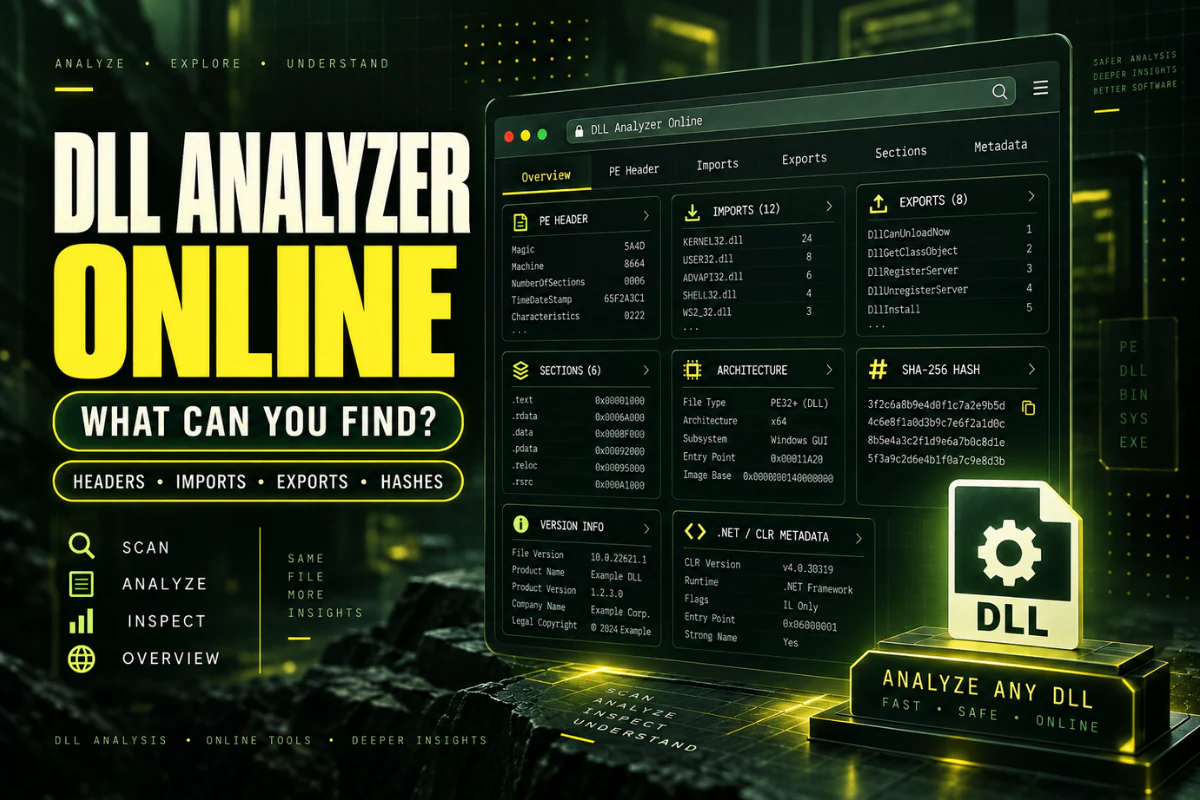
A DLL analyzer online can reveal much more than the filename. It can show whether the file is 32-bit or 64-bit, which libraries it imports, which functions it exports, how its PE sections are organized, and the hash that identifies the exact file.
This is useful when you need to identify an unfamiliar DLL, compare two versions, troubleshoot a loading error, or inspect a file without installing a desktop analysis tool.
This guide explains what information a DLL analyzer online can show, which fields matter most, and how to use the results without overreading them.
Use our online DLL analyzer to inspect architecture, PE format, imports, exports, sections, hashes, and related file information without trying to run the DLL.
On this page
What Is a DLL Analyzer?
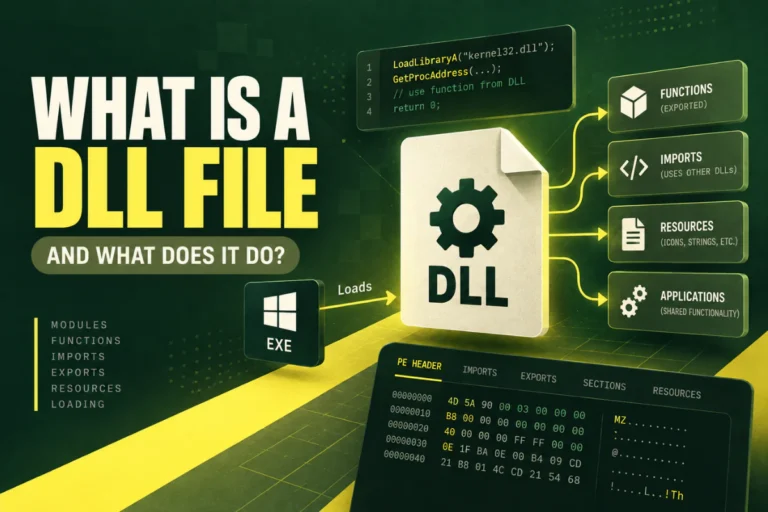
A DLL analyzer is a tool that reads the internal structure of a Windows Dynamic Link Library file.
Most DLL files use the Portable Executable format. That format contains headers, tables, sections, and metadata that describe the file.
An analyzer reads those structures and presents them in a way that is easier to understand.
Instead of looking at raw binary data, you may see organized results such as:
- Architecture
- PE32 or PE32+ format
- Entry point
- Image base
- Section names
- Imported libraries
- Exported functions
- File hashes
- Possible .NET metadata indicators
The Most Useful Results to Check First
You do not need to study every field at once.
For most DLL checks, start with these:
Check whether the DLL is x86, x64, ARM, or another type.
See which external libraries the file references.
See which functions the DLL makes available to other programs.
Use the hash to compare two copies of the file.
These four areas answer many common DLL questions quickly.
1. DLL Architecture
Architecture tells you what type of process the DLL was built for.
Common values include:
| Architecture | Common meaning |
|---|---|
| x86 | 32-bit Windows binary |
| x64 | 64-bit Windows binary |
| ARM | 32-bit ARM binary |
| ARM64 | 64-bit ARM binary |
Architecture is important because native 32-bit and 64-bit binaries cannot be mixed freely inside the same process.
If you need more detail, read How to Check Whether a DLL Is 32-Bit or 64-Bit.
2. PE32 and PE32+
A DLL analyzer may show PE32 or PE32+.
These terms refer to the optional-header format used in the Windows Portable Executable structure.
- PE32 is commonly used for 32-bit images.
- PE32+ is used for 64-bit images.
This field supports the architecture result and gives you more context about the file format.
3. Imported Libraries
Imports tell you what external libraries the DLL expects to use.
A typical list might include:
USER32.dll
ADVAPI32.dll
VCRUNTIME140.dll
These names can help you identify system dependencies, Microsoft runtimes, and application-specific components.
For deeper dependency analysis, read How to View DLL Imports and Dependencies and How to Check DLL Dependencies Without Running the File.
4. Exported Functions
Exports are functions or symbols that the DLL exposes to other software.
You might see names such as:
GetVersion
ProcessData
Shutdown
Export lists are useful when checking plugin compatibility or troubleshooting an entry point error.
If you want to go deeper, read How to View DLL Exports Online and How to Find Exported Functions in a DLL.
5. DLL Sections
PE files are divided into sections.
Common names include:
Section names are useful clues, but they are not proof of what a file does. Developers can use custom names.
6. Entry Point
The entry point is an address recorded in the PE header.
For a DLL, this can relate to the location that Windows uses when the image is initialized.
The value is mainly useful for technical analysis. Most users do not need to interpret the raw address.
It becomes more relevant when you are debugging or comparing two builds.
7. Image Base
The image base is the preferred memory address where the binary was designed to be mapped.
Modern Windows systems can relocate images when needed, so the preferred base is not always the final runtime address.
Still, the field is part of the PE structure and can be useful when comparing binaries or studying low-level file layout.
8. SHA-256 Hash
A SHA-256 hash is one of the most practical results in a DLL analyzer.
It gives you a fingerprint of the exact file.
SHA-256: 76d5f5a0…c34e81
If another copy of example.dll has a different SHA-256 value, the files are not byte-for-byte identical.
This is useful when comparing versions, checking backups, or confirming whether an application update replaced the file.
9. Possible .NET Information
Some DLL files are managed .NET assemblies.
A DLL analyzer may detect metadata that suggests the file contains a Common Language Runtime directory.
This can tell you that the file may be better suited to a .NET-specific decompiler or assembly viewer.
Native and managed DLL files can use the same .dll extension, so the filename alone does not tell you which kind you have.
How to Read a DLL Analysis Report
Suppose your analyzer returns this:
Architecture: x64
Format: PE32+
Imports: KERNEL32.dll, VCRUNTIME140.dll
Exports: InitializePlugin, GetVersion, ShutdownPlugin
Sections: .text, .rdata, .data, .rsrc, .reloc
SHA-256: 1a72…9f04
From this report, you can quickly tell that:
- The file is a 64-bit DLL.
- It uses the 64-bit PE format.
- It references a Microsoft runtime library.
- It exposes three named functions.
- It contains common PE sections.
- You have a hash that can identify the exact file.
This is a useful first-level picture of the DLL.
What a DLL Analyzer Cannot Prove
This is where people often make the wrong assumption.
A DLL analyzer can show metadata, but metadata does not prove that a file is safe.
A normal-looking DLL can still contain harmful code.
An analyzer also cannot automatically tell you:
- Exactly what every internal function does
- Whether the DLL is malware
- Whether every dependency is installed correctly
- Whether all exports work as expected
- The original source code
Treat DLL analysis as technical inspection, not as a security verdict.
When an Online Analyzer Is Enough
An online analyzer is a good fit when your question is about static file information.
Use it when you want to:
- Check x86 or x64
- View imports and exports
- Inspect sections
- Compare hashes
- Identify a DLL before deeper analysis
If you need to debug code while it runs, inspect memory, trace function calls, or decompile internal logic, use a desktop tool designed for that job.
Privacy Before Uploading a DLL
Do not upload confidential company software, private client libraries, unreleased applications, or files you are not allowed to share.
For sensitive DLL files, local analysis is the better option.
For public or non-sensitive files, an online analyzer can save time because you do not need to install a large development environment.
How to Use DLL Analyzer Results for Troubleshooting
The most useful reports are the ones that help you answer a specific question. If an application says it cannot load a DLL, compare the DLL architecture with the application first. If the architectures match, inspect the imports for missing runtimes or application-specific libraries.
If the program reports that a procedure or entry point is missing, check the export list for the expected function name. If two systems behave differently, compare the SHA-256 hashes and version-related details of the DLL files on both machines.
This approach keeps the investigation focused. Instead of guessing, you use each field in the analysis report to rule out one possible cause at a time.
Frequently Asked Questions
What can a DLL analyzer show?
It can show architecture, PE format, imports, exports, sections, hashes, entry-point information, and other metadata depending on the tool.
Can a DLL analyzer run the file?
A static DLL analyzer does not need to run the file. It reads information stored in the binary structure.
Can a DLL analyzer tell if a file is 32-bit or 64-bit?
Yes. It can read the machine type and PE format to identify common architectures such as x86 and x64.
Can it show DLL functions?
It can show exported functions when they are listed in the export directory. Internal functions require deeper analysis.
Can a DLL analyzer detect dependencies?
It can list many static imports. Dynamically loaded dependencies may require runtime analysis.
Does a normal analysis result mean the DLL is safe?
No. Metadata can look normal even when a file contains unwanted behavior.
What to Check First in Any DLL
If you have an unfamiliar DLL, start simple.
Check the architecture. Then look at imports, exports, sections, and the SHA-256 hash.
Those fields give you a fast overview of what the file is, what it depends on, what it exposes, and whether it matches another copy.
If you want a general viewing guide, read DLL Viewer Online: How to Inspect a DLL Safely.
Analyze your DLL online
Inspect architecture, PE details, imports, exports, sections, and hashes in one place.
Analyze DLL File