Why You Should Avoid Random DLL Download Websites
When Windows reports a missing DLL, downloading a same-named file from a random website can look like the fastest fix. It is also one of the easiest ways to create a second problem.
The filename alone does not tell you whether a DLL is the right version, the right architecture, built for the same application, or unchanged from the original vendor file.
This guide explains why you should avoid random DLL download websites, what can go wrong with replacement DLLs, and safer ways to repair missing or damaged DLL files.
Do not treat a same-named DLL as interchangeable. Prefer the official application installer, repair option, Windows Update, or the software vendor. If you already have a DLL, verify its hash, architecture, version, imports, exports, and source before using it.
On this page
Why DLL Download Sites Look Convenient
A typical error message may mention a single filename:
That wording encourages a simple assumption:
“I just need to find example.dll and copy it into the folder.”
But Windows applications depend on more than filenames. A DLL can be tightly linked to a specific software release, compiler runtime, processor architecture, exported API, build configuration, and dependency chain.
Same Filename Does Not Mean Same DLL
Two completely different DLL files can share the same filename.
| Property | DLL A | DLL B |
|---|---|---|
| Filename | engine.dll | engine.dll |
| Architecture | x86 | x64 |
| Version | 2.4.0.0 | 5.1.2.0 |
| SHA-256 | Different | Different |
The application may work with one and fail with the other even though Windows Explorer shows the same name.
Risk 1: Wrong Architecture
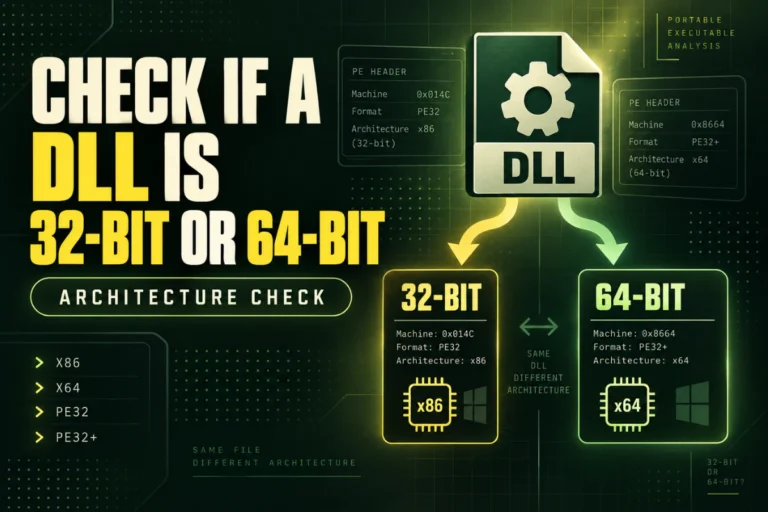
One of the most common problems is mixing 32-bit and 64-bit native DLLs.
An x86 process cannot directly load an x64 native DLL. An x64 process cannot directly load an x86 native DLL into the same process.
Downloaded DLL: x64
Result: incompatible native architecture
A random download page may not clearly identify the architecture, or the information may be wrong.
Before using any replacement DLL, check its architecture. See How to Tell If a DLL Is x86 or x64.
Risk 2: Wrong Version
Applications may expect a specific DLL build.
A different version can:
- Remove functions the application expects
- Change function behavior
- Depend on different runtime libraries
- Use a different data format
- Introduce compatibility problems
A newer DLL is not automatically better. The correct DLL is the one built and tested for that application or software release.
Risk 3: Missing Exported Functions
Windows programs often call functions exported by a DLL.
Imagine an application expects:
ProcessFrame
GetDeviceInfo
ShutdownEngine
A replacement DLL with the same filename may not export all of those functions.
This can lead to errors such as an entry point not being found.
For export checking, read How to Find Exported Functions in a DLL.
Risk 4: Different Dependencies
A downloaded DLL can depend on libraries that are not installed on your system.
For example, it may import:
MSVCP140.dll
vendor_runtime.dll
Replacing one missing file can therefore create another missing-DLL error.
That is one reason official installers are safer: they usually install the whole dependency set instead of one isolated binary.
Risk 5: The File Could Be Modified
A DLL from an unrelated website may not be the original vendor file.
It could be:
- Modified
- Repacked
- Outdated
- Corrupted
- Rebuilt
- Malicious
A normal-looking filename or version string does not prove the binary is genuine.
For the broader security issue, read Can a DLL File Contain a Virus?.
Risk 6: Metadata Can Look Convincing
Windows DLLs may contain version resources such as:
ProductName: Example Platform
FileVersion: 8.0.3.1
OriginalFilename: example.dll
These fields are useful for identification, but they are just metadata inside the file. They can be changed.
Do not treat a familiar company name as proof that the DLL came from that company.
Risk 7: You Can Break a Working Application
A missing DLL error may be caused by a damaged installation rather than a truly absent standalone file.
Dropping a random DLL into the application folder can hide the original problem while creating a compatibility issue.
You may end up with:
- Application crashes
- Entry-point errors
- Unexpected behavior
- Update failures
- Conflicting versions
Risk 8: Copying Into System32 Can Affect More Than One Program
Do not place an unknown replacement DLL into Windows system folders just because a website suggests it.
A system-level location can affect more software than the single program you are trying to repair.
On 64-bit Windows, System32 generally contains 64-bit system binaries and SysWOW64 generally contains 32-bit binaries used by WOW64. The names are confusing, and manually copying DLLs there is not a reliable repair method.
A Better Repair Order
When Windows says a DLL is missing, use the source that understands the entire application package.
If It Is a Microsoft Runtime DLL
Some missing DLL errors involve Microsoft runtime components.
In that case, the safer fix is usually the official Microsoft runtime or redistributable package required by the application, not an isolated DLL downloaded from a third-party site.
The package can install the correct architecture, supporting files, and related components together.
If It Is an Application-Specific DLL
If the DLL belongs to one program, repair or reinstall that program.
This is especially important when the file sits inside a vendor-specific folder such as:
The installer knows which build, architecture, and companion files belong together.
If You Already Downloaded a DLL
Do not load or register it immediately.
Check it first.
At minimum, record:
| Check | Why it matters |
|---|---|
| SHA-256 | Identifies the exact file |
| Architecture | Checks x86/x64 compatibility |
| Version | Helps identify the build |
| Exports | Checks expected public functions |
| Imports | Shows static dependencies |
For a complete checklist, read How to Check a DLL File Before Using It.
Use SHA-256 to Compare With a Trusted Copy
If you have the same software installed correctly on another trusted computer, compare the DLL hashes.
If both SHA-256 values match, the files are byte-for-byte identical.
PC B SHA-256: 7F12…A4C9
Result: identical files
If the hashes differ, do not assume one is bad. Check version, architecture, software release, and source.
Why Search Results Can Be Misleading
A download page may rank well for a filename without being associated with the developer that created the DLL.
Search visibility is not the same as software provenance.
When you need a replacement file, ask:
- Who actually publishes this software?
- Is there an official installer?
- Is there a repair feature?
- Is this DLL part of a runtime package?
- Can I compare against a trusted machine?
What About “Clean” or “Virus-Free” Labels?
A badge or claim on a download page should not replace your own verification.
Even if a file is not malicious, it can still be the wrong version or architecture for your application.
Security is only one part of DLL compatibility.
A DLL Can Be Safe and Still Be the Wrong File
This distinction matters.
A completely legitimate DLL can still cause errors if:
- It is from a different software version
- It targets the wrong architecture
- It exports a different API
- It depends on missing runtime components
- It belongs to another application
So the goal is not only to find a “safe DLL.” You need the correct DLL for the exact software environment.
Do Not Use regsvr32 as a Compatibility Test
regsvr32 is not a DLL checker.
It registers certain COM DLLs and can execute registration entry points.
Do not register a file from an unknown download site just to see whether Windows accepts it.
When an Online DLL Viewer Helps
If the file is not confidential, a static online analyzer can help you check basic facts before using it.
Our Open DLL File Online tool can inspect PE format, architecture, imports, exports, sections, SHA-256, and basic .NET indicators without running the file.
For private or proprietary DLLs, prefer local inspection tools.
A Safer Decision Tree
├─ Official repair/reinstall available? → Use it
└─ No
↓
Official runtime/package available? → Install that
↓
Trusted identical system available? → Compare hashes/versions
↓
Random download site is the only source? → Stop and investigate further
Frequently Asked Questions
Why should I avoid random DLL download websites?
Because the downloaded file may be the wrong version, wrong architecture, modified, malicious, or built for a different application even if the filename matches.
Where should I get a missing DLL?
Prefer the official application installer, repair process, vendor update, Windows Update, or the official runtime package that supplies the file.
Can a downloaded DLL be safe but still not work?
Yes. A legitimate DLL can still be incompatible with your application.
Should I copy a downloaded DLL into System32?
No. Use vendor-supported installation or repair methods instead of manually adding unknown files to Windows system folders.
Can I compare a downloaded DLL with another computer?
Yes. SHA-256, version, architecture, imports, and exports are useful comparison points.
Does a normal CompanyName or FileVersion prove the DLL is genuine?
No. Version resources can be modified and should be treated as identification clues only.
The Safer Alternative to Random DLL Downloads
Fix the software package, not just the filename.
Use the official installer, repair option, runtime package, or software update first. Those methods install the correct DLL together with the dependencies and configuration it needs.
If you already have a candidate DLL, inspect it before using it and compare it with a trusted source whenever possible.
Check a DLL before using it
Inspect architecture, PE format, imports, exports, sections, SHA-256, and basic .NET indicators without running the file.
Inspect DLL File