How to Check a DLL File Before Using It
Before you load, register, replace, or depend on an unfamiliar DLL, check the file first. A DLL can be a normal software component, the wrong build, a corrupted copy, or a malicious binary.
The best first step is static verification. That means checking the DLL as a file without executing its code.
This guide shows how to check a DLL file before using it, starting with the source and SHA-256 hash, then moving through architecture, version information, imports, exports, sections, signatures, and .NET metadata.
Do not use an unknown DLL immediately. Verify where it came from, calculate SHA-256, check architecture and version information, inspect imports, exports, sections, and .NET status, then compare it with a trusted source if possible.
On this page
Use a Pre-Use DLL Checklist
A simple checklist keeps you from relying on one weak signal.
2. Record filename and full path
3. Calculate SHA-256
4. Check architecture
5. Read version information
6. Inspect imports
7. Inspect exports
8. Review PE sections
9. Check digital signature if present
10. Check whether it is .NET
11. Compare with a trusted copy
12. Only then decide whether to use it
Step 1: Verify the Source
Where the DLL came from matters.
A DLL supplied by the official application installer is a very different situation from a DLL downloaded from an unrelated website or received unexpectedly by email.
Prefer sources such as:
- The software vendor’s official installer
- An official repair or update process
- A trusted package repository
- A known-good machine managed by your organization
- Your own build pipeline
A familiar filename does not make an unknown download trustworthy.
Step 2: Record the Filename and Full Path
Before moving the DLL, record where it was found.
Path: C:\Program Files\ExampleApp\bin\engine.dll
The same filename may exist in several folders, so the path helps you avoid comparing the wrong file.
Folder location is useful context, but it is not proof of legitimacy.
Step 3: Calculate the SHA-256 Hash
SHA-256 creates an exact fingerprint of the DLL’s bytes.
Use it to:
- Compare with a known-good copy
- Check a vendor-published hash
- Confirm whether the file changed
- Record exactly which DLL you inspected
In PowerShell:
For a complete guide, read How to Find the SHA-256 Hash of a DLL File.
A Matching Hash Is Useful, but Ask What It Matches
If your DLL matches a hash published by the official vendor, that is useful evidence that you have the same file the vendor distributed.
If it matches a hash copied from an unknown website, the comparison is much less meaningful.
Hash trust depends on the trustworthiness of the reference.
Step 4: Check the DLL Architecture
Before using a DLL, make sure its architecture matches the application or process that needs to load it.
| Process | Native DLL | Expected result |
|---|---|---|
| x86 | x86 | Compatible |
| x86 | x64 | Mismatch |
| x64 | x64 | Compatible |
An architecture mismatch can cause load failures even when the DLL filename and version look correct.
See How to Tell If a DLL Is x86 or x64.
Step 5: Check Version Information
Version metadata can help confirm whether the DLL belongs to the software release you expect.
Useful fields include:
Version of the individual DLL.
Version of the larger product.
Publisher named in the resource.
Filename recorded by the build.
Version information is useful for identification, but it can be missing or modified.
For details, read How to Check DLL Version Information.
Step 6: Inspect Imports
The import table shows statically referenced libraries and functions.
This can help answer:
- What runtime libraries does the DLL need?
- Does it depend on vendor-specific components?
- Does it use Windows APIs you would expect for its purpose?
For example:
USER32.dll
VCRUNTIME140.dll
Common imports are not proof of safety or danger. They are context.
See How to View DLL Imports and Dependencies.
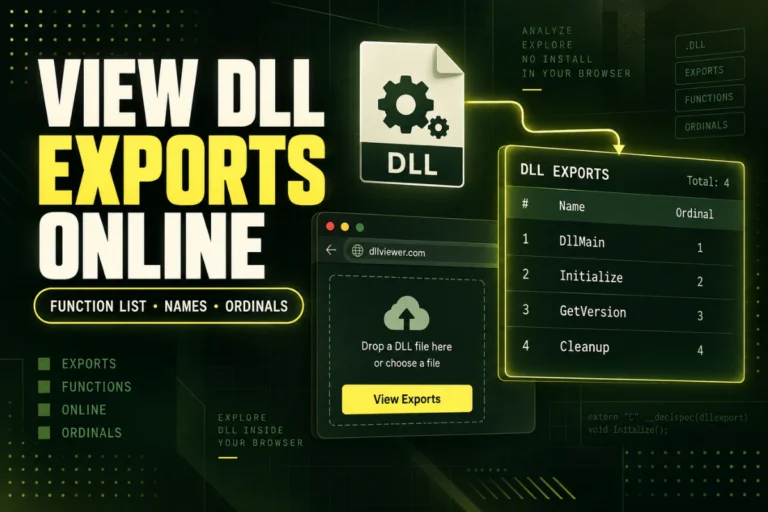
Step 7: Inspect Exports
Exports show functions or symbols the DLL exposes to other software.
If you are replacing a DLL used by an application, export compatibility can matter.
ProcessData
GetVersion
Shutdown
If the application expects a function that is missing in the replacement DLL, the program may fail even if architecture and version look similar.
For export analysis, read How to Find Exported Functions in a DLL.
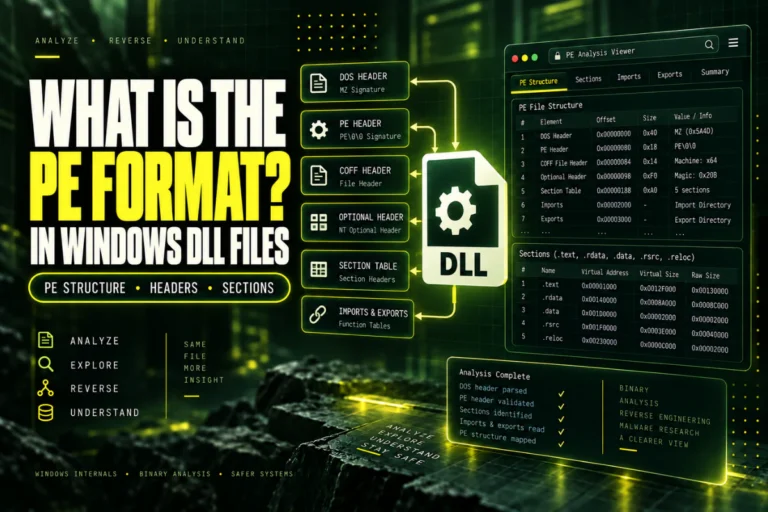
Step 8: Review PE Sections
PE sections show the internal layout of the binary.
Common sections include:
.textfor executable code.rdatafor read-only data.datafor writable data.rsrcfor resources.relocfor relocation information
Custom section names are possible.
Unusual names, sizes, or permissions may deserve investigation, but they do not prove the DLL is malicious or broken.
See How to View DLL Sections Such as .text, .data and .rsrc.
Step 9: Check the Digital Signature
If the DLL is digitally signed, Windows may show publisher and signature information.
A valid signature can help confirm that the signed content has not changed since signing and can identify the certificate used.
But a signature is not an absolute safety guarantee.
Use it as one trust signal together with the source, hash, version, and software context.
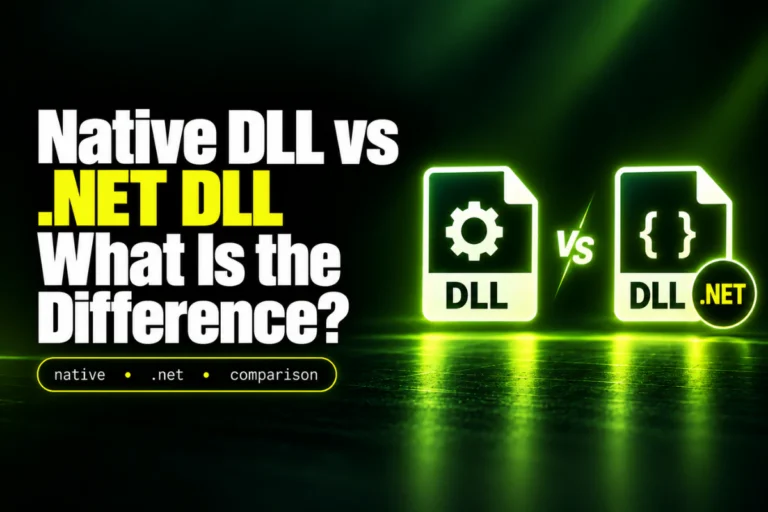
Step 10: Check Whether It Is .NET
A .NET DLL normally contains CLR metadata and a valid CLR Runtime Header.
Knowing whether the file is managed or native helps you choose the right inspection tools.
| Type | Typical deep analysis |
|---|---|
| .NET DLL | Managed metadata browser or .NET decompiler |
| Native DLL | Native PE viewer, disassembler, or decompiler |
See How to Check If a DLL Is a .NET Assembly.
Step 11: Compare With a Trusted Copy
If you have access to a known-good version from the official installer or another trusted machine, compare the files.
Start with SHA-256.
Trusted DLL SHA-256: A13B…94C2
Result: byte-for-byte match
If the hashes differ, compare architecture, version information, exports, imports, and sections.
For the full process, read How to Compare Two DLL Files.
Stop Before Using the DLL If These Checks Fail
Do not rush ahead if you find a major inconsistency.
Do Not Use regsvr32 as a Test
regsvr32 is used to register certain COM DLLs.
It is not a viewer or verification tool.
If the DLL supports registration entry points, using regsvr32 can execute code from the file.
Inspect first. Register only when you know the DLL is the correct component and registration is actually required.
Do Not Put an Unknown DLL Into System32 or SysWOW64
Copying an unknown DLL into Windows system folders is not a proper test.
On 64-bit Windows, System32 typically contains 64-bit system binaries, while SysWOW64 typically contains 32-bit binaries used by WOW64.
But folder choice alone does not make a DLL compatible or trustworthy.
Use the official installer or repair process whenever possible.
Do Not Trust the Filename Alone
A file called system.dll is not automatically a Windows system DLL.
Likewise, a file called plugin.dll may belong to many unrelated applications.
Use the hash, version resources, full path, architecture, imports, exports, and source together.
When an Online DLL Viewer Is Useful
An online viewer is useful when the file is not confidential and you want a quick static overview.
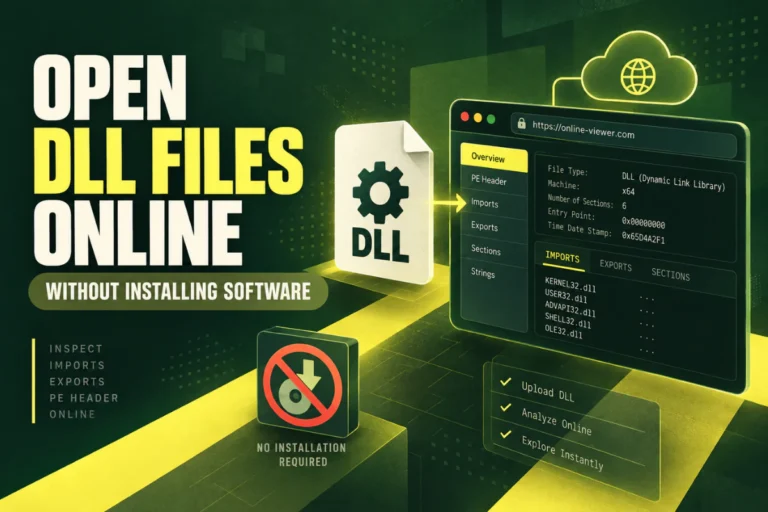
Our Open DLL File Online tool can help inspect PE format, architecture, imports, exports, sections, hashes, and basic .NET indicators without running the file.
If the DLL is proprietary, belongs to a client, or contains unreleased software, prefer local tools.
Can These Checks Prove a DLL Is Safe?
No single checklist can prove that every possible behavior is harmless.
Static verification is excellent for:
- Identity
- Compatibility
- Basic structure
- Dependency inspection
- Initial risk assessment
But a DLL may load more code dynamically, decrypt data at runtime, or behave differently depending on the environment.
If your main question is whether a DLL is malicious, combine static inspection with reputable security scanning and trusted source verification.
A Simple Go or Stop Decision
├─ No → Stop and investigate
└─ Yes
↓
Hash / version / architecture expected?
├─ No → Stop and compare
└─ Yes
↓
Imports / exports / sections reasonable for the software?
├─ No → Investigate further
└─ Yes → Continue with normal vendor-supported use
Frequently Asked Questions
How should I check a DLL file before using it?
Verify its source, calculate SHA-256, check architecture and version information, inspect imports, exports, sections, signatures, and .NET metadata, then compare with a trusted copy if possible.
Is a matching SHA-256 enough?
It is strong proof that two files are identical. Whether that is useful for trust depends on whether the reference file or hash is trustworthy.
Should I register a DLL to see if it works?
No. Registration can execute supported DLL code and should not be used as an inspection test.
Should I download a missing DLL from a random website?
No. Prefer the official installer, repair process, or software vendor.
Can version information prove the DLL is genuine?
No. It is useful metadata, but it can be changed.
Can I check a DLL without running it?
Yes. Most of the checks in this guide are static and do not require DLL execution.
The Best Way to Check a DLL Before Using It
Start with trust and identity.
Know where the DLL came from, record the path, calculate SHA-256, and check architecture and version information.
Then inspect imports, exports, sections, signatures, and .NET status. Compare with a known-good copy when possible.
If anything important does not match expectations, stop before loading, registering, or replacing system or application files.
Check a DLL before using it
Inspect architecture, PE format, imports, exports, sections, SHA-256, and basic .NET indicators without running the file.
Check DLL File