How to Check DLL Version Information
DLL version information can help you identify a file, compare builds, troubleshoot compatibility problems, and confirm which release of a library is installed.
Windows DLL files can contain version resources with fields such as FileVersion, ProductVersion, CompanyName, ProductName, and OriginalFilename.
This guide explains how to check DLL version information using Windows Properties, PowerShell, and static DLL analysis, and how to understand what each field really means.
Right-click the DLL in Windows, open Properties, then check the Details tab. You can also inspect version-related metadata with our DLL analyzer or PowerShell.
On this page
What Is DLL Version Information?
Version information is metadata stored inside a Windows resource structure.
It can describe the file and the product it belongs to.
Common fields include:
The version assigned to the individual DLL file.
The version of the larger product or software package.
The company or publisher named in the resource.
The product associated with the DLL.
A readable description of the library.
The filename recorded when the resource was created.
Method 1: Check DLL Version in Windows Properties
The easiest method is built into Windows.
- Find the DLL in File Explorer.
- Right-click the file.
- Choose Properties.
- Open the Details tab.
- Review fields such as File version, Product version, Product name, and Copyright.
If the DLL contains a standard version resource, Windows can display it here.
What the Details Tab Can Show
A typical DLL may display values like:
File version: 5.4.1.0
Product name: Example Studio
Product version: 5.4
Copyright: Copyright Example Software
Original filename: render.dll
Not every DLL includes all of these fields.
Some files have only a version number. Others may have no version resource at all.
FileVersion vs ProductVersion
These two values are often similar, but they are not necessarily the same.
| Field | Typical meaning |
|---|---|
| FileVersion | Version of that specific DLL build |
| ProductVersion | Version of the product or suite the DLL belongs to |
For example, a product may be version 12.0 while an individual library has file version 12.0.7.154.
Why OriginalFilename Can Be Useful
A DLL can be renamed after it was built.
If the version resource includes OriginalFilename, that field can reveal the filename recorded by the developer.
Example:
OriginalFilename: AudioEngine64.dll
This can be a useful clue when identifying an unfamiliar file.
For a broader workflow, read How to Identify an Unknown DLL File.
Method 2: Check DLL Version With PowerShell
PowerShell can read version information from a file.
Use:
This can display fields such as:
ProductVersion
FileDescription
CompanyName
ProductName
OriginalFilename
If you only want one value, you can request it directly.
Method 3: Inspect the DLL Version Resource
Version information is usually stored as a Windows resource.
In a standard PE file, resources are commonly associated with the resource directory and often live in the .rsrc section.
A PE or resource viewer can inspect these structures directly.
This is useful when you want to see the relationship between the file’s section layout and its version metadata.
For more detail, read What Is the .rsrc Section in a DLL?.
Version Resources Can Contain Numeric and String Values
Windows version resources can contain fixed numeric version fields and readable string fields.
That distinction matters because the displayed text is not always identical to the underlying numeric value.
For example, a DLL may contain:
Display string: 4.3.2 build 17
Both can describe the same release in different formats.
Why Some DLLs Have No Version Information
A DLL is not required to include a version resource.
A file may have no visible version information because:
- The developer did not include a version resource
- The DLL was built with a minimal toolchain
- The resource was removed
- The file is damaged
- The binary uses a nonstandard layout
No version information does not automatically mean the file is suspicious or broken.
How to Compare DLL Versions Correctly
If you are comparing two DLL files, check more than the visible version string.
| Check | Why it matters |
|---|---|
| FileVersion | Shows the DLL build version if present |
| ProductVersion | Shows the product release label |
| SHA-256 | Shows whether the files are exactly identical |
| Architecture | Shows whether the builds target x86, x64, ARM, or ARM64 |
Two DLLs can report the same version and still be different files.
Same Version Number, Different DLL
This happens more often than many users expect.
Two DLL files might both report:
but have different SHA-256 hashes.
Possible reasons include:
- x86 and x64 builds
- A silent rebuild
- Different digital signatures
- Different resource data
- A hotfix that did not change the visible version
- Different compiler settings
If exact identity matters, compare hashes.
See How to Check If Two DLL Files Are Identical.
Version Information and Architecture Are Separate
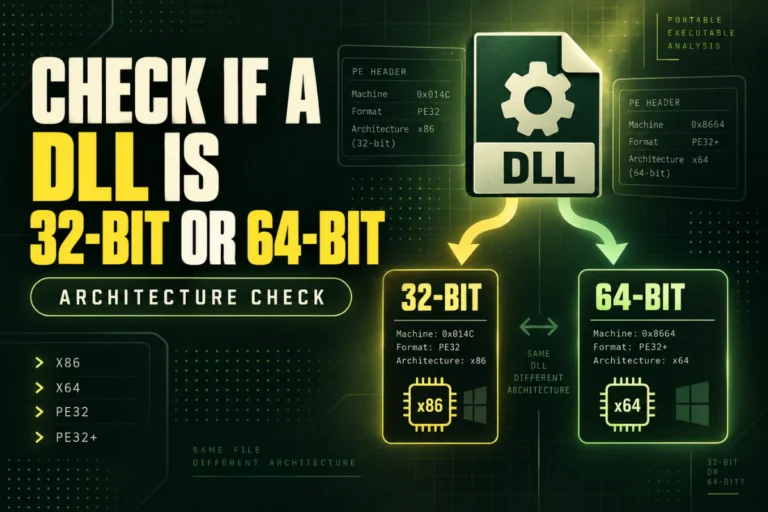
A version number does not tell you whether the DLL is 32-bit or 64-bit.
You can have:
Version: 6.2.0
Architecture: x86
and:
Version: 6.2.0
Architecture: x64
The visible version matches, but the architecture does not.
For bitness checks, read How to Tell If a DLL Is x86 or x64.
Version Information Can Help With Missing Entry Point Errors
An application may expect an exported function that exists in one DLL version but not another.
If you see an entry point error, compare:
- The DLL version
- The export table
- The application version
- The DLL architecture
A newer or older DLL with the same filename may expose a different set of functions.
Do Not Trust the File Date as the DLL Version
File Explorer also shows timestamps such as Date modified.
That is not the same thing as the DLL version.
File timestamps can change when files are copied, extracted, restored, or repackaged.
Use the version resource for version information and SHA-256 for exact file identity.
What About the PE COFF Timestamp?
The PE header contains a field commonly called TimeDateStamp.
It may be related to the build process, but it should not be treated as a definitive release date.
Build tools can alter, normalize, or replace this value.
For reliable identification, combine version metadata with hashes and other PE information.
Can Version Information Be Edited?
Yes.
Version resources are part of the file data and can be changed by rebuilding or modifying the binary.
That means fields such as CompanyName or ProductName are useful clues, not proof of authenticity.
A file can display a familiar company name and still be modified.
Can Version Information Prove a DLL Is Safe?
No.
Normal-looking version metadata does not prove that a DLL is harmless.
A harmful file can copy or imitate familiar product information.
Use version information for identification and troubleshooting. Do not treat company names, product names, or version numbers as a security verdict.
A Practical DLL Version Checklist
How Version Information Fits Into DLL Analysis
Version metadata is most useful when combined with other details.
A strong DLL identification record can include:
FileVersion: 4.8.2.0
ProductVersion: 4.8
CompanyName: Example Software
Architecture: x64
PE format: PE32+
SHA-256: …
This is much more useful than a version number alone.
When Version Information Is Most Useful
Version metadata is especially helpful when you are comparing multiple copies of the same DLL across application folders, backup locations, or different computers.
If one system has version 7.2.1.0 and another has 7.1.8.0, that difference can explain missing exports, changed dependencies, or compatibility problems. If the visible versions match but behavior differs, compare SHA-256 hashes next to confirm whether the binaries are actually identical.
Frequently Asked Questions
How do I check DLL version information in Windows?
Right-click the DLL, choose Properties, and open the Details tab.
What is FileVersion in a DLL?
It is the version assigned to the individual DLL file in its version resource.
What is ProductVersion?
It usually describes the version of the larger product or software suite.
Why does my DLL have no version information?
The developer may not have included a version resource, or the resource may have been removed or damaged.
Can two different DLLs have the same version number?
Yes. Version strings do not prove exact binary identity.
Can I check DLL version with PowerShell?
Yes. Use (Get-Item "path\file.dll").VersionInfo.
The Best Way to Check DLL Version Information
Start with Windows Properties or PowerShell.
Record FileVersion, ProductVersion, CompanyName, ProductName, and OriginalFilename.
Then check architecture and SHA-256 if you need to confirm that two DLL files are the same build.
For a broader inspection workflow, read DLL Analyzer Online: What Information Can You Find?.
Inspect DLL version and file metadata
View DLL architecture, PE format, sections, imports, exports, hashes, and other useful file details.
Inspect DLL Information