How to Open a DLL File on Windows 11 Safely
If you found a DLL file on your Windows 11 PC, you may have tried to double-click it and discovered that nothing useful happened. That is normal.
A DLL file is not a document like a PDF, image, or text file. It is a Dynamic Link Library used by Windows and software programs to store code, functions, resources, and other data.
You can still open a DLL file in the sense of viewing its technical information. You can check whether it is 32-bit or 64-bit, see which other libraries it uses, view exported functions, inspect PE headers, and identify sections inside the file.
This guide explains how to open a DLL file on Windows 11 without accidentally running or modifying it.
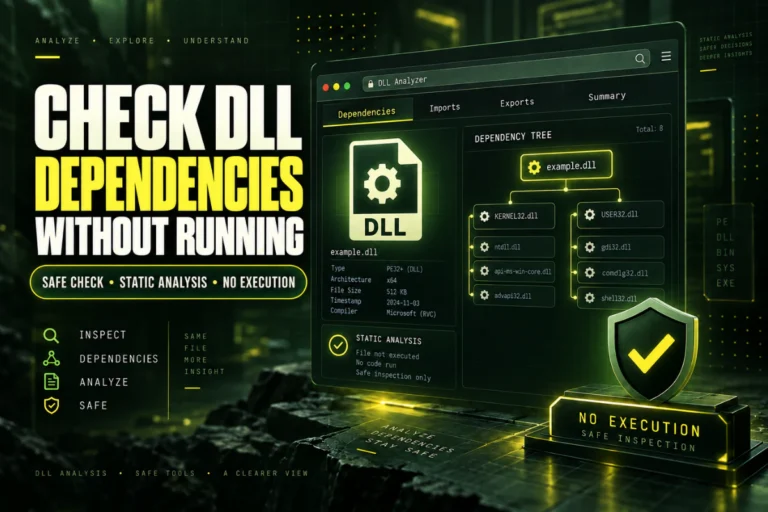
If you only want to inspect a DLL file, use a DLL viewer instead of trying to run it. You can use our online DLL viewer to check the file’s architecture, PE information, imports, exports, sections, and hash.
On this page
What Is a DLL File?
DLL stands for Dynamic Link Library. These files are an important part of the Windows operating system.
Programs can use DLL files to share functions and resources. For example, instead of placing the same code inside several applications, a developer can place that code inside a DLL. Different programs can then use the library when they need it.
Windows itself contains a large number of DLL files. You will also find them inside folders belonging to games, browsers, utilities, development tools, drivers, and business applications.
Common examples of DLL filenames look like this:
user32.dll
shell32.dll
example.dll
plugin.dll
The .dll extension tells Windows that the file is a dynamic link library.
Can You Open a DLL File by Double-Clicking It?
Usually, no.
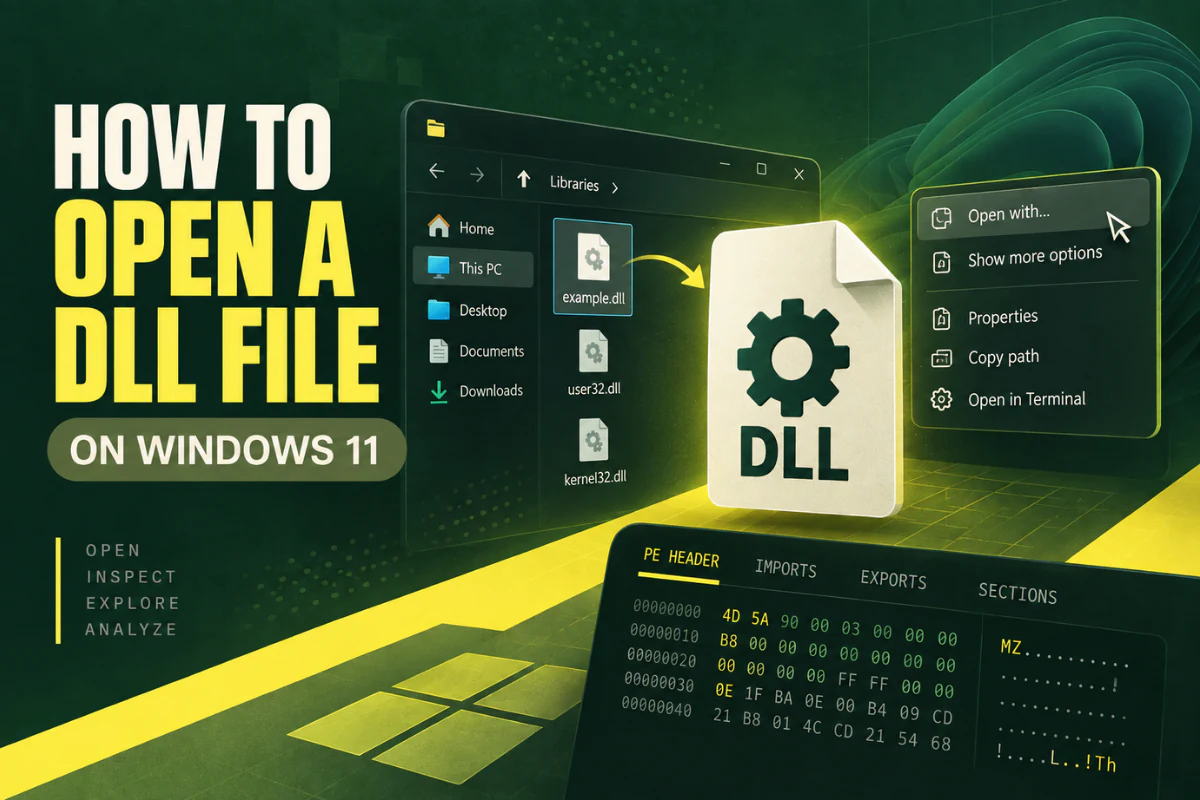
Windows 11 does not include a normal DLL reader that displays the contents when you double-click the file. DLLs contain binary data, not normal readable text.
If you try to open one, Windows may ask which application you want to use. Choosing Notepad may display random characters because Notepad is trying to interpret binary information as text.
That does not mean the DLL is damaged.
It simply means you are using the wrong type of program to inspect it.
How to Open a DLL File on Windows 11
The easiest method depends on what information you want to see.
| What you want to do | Best method | Difficulty |
|---|---|---|
| Check 32-bit or 64-bit | DLL viewer | Easy |
| View DLL exports | DLL export viewer | Easy |
| View dependencies | DLL import viewer | Easy |
| Read PE headers | PE/DLL analyzer | Easy to medium |
| Inspect program code | Decompiler or disassembler | Advanced |
Method 1: Open a DLL File With an Online DLL Viewer
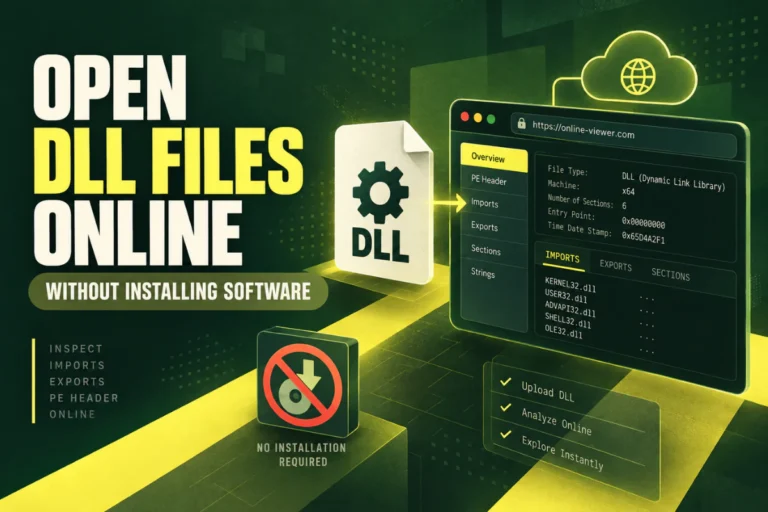
If you only need basic technical information, an online viewer is one of the simplest options.
You do not have to install a development program or configure Windows tools.
- Go to our Open DLL File Online tool.
- Select the DLL file from your Windows 11 computer.
- Upload the file for analysis.
- Wait for the DLL information to appear.
- Review its architecture, imports, exports, sections, hash, and PE information.
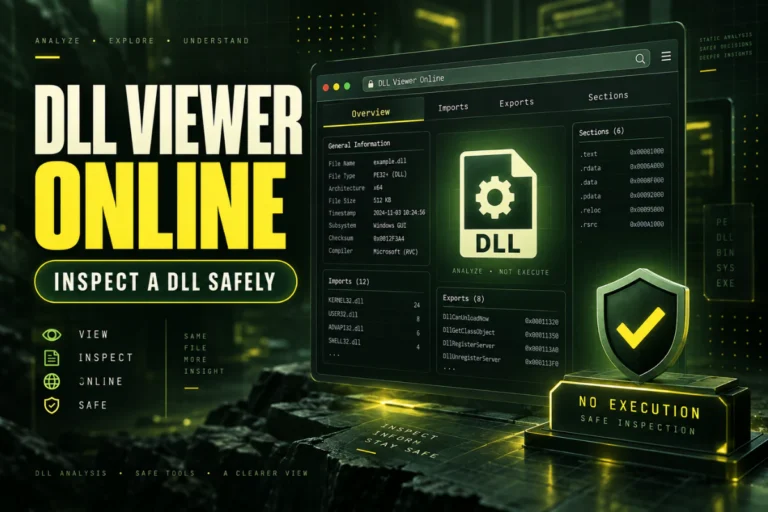
The viewer is designed to inspect the DLL as binary data. It does not need to load the library into Windows as an executable component.
This is useful when you have an unfamiliar DLL and want to learn more about it before doing anything else.
Information You May See
- File name
- File size
- SHA-256 hash
- x86 or x64 architecture
- PE32 or PE32+ format
- Entry point
- Image base
- DLL sections
- Imported libraries
- Exported functions
- Possible .NET information
You do not need to understand every field. Start with architecture, imports, and exports if you are new to DLL files.
Method 2: Check Whether a DLL Is 32-Bit or 64-Bit
One of the most common reasons to inspect a DLL is to find its architecture.
A 32-bit DLL and a 64-bit DLL may have the same filename but work with different applications.
For example, imagine you have:
C:\Program Files (x86)\App\example.dll
The files may have different architectures even though both are called example.dll.
A DLL viewer can read the machine type stored inside the PE header and identify common architectures such as x86, x64, ARM, and ARM64.
This information can be useful when troubleshooting a program that refuses to load a library.
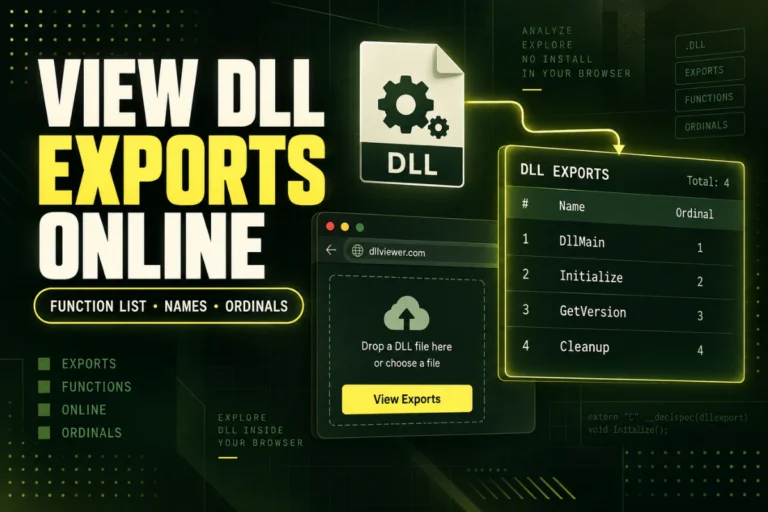
Method 3: View Functions Exported by a DLL
Some DLL files provide functions that other programs can call. These are known as exported functions.
For example, a DLL could expose functions with names such as:
LoadConfiguration
ProcessData
ShutdownPlugin
The actual names depend on how the developer created the library.
A DLL export viewer reads the export table and displays these names when they are available.
This is useful for developers, software researchers, and users trying to confirm that they have the correct version of a DLL.
You can inspect exports with our DLL file viewer without trying to run the DLL itself.
Method 4: View DLL Imports and Dependencies
DLLs often depend on other libraries.
The import table can show some of the DLL files that a library expects Windows to provide.
You may see names such as:
USER32.dll
ADVAPI32.dll
WS2_32.dll
This does not automatically mean something is wrong. Windows applications commonly use system libraries.
Import information becomes especially useful when you are investigating why software cannot load a DLL.
A missing dependency is one possible cause. Other causes include architecture problems, damaged files, incompatible versions, missing runtime packages, or application-specific requirements.
Method 5: Open a DLL With Notepad
Technically, Windows allows you to right-click a DLL and open it with a text editor such as Notepad.
That does not make Notepad a useful DLL viewer.
You will usually see unreadable symbols because most of the file contains binary data.
You may occasionally notice readable text inside the file, such as URLs, error messages, function names, library names, version strings, or paths.
But this is an incomplete view of the file. If you want structured information, use a proper PE or DLL analyzer instead.
Can You See DLL Source Code?
Not directly.
The original source code used to build a DLL is normally not stored inside the finished file in its original form.
For native programs written in languages such as C or C++, source code is compiled into machine instructions.
A normal DLL viewer can show information about the binary, but it cannot simply display the original C++ project.
.NET DLL files are different. They often contain Intermediate Language and metadata that specialized .NET decompilers can interpret more easily.
Even then, decompiled output may not be identical to the developer’s original source code.
If your goal is simply to check architecture, imports, exports, or file information, you do not need a decompiler.
Is It Safe to Open a DLL File?
DLL files can contain executable code. You should treat an unknown DLL with care.
Simply having a DLL stored on your computer is different from deliberately loading or executing code from it.
Still, avoid experimenting with unknown files by registering them, replacing Windows system files, or copying them into important application folders.
Do not download a random DLL from an unknown website just because Windows says a DLL is missing. Reinstalling or repairing the original application is usually a safer first step.
Do Not Register an Unknown DLL Just to Open It
You may find tutorials that mention the Windows regsvr32 command.
Do not use it simply because you want to inspect a DLL.
regsvr32 is intended for registering certain DLL components. It is not a DLL viewing program.
Running registration commands against an unknown library can cause unwanted changes to your system.
If your only goal is to see what is inside the file, use a viewer or analyzer instead.
Why Won’t Windows 11 Open My DLL File?
Windows is probably working correctly.
DLL files are not designed to behave like normal documents. They are normally loaded by programs when specific functions are required.
This is why File Explorer does not include a normal preview for DLL content.
If you double-click the DLL and Windows asks you to choose an application, you do not need to assign a default program to the .dll extension.
Instead, decide what information you actually need.
If you need technical details, use a DLL viewer. If you need code analysis, use a decompiler or disassembler. If you are fixing a missing DLL error, investigate the application that needs the file.
What Does PE32 or PE32+ Mean?
Most Windows DLL files use the Portable Executable format, often shortened to PE.
When you inspect a file, you may see PE32 or PE32+.
PE32 is commonly associated with 32-bit Windows executables and DLLs. PE32+ is the format used for 64-bit images.
The plus sign does not mean the file is a newer version of the same program. It refers to differences in the PE structure required for 64-bit images.
What Are DLL Sections?
DLL files are divided into regions called sections.
| Section | Common purpose |
|---|---|
.text | Executable program code |
.data | Writable program data |
.rdata | Read-only data and tables |
.rsrc | Resources such as icons and version information |
.reloc | Relocation information |
These are common conventions, not strict rules. Software developers and build tools can create different section names.
How to Inspect a DLL Without Installing Software
If you only need basic DLL information, you may not need to install anything on Windows 11.
Use our free online DLL analyzer and upload the file you want to inspect.
This is useful when you need a quick answer to questions such as:
- Is this DLL 32-bit or 64-bit?
- What libraries does it import?
- Which functions does it export?
- What PE format does it use?
- What sections are inside it?
- What is its SHA-256 hash?
For deeper reverse engineering, you may eventually need specialist software. But a basic viewer is a good first step.
Frequently Asked Questions
What program opens DLL files in Windows 11?
There is no single built-in Windows application designed to display DLL files like documents. Use a DLL or PE viewer if you want to inspect technical information.
Can I open a DLL file online?
Yes. You can upload a DLL to an online viewer that reads its PE structure and displays information such as architecture, imports, exports, sections, and hashes.
Can I open a DLL with Notepad?
You can, but most of the content will appear unreadable because DLL files contain binary data. A proper DLL viewer provides more useful information.
Can I edit a DLL file?
DLL files can be modified with specialized tools, but editing one can easily break the library or invalidate its digital signature. Do not modify system or application DLLs unless you understand the consequences.
How do I know if a DLL is 32-bit or 64-bit?
Inspect the DLL’s PE machine type with a DLL analyzer. x86 usually indicates 32-bit, while x64 indicates a 64-bit library.
Does opening a DLL run the file?
It depends on what you mean by opening it. A viewer can read the file as binary data without loading it as a Windows library. Loading or registering a DLL is different.
Final Thoughts
If you want to know how to open a DLL file on Windows 11, the key is to first decide what you want to learn from it.
You do not need to double-click the file or try to run it.
For most users, the safest and easiest starting point is a DLL viewer. It can show whether the file is 32-bit or 64-bit, reveal imported libraries, list exported functions, display PE information, and help you understand the basic structure of the file.
If you have a DLL you want to inspect now, use our Open DLL File Online tool. Upload the file, review its information, and investigate it without needing to install a desktop DLL viewer.