How to Identify an Unknown DLL File
Finding an unfamiliar DLL on your computer can raise a simple question: what is this file?
A filename alone rarely gives a complete answer. Many DLL names are generic, shortened, reused by different programs, or changed during installation. The better approach is to inspect the file itself.
This guide explains how to identify an unknown DLL file using static information such as its SHA-256 hash, architecture, version resources, imports, exports, PE sections, and .NET metadata.
Start with the DLL’s SHA-256 hash, architecture, version information, imports, exports, and section layout. Our DLL analyzer can show many of these details without running the file.
On this page
Why an Unknown DLL Can Be Hard to Identify
DLL files are reusable components, so they are often named for internal functions rather than the product users recognize.
You may encounter names such as:
core.dll
engine.dll
runtime.dll
plugin.dll
These names are too generic to identify a vendor or purpose with confidence.
Even a more specific filename can be copied, renamed, or reused by unrelated software.
Use a Layered Identification Process
The best way to identify an unfamiliar DLL is to combine several clues rather than trust one field.
2. Calculate SHA-256
3. Check architecture
4. Read version information
5. Inspect imports
6. Inspect exports
7. Review PE sections
8. Check for .NET metadata
9. Compare with trusted software context
Each step adds another piece of evidence.
Step 1: Record the Filename and Folder
The filename and location are useful clues, but they should not be treated as proof.
For example, a DLL stored inside:
is more likely to belong to that application than a copy found in an unrelated temporary directory.
Still, files can be copied manually or left behind after updates.
Write down the full path before moving or deleting anything.
Step 2: Calculate the SHA-256 Hash
The SHA-256 hash gives you an exact fingerprint for the file.
It is one of the strongest identifiers because it is calculated from the complete contents of the DLL.
A hash may look like:
84C1A77D2D1F7B5C9F2A8E4D3C2B1A0F…
If two DLL files have the same SHA-256 value, they are byte-for-byte identical for normal verification purposes.
For instructions, read How to Find the SHA-256 Hash of a DLL File.
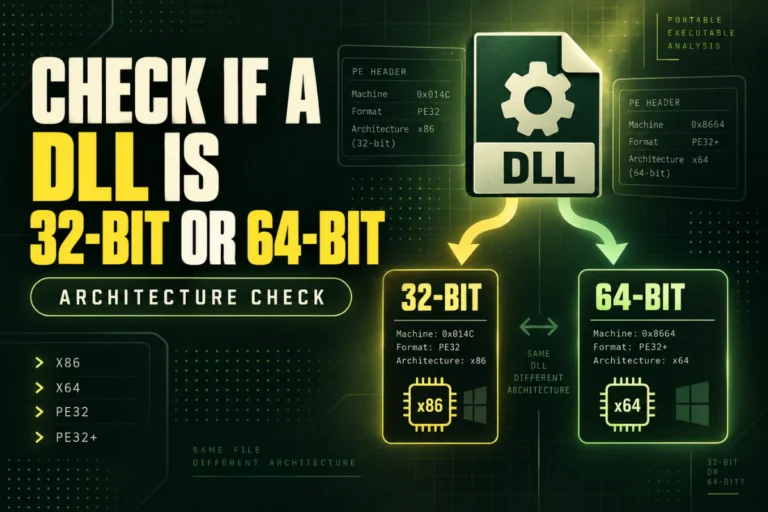
Step 3: Check the DLL Architecture
Architecture tells you what type of process the DLL was built for.
Common results include:
| Architecture | Common meaning |
|---|---|
| x86 | 32-bit Windows binary |
| x64 | 64-bit Windows binary |
| ARM | 32-bit ARM target |
| ARM64 | 64-bit ARM target |
Architecture does not identify the vendor, but it can tell you whether the file matches the application that appears to use it.
See How to Check Whether a DLL Is 32-Bit or 64-Bit.
Step 4: Read Version Information
Version resources can provide some of the most useful identification clues.
Look for fields such as:
- FileDescription
- CompanyName
- ProductName
- FileVersion
- ProductVersion
- OriginalFilename
- Copyright
A useful result might look like:
CompanyName: Example Software Ltd.
ProductName: Example Studio
FileVersion: 6.4.2.0
OriginalFilename: audioengine.dll
This is much more informative than the filename alone.
Do Not Treat Version Metadata as Proof
Version information is useful, but it is not cryptographically protected just because it appears inside the file.
A DLL can have:
- Missing version information
- Outdated version strings
- Generic company names
- Modified resource values
Use version data as one clue among several.
Step 5: Inspect Imported DLLs
Imports can reveal what services the DLL expects from Windows or other libraries.
For example:
USER32.dll
ADVAPI32.dll
VCRUNTIME140.dll
These names can give broad clues about the file’s runtime environment.
A plugin may also import a vendor-specific DLL, which can be a stronger identification clue.
For dependency analysis, read How to View DLL Imports and Dependencies.
Step 6: Inspect Exported Functions
Exports can reveal what the DLL offers to other software.
Example:
CreateDevice
ProcessBuffer
ShutdownAudioEngine
Names like these can provide strong hints about the library’s purpose.
Other DLLs may export only ordinals or heavily shortened names, which makes identification harder.
See How to Find Exported Functions in a DLL.
Step 7: Review the PE Sections
The section table shows how the DLL is organized.
Common sections include:
Executable code
Read-only data
Writable data
Resources
Relocation data
Section names rarely identify a product by themselves, but unusual custom names or distinctive sizes can help when comparing a file with another known copy.
For section analysis, read How to View DLL Sections Such as .text, .data and .rsrc.
Step 8: Check Whether It Is a .NET Assembly
Some DLL files are managed .NET assemblies rather than ordinary native libraries.
A .NET assembly contains managed metadata and intermediate language.
If the DLL is managed, you may be able to identify:
- Assembly name
- Assembly version
- Referenced assemblies
- Namespaces
- Classes and methods
This can make identification much easier.
A basic PE analyzer may detect the .NET metadata directory. A .NET-specific inspector can show much more.
Step 9: Compare the Unknown DLL With a Known Copy
If you think the DLL belongs to a particular application, compare it with a known copy from the official installation package or another trusted system.
Start with SHA-256.
Known DLL hash: A91F…442E
Result: exact match
If the hashes differ, compare architecture, version information, exports, imports, and sections.
See How to Compare Two DLL Files.
Use the File Path as Context, Not Proof
The location of the DLL can help you understand its likely purpose.
Examples:
| Location | Possible context |
|---|---|
Program Files\AppName |
Likely part of that installed application |
plugins folder |
May be a plugin or extension library |
Windows\System32 |
May be a Windows or installed system component |
| Temporary folder | May be installer, updater, extracted, or temporary content |
Do not identify a DLL solely from its folder. Files can be copied anywhere.
What About Digital Signatures?
A digital signature can provide useful publisher information when present and valid.
It may help answer questions such as:
- Who signed the file?
- Was the signed content changed after signing?
- Does the certificate chain validate on the system?
Not every legitimate DLL is digitally signed, and a signature should be checked properly rather than judged from a displayed company name alone.
Can You Identify a DLL From Imports Alone?
Usually not.
Many unrelated programs import the same common Windows libraries.
For example, imports from KERNEL32.dll and USER32.dll are extremely common.
Vendor-specific dependencies or unusual API combinations can provide stronger clues, but imports should still be combined with other evidence.
Can You Identify a DLL From Exports Alone?
Sometimes exports are very informative.
A library exposing clearly named functions can reveal its purpose quickly.
Other files may export:
- Generic names
- Decorated C++ symbols
- Only ordinals
- No exports at all
In those cases, exports are only part of the identification process.
Do Not Register an Unknown DLL Just to Identify It
regsvr32 is not a DLL viewer.
It is used to register or unregister certain COM components that support the expected registration entry points.
Running it against an unknown DLL can cause code to execute.
Inspect unknown DLL files statically. Read their hashes, headers, imports, exports, sections, and metadata without executing or registering them.
Do Not Download a Random Replacement DLL
If you identify the file as belonging to an application, do not automatically download a same-named DLL from an unrelated download site.
The replacement could be:
- The wrong version
- The wrong architecture
- Built for another application
- Modified
- Unsafe
Prefer reinstalling or repairing the application from its official source.
Can an Unknown DLL Be Malicious?
Yes, a DLL can contain executable code and can be harmful.
But an unfamiliar filename does not mean a file is malicious.
Likewise, normal-looking version information, section names, or imports do not prove that a file is safe.
Static analysis helps identify structure and context. It is not a complete antivirus verdict.
A Practical Unknown DLL Identification Record
When you investigate a file, record the important facts in one place.
Full path: C:\Example\App\unknown.dll
SHA-256: …
Architecture: x64
PE format: PE32+
CompanyName: …
ProductName: …
FileVersion: …
Imported DLLs: …
Exports: …
.NET assembly: Yes / No
This gives you a clean summary you can compare with another system, installer, or known copy.
What If You Still Cannot Identify the DLL?
Sometimes the available metadata is too generic.
If you still cannot identify it:
- Keep the SHA-256 hash.
- Record the full file path.
- Check which application folder contains it.
- Compare it with official installation media if available.
- Inspect imports, exports, and .NET metadata more deeply.
- Use trusted security tools if safety is the main concern.
A file does not need a recognizable filename to be identified reliably. The strongest answer often comes from combining several independent clues.
Frequently Asked Questions
How do I identify an unknown DLL file?
Check its SHA-256 hash, architecture, version information, imports, exports, sections, file location, and whether it is a .NET assembly.
Can the filename identify a DLL?
Sometimes it provides a clue, but filenames can be generic, reused, or renamed.
Can version information tell me who made the DLL?
It may show company and product information, but treat it as metadata rather than proof.
Can I inspect an unknown DLL without running it?
Yes. PE headers, hashes, imports, exports, sections, and many metadata fields can be read statically.
Should I use regsvr32 to test an unknown DLL?
No. regsvr32 is not a viewer and can cause supported DLL registration code to execute.
Should I download a replacement DLL from a random website?
No. Prefer the official application installer, repair option, or vendor source.
The Best Way to Identify an Unknown DLL
Do not rely on one clue.
Start with the SHA-256 hash and file path. Then check architecture, version resources, imports, exports, sections, and .NET metadata.
When several of those details point to the same product or build, you have a much stronger identification than a filename alone can provide.
Inspect an unknown DLL safely
View architecture, PE format, SHA-256, imports, exports, sections, and other metadata without running the DLL.
Identify a DLL FileFurther reading
Related guides: