How to Inspect a DLL Without Executing It
You can inspect a DLL without executing it by using static analysis. Static analysis reads the file’s bytes, headers, metadata, imports, exports, sections, resources, hashes, and managed-code indicators without loading the DLL into a running process.
This is the right starting point when a DLL is unfamiliar, when you only need technical details, or when you want to understand the file before deciding whether deeper analysis is necessary.
This guide shows how to inspect a DLL without executing it, what information you can safely read, which checks are most useful, and which actions to avoid.
Use a static DLL or PE viewer. Start with the file hash and architecture, then inspect PE headers, imports, exports, sections, resources, version information, and .NET metadata. Do not register or execute an unknown DLL just to inspect it.
On this page
What Does Static DLL Inspection Mean?
Static inspection means analyzing the DLL as a binary file rather than running its code.
A static tool can read structures already stored in the file, including:
Machine type, format, image settings, and data directories.
Libraries and functions referenced statically.
Functions or ordinals exposed by the DLL.
.text, .rdata, .rsrc, .reloc, and custom sections.
SHA-256 and exact file identity.
CLR indicators for managed assemblies.
Why Inspect a DLL Without Running It?
There are several good reasons to start with static analysis.
- You may not trust the file yet.
- You may only need architecture or version details.
- You may want to compare it with another DLL.
- You may need to check dependencies or exports.
- You may want to determine whether it is native or .NET.
- You may be troubleshooting a load error.
Static inspection gives you useful information before any code is executed.
Step 1: Record the Filename and Path
Before doing anything else, record where the DLL came from.
Path: C:\Program Files\ExampleApp\bin\example.dll
The path is not proof of origin, but it gives useful context.
If the DLL belongs to a particular application folder, that may help explain its likely purpose and which files should be compared with it.
Step 2: Calculate the SHA-256 Hash
A SHA-256 hash is one of the strongest static identifiers for a DLL.
It lets you:
- Compare two DLL files
- Confirm whether a file changed
- Check against a trusted vendor-published hash
- Track the exact binary you analyzed
On Windows, PowerShell can calculate it:
For a detailed guide, read How to Find the SHA-256 Hash of a DLL File.
Step 3: Confirm It Is a Valid PE File
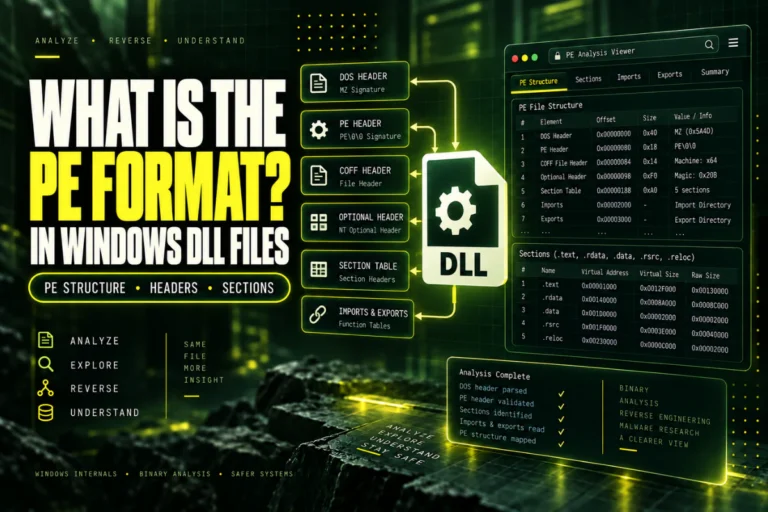
Many Windows DLLs use the Portable Executable format.
A normal PE file includes familiar markers such as:
PE signature: PE\0\0
COFF header
Optional header
Section table
A file ending in .dll is not automatically a valid Windows PE DLL. The extension can be misleading, so check the actual structure.
For the format itself, read What Is the PE Format in Windows DLL Files?.
Step 4: Check the Architecture
Architecture is one of the most useful early checks.
Common values include:
| Architecture | Common PE Machine value |
|---|---|
| x86 | 0x014C |
| x64 | 0x8664 |
| ARM | 0x01C0 is a common ARM value |
| ARM64 | 0xAA64 |
For more detail, read How to Find the Architecture of a DLL File.
Step 5: Read the PE Headers
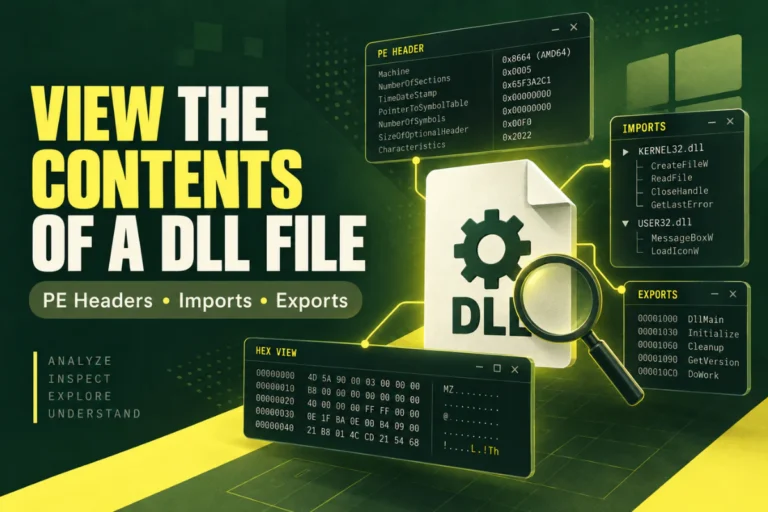
PE headers can reveal important loading information without executing the file.
Useful fields include:
- Machine
- NumberOfSections
- Optional Header Magic
- AddressOfEntryPoint
- ImageBase
- SizeOfImage
- Subsystem
- DLL characteristics
- Data directories
These fields help you understand how the DLL is structured and how Windows expects to map it.
See How to Read PE Headers in a DLL File.
Step 6: Inspect Imports
The import table shows libraries and functions the DLL references statically.
You may see names such as:
USER32.dll
ADVAPI32.dll
VCRUNTIME140.dll
Imports can help you identify dependencies and understand which Windows APIs the DLL expects to use.
But normal imports do not reveal every possible runtime dependency. A program can load libraries dynamically, and delay-load imports may be stored separately.
For more detail, read How to View DLL Imports and Dependencies.
Step 7: Inspect Exports
The export table shows functions or symbols exposed to other software.
Example:
ProcessData
GetVersion
Shutdown
Some DLLs export by ordinal rather than name, and some DLLs export very little.
Exports are useful for compatibility checks, but they do not reveal every internal function.
See How to Find Exported Functions in a DLL.
Step 8: Inspect PE Sections
The section table gives a quick view of the DLL’s internal layout.
| Section | Typical purpose |
|---|---|
.text |
Executable code |
.rdata |
Read-only data |
.data |
Writable data |
.rsrc |
Resources |
.reloc |
Base relocation data |
Custom section names are also possible, so section names should be treated as conventions rather than guarantees.
For section analysis, read How to View DLL Sections Such as .text, .data and .rsrc.
Step 9: Check Version and Resource Information
Version resources can help identify the file.
Useful fields include:
- FileVersion
- ProductVersion
- CompanyName
- ProductName
- FileDescription
- OriginalFilename
This information is useful for identification, but it is metadata rather than proof of authenticity.
For a detailed guide, read How to Check DLL Version Information.
Step 10: Check Whether the DLL Is .NET
A managed .NET assembly normally contains CLR metadata and a valid CLR Runtime Header referenced by the PE COM Descriptor data directory.
This is useful because .NET assemblies can be inspected with different tools than native DLLs.
For example, a .NET-aware tool may show:
Assembly version
Namespaces
Classes
Methods
Assembly references
See How to Check If a DLL Is a .NET Assembly.
What Not to Do With an Unknown DLL
Static inspection is useful partly because it avoids unnecessary execution.
Can You Inspect Strings Without Executing the DLL?
Yes.
Readable strings are just data stored in the binary.
You may find:
“Unsupported format”
“Failed to initialize”
Strings can reveal useful clues, but they do not prove what the DLL will do at runtime.
Can Static Analysis Tell You If the DLL Is Safe?
Not by itself.
Static analysis can reveal suspicious or unusual details, but it cannot always predict runtime behavior.
For example, a DLL may load additional code dynamically, decrypt data at runtime, or behave differently depending on the environment.
Static DLL inspection is excellent for identification and technical analysis. It is not a complete antivirus or malware verdict.
A Practical Static Inspection Order
2. Calculate SHA-256
3. Confirm PE format
4. Check architecture
5. Read PE headers
6. Inspect imports
7. Inspect exports
8. Review sections
9. Check version/resources
10. Detect .NET metadata
This order starts with identification and moves toward deeper structure without executing the file.
When Should You Move Beyond Static Inspection?
Move to deeper analysis only when the question requires it.
Examples include:
- You need to understand internal function logic.
- You need to inspect managed classes and methods.
- You need to compare code paths between two builds.
- You need runtime behavior that static metadata cannot reveal.
If you only need architecture, dependencies, exports, version data, or hashes, static inspection may already answer the question.
Privacy When Using Online DLL Analysis
If a DLL contains proprietary code, belongs to a client, or comes from unreleased software, prefer local tools.
For non-sensitive files, an online viewer can be convenient because it combines several static checks in one place.
Always follow your organization’s rules before uploading private binaries.
Frequently Asked Questions
Can I inspect a DLL without executing it?
Yes. Static tools can read PE headers, imports, exports, sections, hashes, resources, version data, and .NET metadata without running the DLL.
Is opening a DLL in a viewer the same as running it?
No. A static viewer reads the file as data rather than loading it as executable code.
Should I use regsvr32 to inspect a DLL?
No. regsvr32 is for registering certain COM DLLs and can execute supported registration code.
Can I check whether a DLL is 32-bit or 64-bit without running it?
Yes. Read the PE Machine field and related header information.
Can I view DLL dependencies without running the file?
Yes. Static imports and delay-import information can be inspected from the PE file, although dynamically loaded libraries may not appear there.
Can static inspection prove a DLL is safe?
No. It provides useful evidence and technical context, but it is not a complete security verdict.
The Best Way to Inspect a DLL Safely
Start with static analysis.
Record the file, calculate its hash, confirm the PE format, check architecture, then inspect headers, imports, exports, sections, resources, version information, and .NET metadata.
This gives you a strong technical picture without executing or registering the DLL.
Inspect a DLL without executing it
View architecture, PE format, imports, exports, sections, SHA-256, and basic .NET indicators through static analysis.
Inspect DLL Safely