How to View DLL Imports and Dependencies
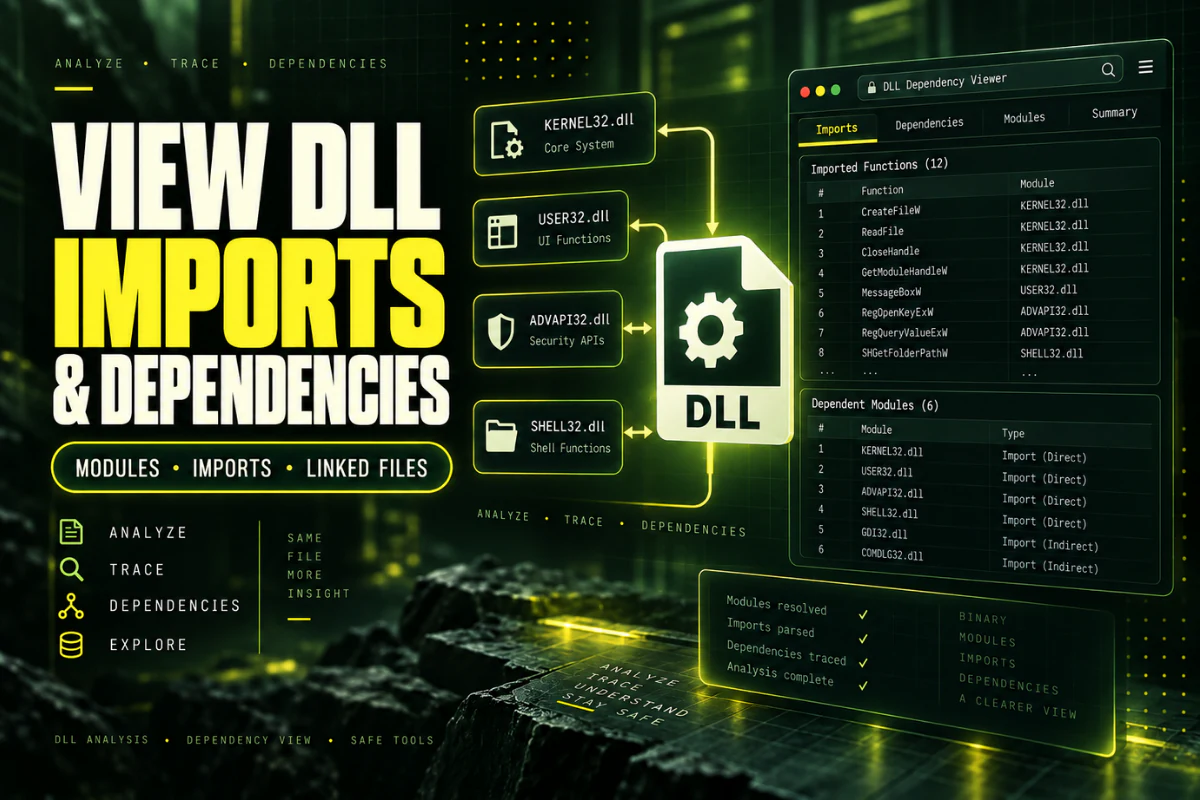
A DLL import viewer shows the libraries and functions that a Windows DLL expects to use. This information is useful when software fails to load, when you suspect a missing dependency, or when you want to understand which Windows components a library relies on.
The import table does not run the DLL. It simply describes dependencies recorded inside the Portable Executable structure.
This guide explains how to view DLL imports and dependencies, how to read common library names, what import information can and cannot tell you, and how to use it when troubleshooting a DLL problem.
Use our DLL import viewer to inspect the libraries referenced by a DLL. The imports section can help you identify Windows system libraries, runtime dependencies, and other DLLs the file expects to use.
On this page
What Is a DLL Import?
An import is a function or library that a DLL expects to use from somewhere else.
For example, a DLL may depend on Windows system libraries for file access, graphics, networking, or memory management.
A simple import list could look like this:
USER32.dll
ADVAPI32.dll
GDI32.dll
VCRUNTIME140.dll
Each of these names tells you that the DLL expects another component to be available when it is loaded.
Some imports are part of Windows. Others come from runtimes, drivers, application frameworks, or third-party software.
Why DLL Imports Matter
Imports are especially useful when a DLL will not load.
If the library references another file that is missing, incompatible, or the wrong architecture, the load can fail before the DLL gets a chance to do anything useful.
Imports such as Visual C++ runtime DLLs can point to required packages.
Application-specific DLL names can reveal extra components.
Two DLL builds may depend on different libraries.
The import list gives you a focused place to look when loading fails.
How to View DLL Imports Online
You can inspect the import table without installing a desktop dependency tool.
- Open the Open DLL File Online tool.
- Choose the DLL you want to inspect.
- Upload it for analysis.
- Find the imports or dependencies section.
- Review the listed DLL names.
- Check whether any imported library looks application-specific or related to a runtime.
The viewer reads the import information from the file as data. It does not need to execute the DLL.
What the DLL Import Table Can Show
The Portable Executable import structure can point to external libraries and imported functions.
Depending on the viewer, you may see:
- Imported DLL names
- Imported function names
- Imported ordinals
- Import Address Table information
- Related PE directory values
For a basic dependency check, the library names are usually the most important part.
Common Windows DLL Imports
Many legitimate Windows programs reference the same system libraries.
| Imported DLL | Common role |
|---|---|
KERNEL32.dll |
Core process, memory, file, and system functions |
USER32.dll |
Windows user interface functions |
ADVAPI32.dll |
Registry, services, security, and related APIs |
GDI32.dll |
Graphics Device Interface functions |
WS2_32.dll |
Windows Sockets networking functions |
Seeing these names does not mean anything is wrong. They are normal dependencies for many Windows applications.
Runtime DLLs Can Be Useful Clues
Some imports can point to runtime packages that the application needs.
For example, you may see names such as:
MSVCP140.dll
ucrtbase.dll
These names can indicate that the program was built with Microsoft Visual C++ components.
If the required runtime is missing or damaged, the application may fail to load.
The import list gives you a clue, but you should still install or repair runtimes from official sources rather than downloading individual DLL files from unknown websites.
Imported DLL Does Not Always Mean “Missing DLL”
One common mistake is to see a library name in the import table and assume that file must be sitting next to the DLL.
That is not always true.
Windows can load libraries from system locations, application directories, and other search paths depending on the software and system configuration.
So an import tells you what the file references. It does not prove that the dependency is missing.
How to Use Imports When a DLL Will Not Load
If a DLL fails to load, use the import table as part of a wider check.
If architecture may be the issue, read How to Check Whether a DLL Is 32-Bit or 64-Bit.
Imports vs Exports
Imports and exports describe opposite sides of a library relationship.
If you want to inspect exports, read How to View DLL Exports Online and How to Find Exported Functions in a DLL.
What Is the Import Address Table?
The Import Address Table, often shortened to IAT, is part of how a PE file connects imported functions to the addresses used at runtime.
Before the program can call an imported function, Windows resolves the function and updates the relevant entries.
You do not need to understand the IAT in detail for a basic dependency check.
For most users, the important question is simply which libraries and functions the DLL expects to use.
Delayed Imports and Other Complications
Some software uses delayed imports. In that case, a dependency may not be loaded until the program actually needs it.
This means a simple import list may not show the entire story of runtime behavior.
Applications can also load DLLs dynamically by name while running. Those dependencies may not appear in the normal static import table.
So the import table is a strong starting point, but it is not a complete map of every library the program could ever load.
Can Imports Tell You If a DLL Is Safe?
No.
An import list can show which APIs and libraries the file references, but that does not prove whether the DLL is safe or malicious.
Legitimate software and malware can both import common Windows functions.
Use import information for technical understanding and troubleshooting. Do not treat it as a malware verdict.
Do Not Download Random Dependencies
If you discover that a DLL imports another file that appears to be missing, avoid downloading a random copy from an unofficial DLL website.
The replacement could be the wrong version, the wrong architecture, or unsafe.
A better approach is to repair the original software, reinstall the official runtime, or restore the dependency from the software vendor’s installer.
A Practical Example
Suppose a DLL shows these imports:
USER32.dll
VCRUNTIME140.dll
customengine.dll
The first two are common Windows libraries.
VCRUNTIME140.dll suggests a Microsoft Visual C++ runtime dependency.
customengine.dll looks application-specific.
If the program fails to load, you now have two useful places to investigate: the runtime installation and the presence of the application’s own customengine.dll.
This is much more useful than guessing from the original error message alone.
When to Move Beyond a Basic Import Viewer
A basic import list is enough for many problems, but not all of them. If the DLL loads some components only after a user action, plugin call, or network event, those dependencies may not appear in the normal import table.
In that situation, a desktop dependency tool, debugger, or process monitor can show what the application actually loads at runtime. Start with static imports because they are quick to inspect. Move to runtime analysis only when the basic dependency list does not explain the problem.
Frequently Asked Questions
How do I view DLL imports?
Use a DLL import viewer or PE analyzer. It can read the import table and list referenced libraries and functions.
What is a DLL dependency?
A dependency is another library, runtime, or component that the DLL needs in order to work correctly.
Can a DLL import another DLL?
Yes. DLL files commonly depend on other DLLs, including Windows system libraries and application-specific components.
Does the import list show every dependency?
No. Delayed or dynamically loaded libraries may not appear in the normal static import table.
Can I check DLL dependencies without running the file?
Yes. Static import information can be read directly from the PE file.
Is an imported DLL always missing if the program fails?
No. The failure could be caused by architecture mismatch, version problems, corruption, a missing runtime, or another dependency issue.
The Best Way to Check DLL Dependencies
Start with the import table.
Look for system libraries, runtime files, and application-specific dependencies. Then compare that information with the software installation and the architecture of the DLL.
This will not diagnose every loading problem, but it gives you a clear and useful starting point.
If you want a wider view of the file, see DLL Viewer Online: How to Inspect a DLL Safely.
View DLL imports and dependencies
Upload your DLL and inspect imported libraries, exports, architecture, PE details, sections, and hashes.
View DLL Imports