DLL Viewer Online: How to Inspect a DLL Safely
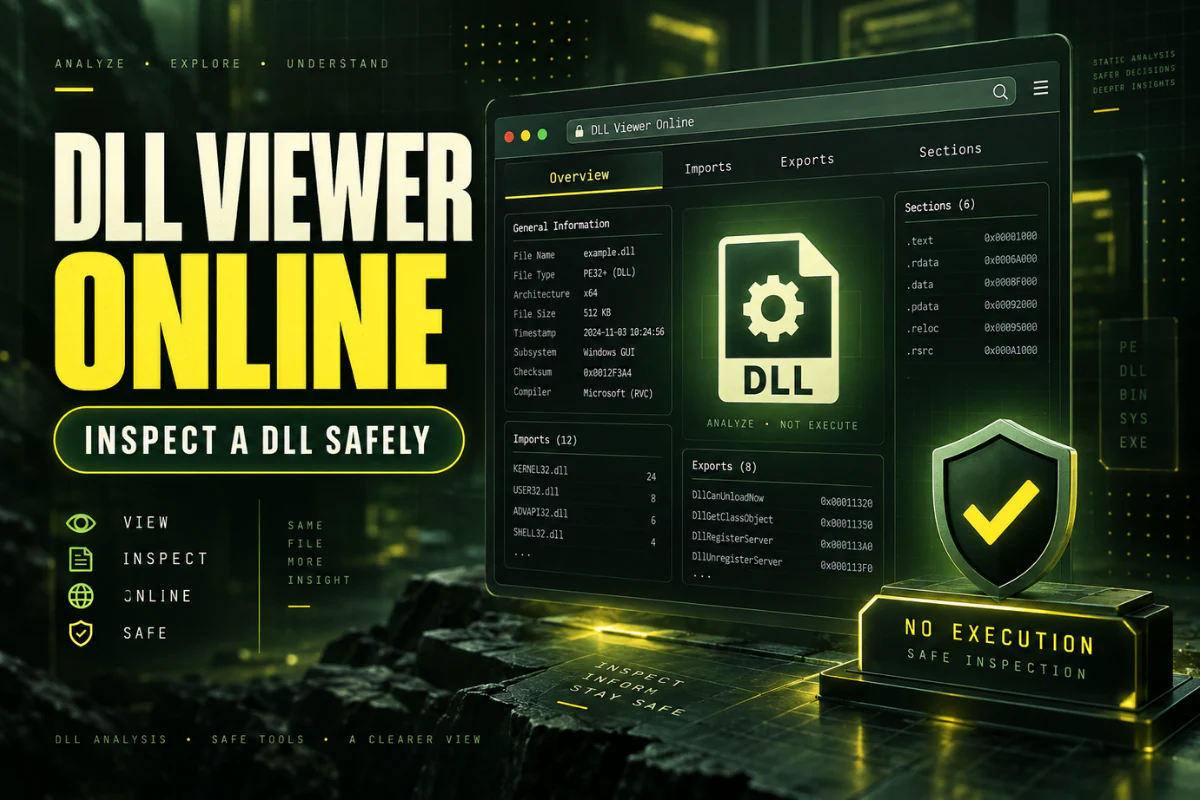
A DLL viewer online is useful when you need to inspect a Windows DLL file without installing a desktop program. It can show you the file’s architecture, PE format, imported libraries, exported functions, sections, and hash values.
The important point is that viewing a DLL is not the same as running it. A good viewer reads the file as binary data. It does not need to register the DLL or load its code into Windows.
This guide explains how to inspect a DLL safely, what information an online viewer can show, and when you should use a local tool instead.
If you only need to inspect a DLL, use our Open DLL File Online tool. It can show architecture, PE details, imports, exports, sections, and a SHA-256 hash without requiring you to install a DLL viewer.
On this page
What Is a DLL Viewer Online?
A DLL viewer online is a browser-based tool that reads information from a Windows Dynamic Link Library file.
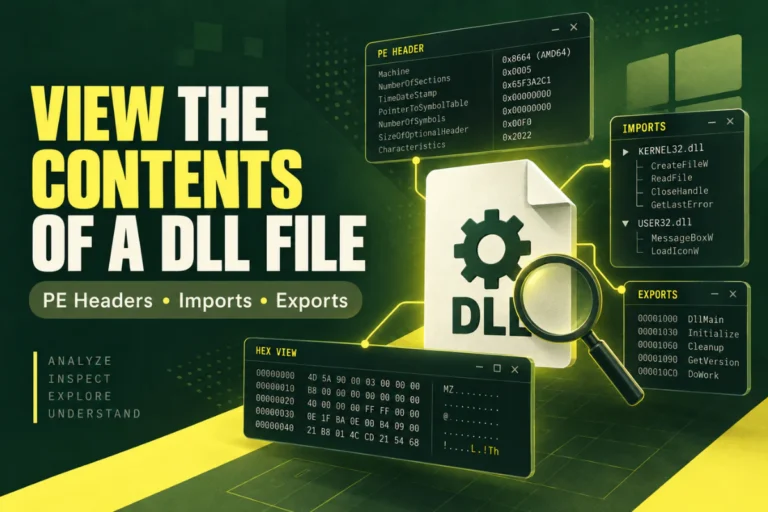
DLL files are binary files. That means most of their contents are not readable in a normal text editor. A viewer understands the Windows Portable Executable structure and turns important fields into readable information.
Instead of showing random characters, a DLL viewer can organize the file into useful parts such as:
- Machine architecture
- PE32 or PE32+ format
- DLL sections
- Imported libraries
- Exported functions
- File size
- Image base
- Entry point
- SHA-256 hash
If you are new to DLL files, read What Is a DLL File and What Does It Do? before going deeper.
Why Use an Online DLL Viewer?
You may not need a large desktop tool if your question is simple.
An online DLL viewer is useful when you want to:
Read the DLL architecture without installing software.
See which named functions the library exposes.
See which other DLLs the file references.
Use hashes and header details to compare two copies.
For many users, this is enough to identify a DLL or begin troubleshooting a software problem.
How to Inspect a DLL Safely Online
The process should be simple.
If you want a fuller walkthrough, see How to Open DLL Files Online Without Installing Software.
What a DLL Viewer Can Tell You
| Result | What it means | Why it matters |
|---|---|---|
| x86 / x64 | The target machine architecture | Helps find 32-bit and 64-bit mismatches |
| PE32 / PE32+ | The PE optional-header format | Supports architecture checks |
| Imports | Libraries referenced by the DLL | Useful for dependency troubleshooting |
| Exports | Functions exposed by the DLL | Useful for plugins and APIs |
| Sections | Regions such as .text and .rsrc | Shows the file layout |
| SHA-256 | A fingerprint of the exact file | Useful when comparing copies |
Check the DLL Architecture First
Architecture is one of the fastest ways to identify a DLL problem.
If a 32-bit application tries to load a native 64-bit DLL, the load can fail. The reverse is also true.
A simple example:
plugin.dll = x64
Architecture match = No
If you need a detailed explanation, read How to Check Whether a DLL Is 32-Bit or 64-Bit.
Use the Export List to Check Available Functions
DLL exports are functions that another program can call.
You might see names like:
GetVersion
ProcessFile
ShutdownPlugin
This can help when a program expects a certain function but the DLL will not work.
If the expected export is missing, you may have the wrong DLL version.
Remember that not all functions inside a DLL are exported. Internal functions may not appear at all. Some exports can also use ordinals instead of readable names.
Use Imports to Understand Dependencies
The import table shows libraries a DLL expects to use.
Common entries might include:
USER32.dll
ADVAPI32.dll
VCRUNTIME140.dll
The first three are common Windows libraries. The last example may point to a Microsoft Visual C++ runtime dependency.
Import information can give you a useful starting point if a DLL cannot load. It does not confirm that every dependency is installed or correct, but it shows what the file references.
Understand the DLL Sections
Most PE files are divided into sections.
Common section names include:
These names are useful clues, but they are not security labels. Developers can use custom section names.
Check the SHA-256 Hash
A SHA-256 hash is a fingerprint calculated from the entire file.
If even one byte changes, the hash should change.
This makes hashes useful when you need to compare:
- Two DLLs with the same filename
- A local copy with a known-good copy
- Files from two software installations
- A file before and after an update
A hash does not tell you what the DLL does. It only helps identify whether two files are exactly the same at the byte level.
Safety Rules Before Uploading a DLL
DLL files can contain executable code. Treat unknown files carefully.
- Do not upload confidential company libraries.
- Do not upload client software without permission.
- Do not register an unknown DLL just to inspect it.
- Do not replace Windows system DLLs with random downloads.
- Use a security scanner if you need malware analysis.
An online viewer is useful for metadata inspection. It is not a complete malware sandbox.
What an Online DLL Viewer Cannot Tell You
A viewer has limits.
It may show you normal imports, exports, and sections, but that does not prove the file is safe.
A DLL viewer also does not normally:
- Debug code while it runs
- Trace function calls in memory
- Reconstruct full source code
- Explain every internal function
- Guarantee that a file is free of malware
For deeper analysis, you may need a .NET decompiler, native disassembler, debugger, or security sandbox.
For general viewing, see How to View the Contents of a DLL File and Best Ways to Read a DLL File.
Online DLL Viewer vs Desktop Tool
| Task | Online viewer | Desktop tool |
|---|---|---|
| Check x86 or x64 | Good | Good |
| View imports and exports | Good | Good |
| Read sections and headers | Good | Excellent |
| Debug running code | No | Yes |
| No installation needed | Yes | No |
When an Online DLL Viewer Is the Right Choice
An online viewer works best when your question can be answered from the file structure alone.
For example, it is a good choice if you received two copies of the same DLL and want to know which one is 64-bit. It also works well when you need to confirm that a plugin exports a certain function or when you want to compare the SHA-256 hashes of two files.
It is less useful when you need to understand exactly what the code does while it runs. That type of work requires debugging, disassembly, decompilation, or a controlled security environment.
A simple rule is to start with metadata. Move to deeper tools only if the metadata does not answer your question.
Think About Privacy Before Uploading
Online tools are convenient, but you should not upload every DLL you find.
A company library may contain proprietary code. A client DLL may be covered by a confidentiality agreement. An unreleased application may contain information that should stay inside your organization.
Use an online viewer for files you are allowed to upload. Use a local desktop tool when the DLL is confidential or sensitive.
For ordinary public or non-sensitive DLL files, an online viewer can be a fast way to get basic technical information without setting up a development environment.
Frequently Asked Questions
Can I view a DLL file online?
Yes. A DLL viewer online can inspect common PE information such as architecture, imports, exports, sections, and hashes.
Does viewing a DLL online run the file?
A properly designed viewer should parse the DLL as data instead of loading it as a Windows library.
Can an online DLL viewer tell me if a file is 32-bit or 64-bit?
Yes. It can read the machine type and PE format from the file.
Can I see functions inside a DLL?
You can see exported functions when they are listed by name in the export directory. Internal functions do not appear in a basic export list.
Can a DLL viewer tell me if a file is safe?
No. Metadata can help you understand the file, but it does not prove that the DLL is harmless.
Do I need to install software to inspect a DLL?
No. For basic inspection, an online DLL viewer can be enough.
A Safe First Step for DLL Inspection
If you have a DLL and do not know where to start, inspect the file before trying to load, register, or replace anything.
Check the architecture first. Then review imports, exports, sections, and the file hash.
Those details often answer the first questions people have about an unfamiliar DLL.
Inspect your DLL online
Check architecture, PE format, imports, exports, sections, and hashes without installing a desktop viewer.
Open DLL File Online