How to Compare Two DLL Files
Comparing two DLL files can answer two different questions: are the files exactly identical, and if not, how are they different?
The fastest exact check is a SHA-256 hash. If the hashes match, the two DLL files are byte-for-byte identical. If they differ, you can compare architecture, version information, exports, imports, sections, and PE metadata to understand what changed.
This guide shows how to compare DLL files in a practical order, from the fastest identity check to deeper structural analysis.
Start by comparing the SHA-256 hashes. Matching hashes mean the DLL files are identical. Different hashes mean the files differ, so compare architecture, versions, exports, imports, and sections next.
On this page
What Does It Mean to Compare Two DLL Files?
DLL comparison can happen at several levels.
| Comparison level | What it tells you |
|---|---|
| SHA-256 hash | Whether the files are exactly identical |
| Architecture | Whether one DLL is x86, x64, ARM, or ARM64 |
| Version info | Whether file or product versions differ |
| Exports | Whether public functions were added, removed, or renamed |
| Imports | Whether dependencies changed |
| Sections | Whether binary layout and section sizes changed |
Step 1: Compare SHA-256 Hashes First
This is the best starting point.
Calculate the SHA-256 hash of both DLL files.
8A07…91C4
DLL B SHA-256:
8A07…91C4
If the full hashes match, the files are byte-for-byte identical.
You do not need to compare anything else if exact identity is your only question.
If the hashes differ, continue with structural comparison.
See How to Find the SHA-256 Hash of a DLL File for detailed instructions.
Step 2: Compare File Size
File size is not enough to prove identity, but it is a useful quick clue.
For example:
DLL B: 915,968 bytes
The files are obviously different.
If the sizes match, they can still contain different bytes, so always use a hash for exact comparison.
Step 3: Compare Architecture
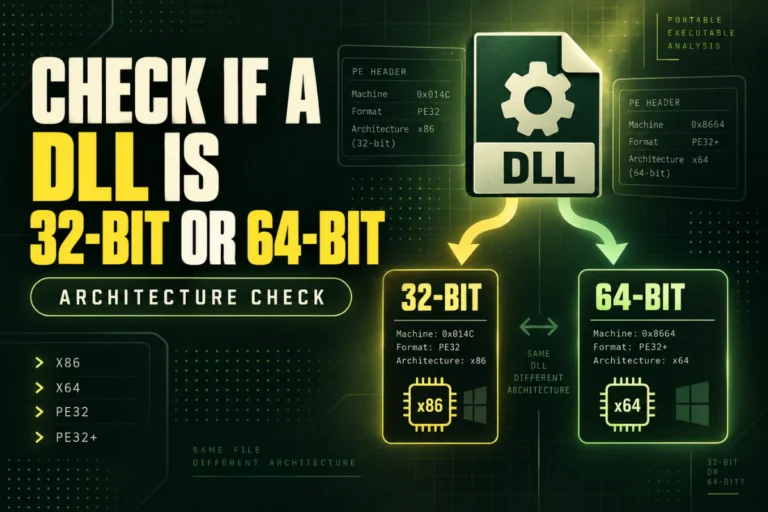
Two DLL files with the same name may target different architectures.
Example:
Machine: x86
PE format: PE32
DLL B
Machine: x64
PE format: PE32+
These are different builds even if they report the same product version.
Architecture differences are especially important when comparing DLLs used by different application folders or installers.
For details, read How to Find the Architecture of a DLL File.
Step 4: Compare Version Information
Many DLL files contain version resources.
Useful fields include:
- FileVersion
- ProductVersion
- FileDescription
- CompanyName
- OriginalFilename
- ProductName
A comparison may look like:
| Field | DLL A | DLL B |
|---|---|---|
| FileVersion | 3.8.0.0 | 4.0.1.0 |
| ProductVersion | 3.8 | 4.0 |
| OriginalFilename | engine.dll | engine.dll |
Version information is useful, but it is metadata. Two different binaries can report the same version string.
Step 5: Compare Exported Functions
The export table tells you which functions a DLL exposes to other software.
Suppose DLL A exports:
ProcessData
Shutdown
DLL B exports:
ProcessData
GetStatus
Shutdown
The second DLL adds GetStatus.
This can matter because an application may expect a specific export that exists in one version but not another.
For export analysis, read How to Find Exported Functions in a DLL.
Step 6: Compare Imports and Dependencies
Imports show which external libraries and functions a DLL expects to use.
Example:
This may explain why one version needs a different runtime or fails on a system where the older DLL works.
For dependency inspection, see How to View DLL Imports and Dependencies.
Step 7: Compare PE Sections
Section comparison shows how the internal layout changed.
Useful sections include:
.text.rdata.data.rsrc.reloc
For example:
| Section | DLL A raw size | DLL B raw size |
|---|---|---|
.text |
0x28000 | 0x2F000 |
.rdata |
0x8A00 | 0x9400 |
.rsrc |
0x6200 | 0x7C00 |
A larger .text section may reflect more code. A larger .rsrc section may reflect new resources. The numbers alone do not explain the exact change.
See How to View DLL Sections Such as .text, .data and .rsrc.
Step 8: Compare PE Header Values
If you need a deeper comparison, inspect PE header fields.
Useful fields include:
- Machine
- NumberOfSections
- Optional Header Magic
- AddressOfEntryPoint
- ImageBase
- SizeOfImage
- Subsystem
- DLL characteristics
These fields can reveal build and layout differences that are not obvious from filenames or versions.
Read How to Read PE Headers in a DLL File for more detail.
A Practical Side-by-Side DLL Comparison
| Check | DLL A | DLL B |
|---|---|---|
| SHA-256 | Different | Different |
| Architecture | x64 | x64 |
| Version | 2.4.0 | 2.5.0 |
| Exports | 18 | 21 |
| Imported DLLs | 6 | 7 |
| Sections | 5 | 5 |
This tells you the files are different builds even though both are x64 and use the same general PE structure.
What If Two DLLs Have the Same Hash?
If the full SHA-256 hashes match, the files are byte-for-byte identical.
That also means their architecture, imports, exports, resources, sections, and PE headers are identical because all of those bytes are part of the same file.
There is no need for deeper binary comparison unless you are checking something outside the DLL itself, such as file permissions or filesystem metadata.
What If Two DLLs Have Different Hashes but Look the Same?
This can happen when only a small part of the file changed.
Examples include:
- A version resource changed
- A digital signature changed
- A compiler setting changed
- A timestamp field changed
- A tiny code patch was applied
- A string or icon changed
Even a one-byte difference creates a different SHA-256 value.
Do Not Use the COFF Timestamp as Your Main Comparison
The PE COFF header includes a TimeDateStamp field, but you should not treat it as a definitive build date.
Build systems can alter, normalize, or replace timestamp values.
Use hashes, version data, exports, imports, and section differences for stronger comparison evidence.
Compare DLLs Without Running Them
Most of the checks in this guide are static.
You can calculate hashes and inspect PE metadata without loading the DLL into a process.
This is useful when comparing unfamiliar files because you do not need to register or execute them just to identify differences.
Privacy When Comparing Proprietary DLLs
If the DLL belongs to a client, contains unreleased software, or is otherwise confidential, prefer local comparison tools.
You can calculate hashes locally and use desktop PE tools when upload restrictions apply.
For public or non-sensitive files, an online analyzer is convenient for quick side-by-side checks.
A Good Comparison Order
2. File size
3. Architecture
4. Version information
5. Exports
6. Imports
7. Sections
8. PE header values
This order starts with the fastest checks and moves toward deeper analysis only when needed.
Exact Comparison vs Functional Comparison
Two DLL files can be different at the byte level but still provide a very similar public interface.
For example, a vendor may rebuild a DLL with a newer compiler. The SHA-256 hash changes, section sizes may move, and internal code can differ, while the exported function names stay the same.
That is why it helps to separate two questions:
| Question | Best check |
|---|---|
| Are these exact same files? | Compare SHA-256 hashes. |
| Do they expose the same interface? | Compare exports, ordinals, architecture, and relevant dependencies. |
A matching export name list does not guarantee identical behavior. It only shows that the visible exported interface is similar at that level.
Pay Attention to Export Ordinals
Some DLLs export functions by ordinal as well as by name. If software imports a function by ordinal, changing that ordinal can break compatibility even when familiar function names still appear in the export table.
When comparing DLLs used by older applications or plugins, compare export names and ordinals together when possible.
Create a Simple Comparison Record
If you are troubleshooting several builds, save the key values for each file. A short comparison record makes repeated checks much easier.
SHA-256: …
Architecture: x64
PE format: PE32+
File version: 4.1.2.0
Exports: 24
Imported DLLs: 8
Sections: 6
Record the same fields for the second DLL and compare them line by line. This is especially helpful when several files have identical names across different application versions.
Frequently Asked Questions
What is the best way to compare two DLL files?
Start with SHA-256 hashes. If they differ, compare architecture, version information, exports, imports, sections, and PE headers.
If two DLL hashes match, are the files identical?
Yes. Matching full SHA-256 hashes are strong evidence that the files are byte-for-byte identical.
Can two DLLs have the same version but different hashes?
Yes. They may be different builds, architectures, hotfixes, or rebuilt files that share the same version label.
Can two DLLs have the same size but different contents?
Yes. Equal file size does not mean equal file contents.
What should I compare if exports changed?
Check which functions were added, removed, or renamed, and whether the application expects those symbols.
Can I compare DLL files without running them?
Yes. Hashes, architecture, imports, exports, sections, and PE headers can all be inspected statically.
The Best Way to Compare DLL Files
Use SHA-256 first to answer the exact-identity question.
If the hashes differ, move through architecture, version information, exports, imports, sections, and PE headers.
This gives you a clear path from “these files are different” to “this is where the important difference is.”
Inspect DLL files before comparing them
View SHA-256 hashes, architecture, PE format, imports, exports, sections, and other metadata for each DLL.
Analyze a DLLFurther reading
Related guides: