How to View DLL Sections Such as .text, .data and .rsrc
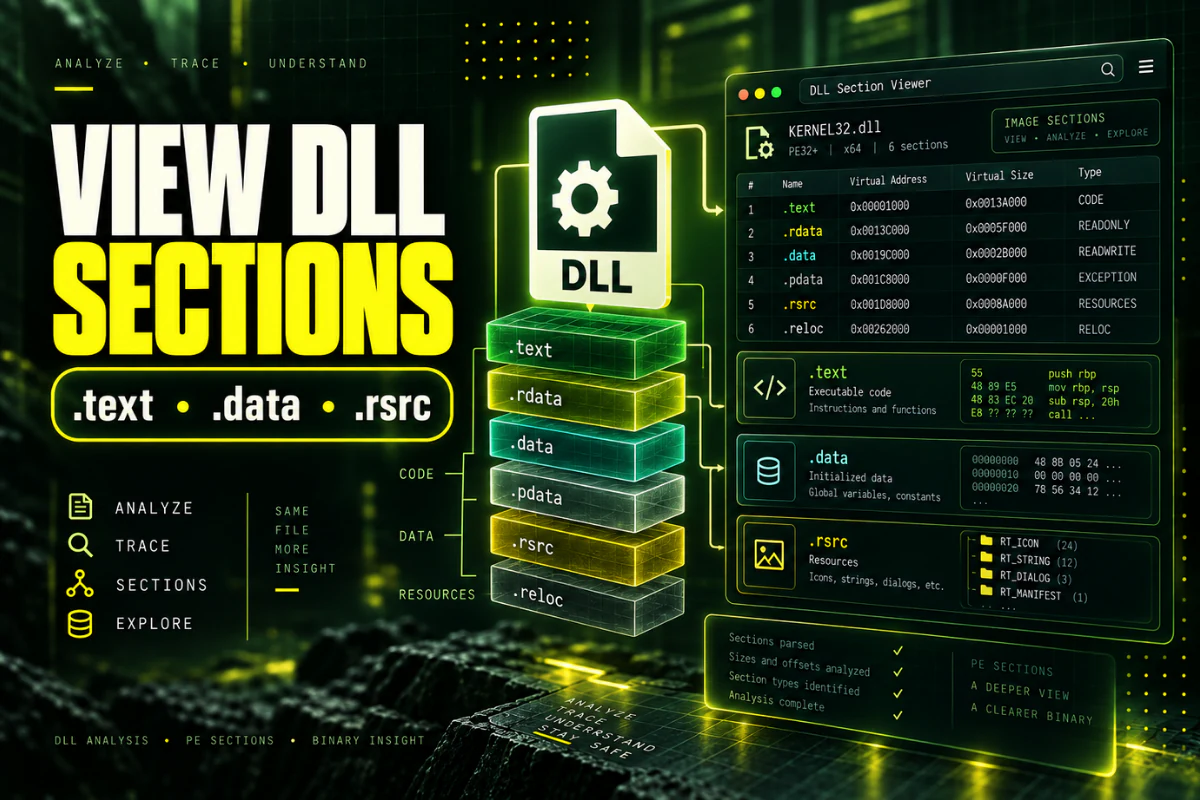
A Windows DLL is divided into sections. These sections separate executable code, read-only data, writable data, resources, relocation information, and other parts of the file.
Common names include .text, .data, .rdata, .rsrc, and .reloc. A DLL sections viewer can list these regions and show their sizes, addresses, raw offsets, and characteristics.
This guide explains how to view DLL sections, what the common section names usually mean, and which details are most useful when inspecting a Portable Executable file.
Use our DLL sections viewer to inspect the section table. You can check common sections such as .text, .data, .rdata, .rsrc, and .reloc without running the DLL.
On this page
What Is a DLL Section?
A section is a defined region inside a PE file.
Each section has a header that describes where its data is stored in the file, where it should appear in memory, how large it is, and what permissions or characteristics it has.
Sections help Windows and analysis tools understand the layout of the binary.
A DLL might contain sections like this:
.rdata → read-only data
.data → writable data
.rsrc → resources
.reloc → relocation information
These names are common conventions, not strict rules.
Where DLL Sections Are Defined
The section table appears after the main PE headers.
Each section entry usually contains fields such as:
- Section name
- Virtual size
- Virtual address
- Size of raw data
- Pointer to raw data
- Characteristics
A PE parser reads these values to locate the section on disk and understand how it should be mapped into memory.
For the larger file structure, see What Is the PE Format in Windows DLL Files?.
How to View DLL Sections Online
You can inspect a DLL section table without running the file.
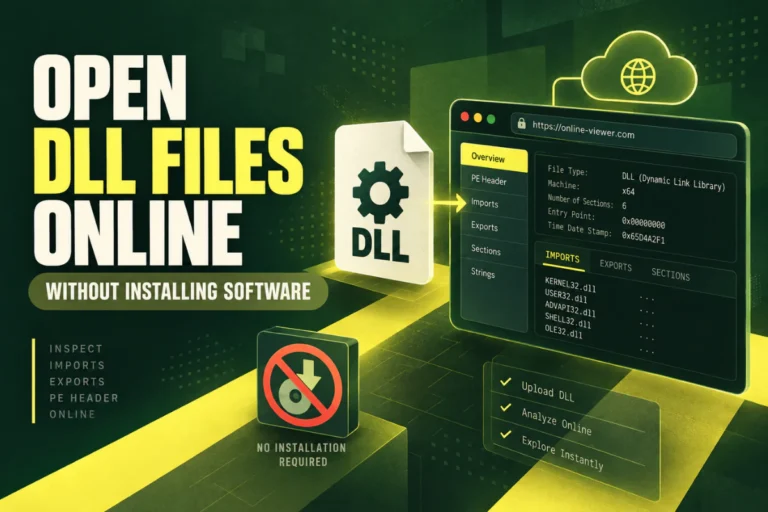
- Open the Open DLL File Online tool.
- Choose your DLL.
- Upload it for static analysis.
- Find the sections area in the report.
- Review section names, sizes, addresses, and characteristics.
This is enough for a basic structural inspection.
The .text Section
The .text section usually contains executable machine code.
This is where much of the compiled native program logic lives.
A section viewer may show values similar to:
Virtual Size: 0x2A400
Raw Size: 0x2A600
Characteristics: Read, Execute
The exact values vary by file.
The important clue is that .text commonly contains code and is often marked executable.
The .data Section
The .data section usually contains initialized writable data.
This can include global variables and other values that the program may change while it runs.
Typical characteristics may include read and write access.
Characteristics: Read, Write
Do not assume every writable value must be in .data. Compilers and linkers can organize binaries differently.
The .rdata Section
The .rdata section commonly stores read-only data.
This can include:
- Constants
- Read-only strings
- Import-related data
- Compiler-generated tables
- Other non-writable information
Because it is typically read-only, the section often lacks write permission.
The .rsrc Section
The .rsrc section usually contains Windows resources.
These resources can include:
Graphics used by the application or component.
Product name, company name, and version fields.
User-interface text and localized resources.
Application metadata and compatibility information.
A resource viewer can often decode these items further.
The .reloc Section
The .reloc section stores base relocation information.
If Windows cannot load the DLL at its preferred image base, relocation data helps adjust address-dependent values.
This is important for modern loading behavior and address-space randomization.
Most normal users do not need to inspect every relocation entry, but the section is a standard part of many DLL files.
A Side-by-Side Section Guide
| Section | Typical content | Common access |
|---|---|---|
.text |
Executable code | Read, Execute |
.rdata |
Read-only data and tables | Read |
.data |
Writable initialized data | Read, Write |
.rsrc |
Resources | Usually Read |
.reloc |
Relocation data | Usually Read |
These are common patterns, not absolute rules.
Virtual Size vs Raw Size
Two section size values often confuse beginners.
Size of Raw Data describes how much space the section occupies in the file on disk.
Virtual Size describes how much space the section uses when mapped into memory.
The two values do not have to be identical.
Raw Size: 0x600
Virtual Size: 0x9A0
In this example, the section occupies more space in memory than it does in the file.
Alignment and zero-initialized data can contribute to these differences.
Raw Offset vs Virtual Address
A section also has a file location and a memory location.
Pointer to Raw Data points to where the section’s bytes begin in the file.
Virtual Address identifies where the section is placed relative to the image base when loaded.
This distinction matters because a PE file is not laid out exactly the same way on disk and in memory.
Section Characteristics and Permissions
Section headers contain characteristic flags.
These flags can indicate whether a section contains code, initialized data, uninitialized data, and whether it should be readable, writable, or executable.
For example:
.data → Read + Write
.rdata → Read
Again, these are common patterns rather than guaranteed rules for every file.
Can a DLL Have Custom Section Names?
Yes.
Developers, compilers, protectors, packers, and build tools can create custom section names.
You might encounter names that do not look like the standard examples.
A custom name does not automatically mean the file is suspicious.
At the same time, a standard name does not automatically mean the file is safe.
Can Section Names Tell You If a DLL Is Malware?
No.
Section information can help with technical analysis, but it is not a malware verdict.
Legitimate software can use unusual section names. Harmful software can use perfectly ordinary names such as .text and .data.
Treat section names, sizes, and flags as structural information. Do not use them alone to decide whether a DLL is safe.
What Large or Unusual Sections Can Tell You
An unusually large section can be worth investigating, but size alone does not prove anything.
For example, a large .rsrc section may simply contain many images, localized strings, or embedded resources.
A large .text section may reflect a large amount of compiled code.
If a section looks unusual, compare the file with another trusted version and inspect its imports, exports, hash, and other metadata before drawing conclusions.
How Sections Connect to Imports and Exports
Imports and exports are described by PE data directories, but the actual related data lives within mapped regions of the image.
This is why PE analysis works as a connected structure rather than a collection of unrelated fields.
Headers tell the parser where to look. Sections hold the underlying data. Data directories point to important tables.
For more detail, read How to View DLL Imports and Dependencies and How to View DLL Exports Online.
A Practical Section Inspection Order
If you are inspecting an unfamiliar DLL, use a simple order:
How DLL Sections Fit Into the Full PE Structure
Sections are only one layer of the DLL.
The DOS header leads to the PE header. The PE headers describe the image. The section table describes individual regions. Data directories point to imports, exports, resources, relocations, and other structures.
If you want to understand that full layout, read How to Read PE Headers in a DLL File and What Is the PE Format in Windows DLL Files?.
Why Section Information Is Useful When Comparing DLL Versions
Two versions of the same DLL can have different section sizes even when the section names stay the same. A larger .text section may reflect added code. A changed .rsrc section may reflect new resources, version information, or localization data.
Section differences do not tell you exactly what changed, but they can confirm that the binaries are not structured the same way. Combine section comparisons with SHA-256 hashes, exports, imports, and version details for a more useful comparison.
Frequently Asked Questions
How do I view sections in a DLL?
Use a DLL or PE sections viewer. It can list section names, raw sizes, virtual sizes, addresses, and characteristics.
What is the .text section in a DLL?
The .text section usually contains executable machine code.
What is the .data section in a DLL?
The .data section commonly stores initialized writable data.
What is the .rsrc section?
The .rsrc section usually contains resources such as icons, strings, manifests, and version information.
What is the .reloc section?
The .reloc section usually contains base relocation information used when the image loads at a different address.
Can DLL sections have custom names?
Yes. Section names are conventions and can be changed or customized by build tools.
The Best Way to Read DLL Sections
Start with the section names, then compare raw size, virtual size, file offset, virtual address, and characteristics.
Use those values to understand the layout of the DLL rather than trying to judge the file by a section name alone.
When combined with architecture, imports, exports, and hashes, section information gives you a much clearer picture of how a DLL is organized.
View DLL sections online
Inspect section names, sizes, architecture, PE format, imports, exports, and hashes without running the file.
View DLL Sections