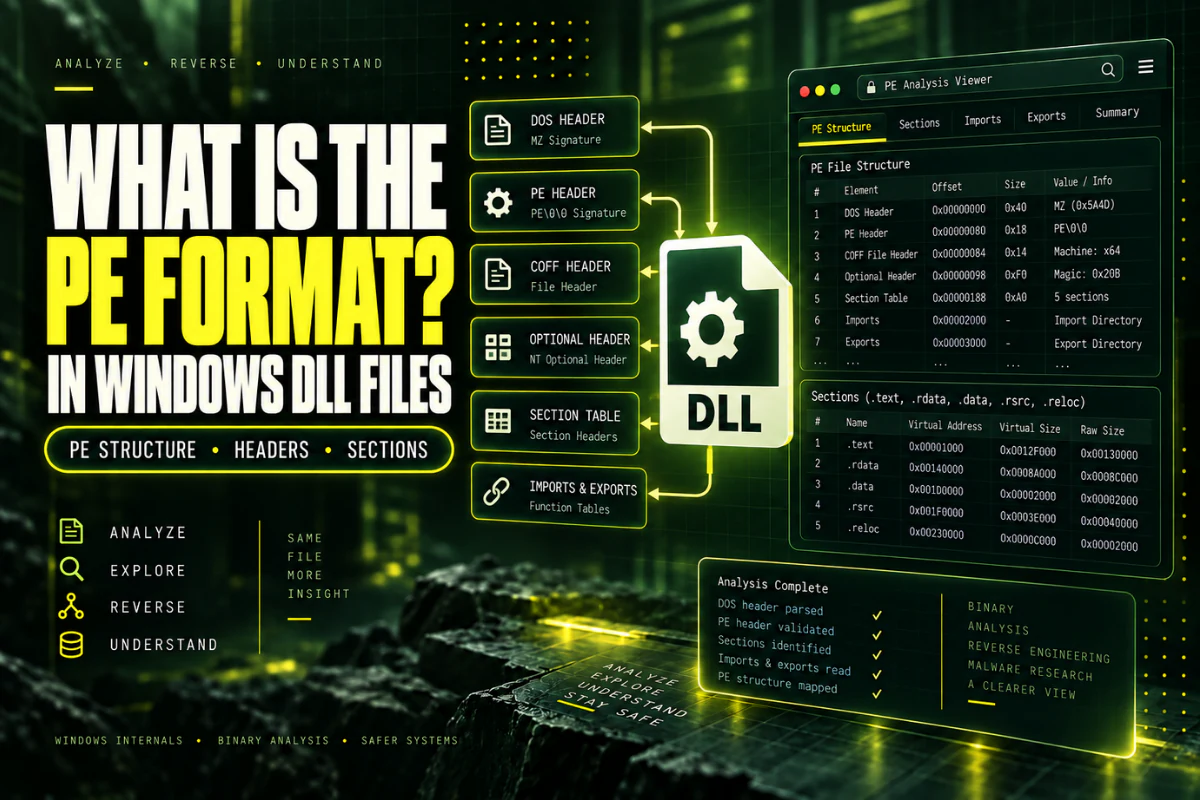
What Is the PE Format in Windows DLL Files?
Most Windows DLL files use the Portable Executable format, usually called the PE format. It is the structure Windows uses to understand executable images such as DLL, EXE, and SYS files.
The PE format tells Windows what architecture the file targets, where its sections are stored, which libraries it depends on, which functions it exports, and how the image should be mapped into memory.
If you want to understand how a DLL is organized, the DLL PE format is the foundation. Once the PE structure makes sense, imports, exports, sections, entry points, and headers become much easier to understand.
The PE format is the standard Windows executable-image structure used by most DLL files. It contains headers, data directories, sections, imports, exports, resources, and other information Windows needs to load the file. You can inspect these parts with our DLL analyzer.
On this page
Why Windows DLL Files Need a Structured Format
A DLL is not just a block of machine code.
Windows needs to know several things before it can use the file:
- Which processor architecture the DLL targets
- Where executable code is stored
- Where read-only and writable data are stored
- Which other libraries the DLL depends on
- Which functions the DLL exposes
- Where resources such as icons or version data are stored
- How large the image will be in memory
The PE format organizes all of this information into a predictable structure.
A Simple Map of a PE DLL
You can think of a PE DLL as several layers arranged in a specific order.
DOS Stub
PE Signature
COFF File Header
Optional Header
Data Directories
Section Table
.text
.rdata
.data
.rsrc
.reloc
Other Sections
Not every DLL uses exactly the same section names, but the overall PE structure follows the same general pattern.
The DOS Header Comes First
A normal PE file usually starts with the two characters:
This is the DOS header signature.
The header also contains a field called e_lfanew. That field points to the location of the PE signature later in the file.
This is why a PE parser does not simply assume the main header begins at a fixed position. It follows the offset stored in the DOS header.
The PE Signature Confirms the Format
At the location pointed to by e_lfanew, a normal PE image contains:
This signature identifies the main PE structure.
If the expected signature is missing, the file may not be a valid Portable Executable image, or it may be damaged.
The COFF Header Describes the Binary
After the PE signature comes the COFF File Header.
This header includes several important fields.
| Field | Purpose |
|---|---|
| Machine | Identifies x86, x64, ARM, or another architecture |
| NumberOfSections | Shows how many section entries exist |
| TimeDateStamp | Stores a build-related timestamp field |
| Characteristics | Contains flags that describe the image |
The Machine field is especially useful because it helps identify whether the DLL is 32-bit or 64-bit.
For a dedicated guide, see How to Check Whether a DLL Is 32-Bit or 64-Bit.
The Optional Header Is Important
The name “Optional Header” sounds like something you can ignore, but that is not true for normal executable images.
This part contains key loading information such as:
- PE32 or PE32+ format
- Entry point
- Image base
- Section alignment
- File alignment
- Image size
- Subsystem
- DLL characteristics
- Data directories
If you want a field-by-field explanation, read How to Read PE Headers in a DLL File.
PE32 and PE32+ Are Two PE Variants
The Optional Header can use one of two common layouts.
PE32+ is the 64-bit form of the Optional Header. The plus sign does not mean the file is better or newer.
See PE32 vs PE32+: What Is the Difference? for a detailed comparison.
Data Directories Point to Important Structures
The PE Optional Header contains data-directory entries.
These entries point to important parts of the file.
Points to libraries and functions the DLL expects to use.
Points to functions the DLL exposes to other software.
Points to resources such as icons, strings, and version data.
Contains information used when the image loads at a different address.
There are additional directories for exceptions, debugging information, TLS data, load configuration, and managed .NET metadata.
The Section Table Describes File Regions
After the headers comes the section table.
Each section entry tells Windows where a region begins, how large it is, and what characteristics it has.
Common section names include:
| Section | Typical content |
|---|---|
.text |
Executable machine code |
.rdata |
Read-only data and tables |
.data |
Writable initialized data |
.rsrc |
Resources |
.reloc |
Relocation data |
These names are common conventions. A DLL can also use custom section names.
How Imports Fit Into the PE Format
The import structure tells Windows which external libraries and functions the DLL expects.
A simple import list may look like:
USER32.dll
VCRUNTIME140.dll
These imports are not stored as a random text list. They are part of PE structures referenced through the import data directory.
For dependency analysis, read How to View DLL Imports and Dependencies.
How Exports Fit Into the PE Format
The export structure lists functions or symbols that the DLL makes available to other software.
Example:
GetVersion
ProcessData
ShutdownPlugin
Exports may use readable names, ordinals, or both.
If you need to inspect them, see How to View DLL Exports Online.
How Resources Fit Into the PE Format
DLL files can contain more than code and dependency information.
The resource directory can store items such as:
- Icons
- String tables
- Menus
- Dialog templates
- Version information
- Manifest data
These resources are often stored in the .rsrc section, though the exact organization can vary.
How Windows Uses the PE Structure
When Windows loads a DLL, it uses information from the PE image to prepare it for use.
This is a simplified view, but it shows why the PE format matters.
PE Format on Disk vs in Memory
A PE file does not look exactly the same on disk as it does after Windows maps it into memory.
On disk, sections follow file-alignment rules.
In memory, sections follow section-alignment rules.
This is why fields such as FileAlignment, SectionAlignment, raw offsets, and virtual addresses all exist.
For everyday DLL inspection, you usually do not need to calculate these values manually. A PE viewer does the parsing for you.
What Makes a DLL Different From an EXE in PE Terms?
DLL and EXE files can both use the PE format.
The difference is not that one uses PE and the other does not.
Instead, PE characteristics and intended use distinguish the image.
A DLL is built to be loaded by another process and provide reusable code or data. An EXE is normally built as an application image with its own process entry behavior.
Both can still have sections, imports, exports, resources, and PE headers.
Can Every File With a .dll Extension Be Trusted as PE?
No.
A filename ending in .dll does not guarantee the file contains a valid Portable Executable structure.
The file could be corrupted, mislabeled, incomplete, or intentionally crafted.
A parser should verify the file structure instead of trusting the extension alone.
Can the PE Format Tell You If a DLL Is Safe?
No.
The PE format describes how the binary is organized.
It does not provide a simple safe or unsafe answer.
A harmful DLL can have valid headers, normal section names, common imports, and a perfectly standard PE layout.
Use PE analysis to understand a DLL’s structure. Do not treat normal-looking metadata as proof that the file is harmless.
What to Check First in a PE DLL
If you are inspecting an unfamiliar DLL, a simple order works well:
- Verify the PE structure.
- Check the Machine field.
- Check PE32 or PE32+.
- Review the sections.
- Inspect imports and exports.
- Record the SHA-256 hash if you need to compare files.
This gives you a useful overview without getting lost in every low-level field.
Frequently Asked Questions
What does PE mean in a DLL file?
PE means Portable Executable. It is the Windows binary format used by most DLL and EXE files.
Are all DLL files PE files?
Most standard Windows native DLL files use the PE format, but a .dll filename alone does not guarantee a valid PE structure.
What is stored in a PE header?
PE headers contain architecture, section count, memory layout, entry point, data directories, image characteristics, and other loading information.
What are PE sections?
Sections are regions that hold code, data, resources, relocation information, and other content.
What is the difference between PE32 and PE32+?
PE32 is commonly used for 32-bit images. PE32+ is the 64-bit Optional Header format.
Can I inspect the PE format without running the DLL?
Yes. A DLL analyzer can read the PE structures directly from the file.
The PE Format Is the Map of a DLL
The PE format is the structure that ties the entire DLL together.
Headers describe the image. Data directories point to important tables. Sections hold code, data, resources, and relocation information. Imports describe dependencies. Exports describe the public interface.
Once you understand that layout, DLL analysis becomes much easier.
For a full overview of what a viewer can show, read DLL Analyzer Online: What Information Can You Find?.
Inspect the PE format of your DLL
View architecture, PE format, headers, imports, exports, sections, and hashes without installing a desktop analyzer.
Inspect DLL PE Format