How to Fix 32-Bit and 64-Bit DLL Mismatch Errors
A 32-bit and 64-bit DLL mismatch happens when a process tries to load a native DLL built for a different processor architecture. The most common example is a 32-bit application trying to load a 64-bit DLL, or a 64-bit application trying to load a 32-bit DLL.
This can cause errors such as “not a valid Win32 application,” “Bad Image,” loader failures, or a program that refuses to start.
This guide explains how to diagnose and fix a 32 bit 64 bit DLL mismatch by checking the architecture of both the application and the DLL, understanding Windows WOW64 folders, and handling .NET assemblies correctly.
For native code, the process and DLL must use compatible architecture. An x86 process needs an x86 DLL. An x64 process needs an x64 DLL. If the DLL is managed .NET, also check its platform target because Any CPU can behave differently.
On this page
The Basic Compatibility Rule
| Host process | Native DLL | Direct load |
|---|---|---|
| x86 | x86 | Compatible |
| x86 | x64 | Not compatible |
| x64 | x64 | Compatible |
| x64 | x86 | Not compatible |
This is the central rule for native DLL loading.
Why Architecture Must Match
An x86 process uses 32-bit pointers, registers, calling conventions, and a 32-bit address space model.
An x64 DLL contains machine instructions and data structures intended for a 64-bit process environment.
Windows cannot simply translate one native DLL architecture into the other inside the same process.
64-bit process + 32-bit native DLL = mismatch
What Error Messages Can a Mismatch Cause?
The exact message depends on the application and loading method.
You may see:
%1 is not a valid Win32 applicationBad Image0xc000007b- “The specified module could not be found”
- Application startup failure
- Plugin load failure
- Service startup errors
Some messages are broad, so do not assume architecture is the only possible cause. But it is one of the first things to check.
Step 1: Check the DLL Architecture
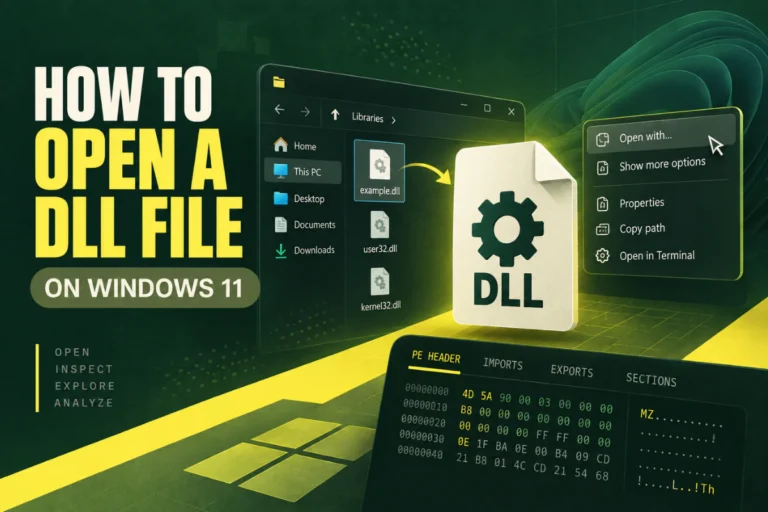
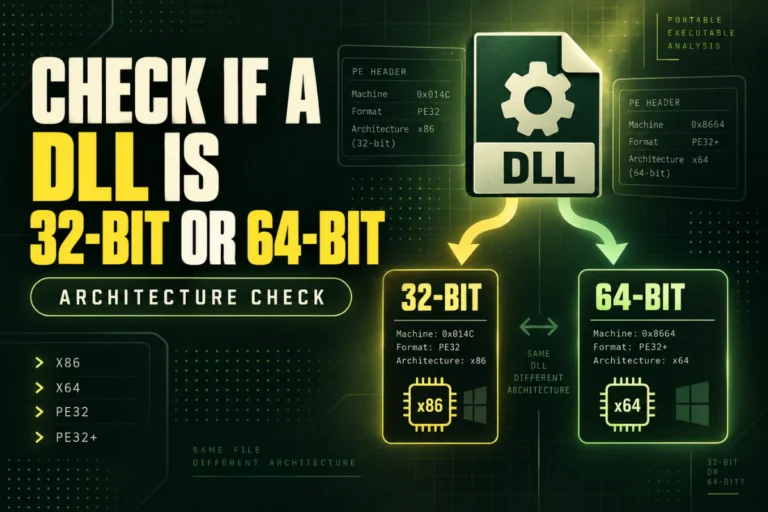
The most reliable method is to inspect the PE Machine field.
Common values include:
| Architecture | Machine value |
|---|---|
| x86 | 0x014C |
| x64 | 0x8664 |
| ARM64 | 0xAA64 |
For the full guide, read How to Tell If a DLL Is x86 or x64.
Step 2: Check the Application Architecture
You also need to know whether the host process is 32-bit or 64-bit.
Do not assume that a program running on 64-bit Windows is automatically a 64-bit program.
64-bit Windows can run many 32-bit applications through WOW64.
Common ways to identify the application architecture include:
- Task Manager details
- The application vendor’s documentation
- The PE Machine field of the EXE
- Installation path clues
On many systems, 32-bit applications are installed under Program Files (x86), but that folder location is only a clue, not proof.
Step 3: Match the Correct DLL Build
Once you know the host process architecture, use the matching native DLL build.
Host: x64 → choose x64 DLL
If the vendor provides separate x86 and x64 folders, do not choose based on your Windows edition alone. Choose based on the process that will load the DLL.
Why 64-Bit Windows Can Still Need a 32-Bit DLL
A 64-bit operating system can run 32-bit applications.
If the application itself is 32-bit, its native DLL dependencies also need to be 32-bit.
Example:
Application: 32-bit
Required native DLL: 32-bit
This is one of the most common sources of confusion.
System32 and SysWOW64 Are Easy to Misread
On 64-bit Windows:
System32generally contains 64-bit system binaries.SysWOW64generally contains 32-bit system binaries used by 32-bit applications.
The names are historical and can feel backwards.
Do not manually copy third-party DLLs into these folders as a generic fix. Use the application’s official installer or runtime package.
Do Not Rely on Folder Names Alone
A DLL located in System32 is usually 64-bit on 64-bit Windows, but the actual PE header is the definitive check.
Likewise, a file sitting inside an x64 folder can still be the wrong file if it was copied manually or packaged incorrectly.
Inspect the binary itself.
PE32 vs PE32+ Can Help, but It Is Not the Whole Story
For ordinary native DLLs:
- PE32 usually corresponds to x86.
- PE32+ usually corresponds to x64 or another 64-bit target.
But .NET assemblies can use PE32 in ways that do not map directly to “32-bit native code.”
That is why you should read the Machine field and check CLR metadata too.
See PE32 vs PE32+: What Is the Difference?.
What About .NET DLLs?
.NET assemblies need extra attention because managed code can use platform targets such as:
- Any CPU
- x86
- x64
- ARM
- ARM64
A .NET DLL with Any CPU may run under different process architectures depending on the runtime and project settings.
If that managed assembly also depends on a native DLL, the native dependency still needs to match the actual process architecture.
Any CPU Does Not Make Native Dependencies Architecture-Free
This is an important point.
Suppose a managed application is built as Any CPU.
If it runs as a 64-bit process and loads a native helper DLL, that native helper must be 64-bit.
Runtime process: x64
Native dependency: must be x64
If the same application runs as x86, the native dependency must be x86.
How to Check If the DLL Is .NET
A managed DLL normally contains a CLR Runtime Header and managed metadata.
Checking this can explain why PE32 alone is misleading.
See How to Check If a DLL Is a .NET Assembly.
Check Dependencies for Mixed Architecture
Even if the top-level DLL has the correct architecture, one of its native dependencies may not.
Example:
plugin.dll: x64
vendor_runtime.dll: x86 ← mismatch
This can still cause the load to fail.
Inspect the dependency chain, not just the first DLL mentioned in the error.
See How to Check DLL Dependencies Without Running the File.
Version and Architecture Are Separate
Two DLL files can have the same version number but different architecture.
| File | Version | Architecture |
|---|---|---|
| engine.dll | 6.2.0.0 | x86 |
| engine.dll | 6.2.0.0 | x64 |
Do not use FileVersion as a shortcut for architecture.
What If the Correct Architecture Still Fails?
If both host and DLL architecture match, move on to other checks:
- Is the DLL a valid PE file?
- Are all dependencies present?
- Does the DLL export the functions the host expects?
- Is the version compatible?
- Is the file corrupted?
- Was it quarantined or modified?
Architecture mismatch is common, but it is not the only DLL load failure.
Compare SHA-256 With a Working Copy
If the same software works on another trusted computer, compare hashes.
Problem DLL: 2B41…A902
Result: identical
If the DLLs are identical but only one system fails, focus on process architecture, dependencies, runtimes, and configuration.
For hash instructions, read How to Find the SHA-256 Hash of a DLL File.
Do Not Fix Bitness Problems With Random Downloads
A search result may offer several versions of the same DLL without clear provenance.
The file may be:
- The wrong architecture
- The wrong version
- Built for a different application
- Modified
- Malicious
Use the official installer, repair process, or vendor package instead.
Read Why You Should Avoid Random DLL Download Websites.
A Practical Repair Flow
When a DLL Viewer Helps
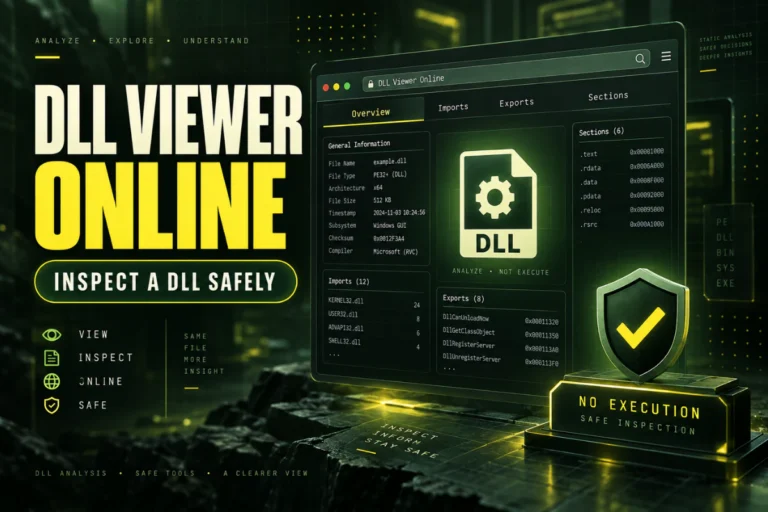
A static DLL viewer can quickly show the information you need to diagnose a bitness problem.
Our Open DLL File Online tool can inspect PE format, architecture, imports, exports, sections, SHA-256, and basic .NET indicators without running the file.
This makes it easier to confirm whether the DLL itself is x86, x64, ARM, ARM64, or managed.
Frequently Asked Questions
Can a 32-bit application load a 64-bit DLL?
Not directly for native code in the same process.
Can a 64-bit application load a 32-bit DLL?
Not directly for native code in the same process.
Does 64-bit Windows require every DLL to be 64-bit?
No. A 32-bit application running on 64-bit Windows still uses compatible 32-bit native DLLs.
Does PE32 always mean 32-bit?
For ordinary native binaries it usually points to a 32-bit format, but managed .NET assemblies can use PE32 with more flexible platform targets.
Why does System32 contain 64-bit files?
On 64-bit Windows, System32 generally contains 64-bit system binaries. SysWOW64 generally contains 32-bit system binaries.
Can one wrong dependency cause a mismatch error?
Yes. A correct x64 DLL can still fail if it depends on an incompatible x86 native DLL.
The Best Fix for a 32-Bit and 64-Bit DLL Mismatch
Match the DLL to the process that loads it, not just to the Windows edition.
Check the host architecture, read the DLL Machine field, confirm whether the file is native or managed, and inspect its dependencies.
If you have the wrong build, repair or reinstall the application from the official source so the correct architecture and dependency set are restored together.
Check DLL architecture before loading it
Inspect x86/x64 architecture, PE format, imports, exports, sections, SHA-256, and basic .NET indicators without executing the DLL.
Check DLL Architecture