How to Fix Missing DLL File Errors in Windows
Missing DLL errors in Windows usually appear when an application cannot find or load a library it expects. The safest fix is usually to repair the software environment that should provide the DLL, not to download a random replacement file.
A DLL error can be caused by a genuinely missing file, a damaged installation, a missing runtime package, the wrong x86 or x64 build, a broken dependency, or Windows system-file corruption.
This guide explains how to fix missing DLL errors in Windows step by step, starting with the safest and most reliable fixes.
Restart Windows, repair or reinstall the affected application, install official runtime packages, run Windows system-file repair if the missing DLL belongs to Windows, then check architecture, dependencies, version, and hashes if the problem remains.
On this page
What a Missing DLL Error Looks Like
You may see messages such as:
or:
The specified module could not be found.
The wording may point to one DLL, but that DLL can itself depend on another missing library. So the filename shown in the error is not always the full story.
Start With This Repair Order
2. Repair or reinstall the affected app
3. Install official runtime packages
4. Run Windows Update
5. Run SFC if Windows system files may be damaged
6. Run DISM if SFC cannot repair Windows
7. Check x86/x64 architecture
8. Check DLL dependencies
9. Compare version and SHA-256
10. Avoid random DLL download sites
Fix 1: Restart Windows
Before changing files, restart the computer.
A pending update, locked file, incomplete installation, or application process can sometimes cause a temporary load failure.
If the error returns after restart, move to the next step.
Fix 2: Repair the Affected Application
If the missing DLL belongs to one application, use that application’s repair option first.
On Windows, software may provide repair through:
- Settings > Apps
- Installed Apps or Apps & Features
- The application’s own installer
- A vendor updater or launcher
A repair process can restore the correct DLL together with companion files and configuration.
Fix 3: Reinstall the Application
If repair is unavailable or does not work, reinstall the software from its official source.
Use the original vendor installer, official app store, or trusted package source.
This is much safer than replacing one DLL manually because the installer knows which version, architecture, and dependencies belong together.
Fix 4: Install the Official Runtime Package
Many DLL errors are really missing-runtime errors.
Applications may depend on shared components such as:
- Microsoft Visual C++ runtime libraries
- .NET runtime components
- DirectX-related components
- Vendor-specific runtime packages
If the error mentions a runtime DLL, install the official package that provides it instead of downloading the single DLL.
Why Runtime Packages Are Better Than Single DLLs
A runtime package can install:
x86 and x64 packages are installed appropriately.
Dependencies arrive together.
Required setup is handled by the installer.
The vendor can service the package correctly later.
Fix 5: Run Windows Update
If the missing component belongs to Windows or a Microsoft-supported platform component, install available Windows updates.
Updates can restore or replace system components through the normal servicing process.
Do not substitute an unknown third-party DLL for a Windows system component.
Fix 6: Run System File Checker
If you suspect damaged or missing Windows system files, use System File Checker.
Open an elevated Command Prompt or Terminal and run:
SFC checks protected Windows system files and attempts to repair supported corruption.
This is appropriate for Windows components. It is not a general repair tool for third-party application DLLs.
Fix 7: Use DISM If Windows Component Repair Is Needed
If SFC reports that some files could not be repaired, Windows servicing may need repair.
An administrator can use:
After DISM completes successfully, run sfc /scannow again.
This repair path is intended for the Windows component store and protected Windows files, not arbitrary third-party DLLs.
Fix 8: Check Whether the DLL Is Really Missing
Search the application’s installation folder for the filename.
If the DLL exists, the problem may instead be:
- Wrong architecture
- Missing dependency
- Wrong version
- Damaged binary
- Search-path problem
- Security software quarantine
At this point, static inspection is more useful than copying another file into the folder.
Fix 9: Check x86 vs x64
A native 32-bit application normally needs compatible 32-bit DLLs. A native 64-bit application normally needs compatible 64-bit DLLs.
| Application | Native DLL | Result |
|---|---|---|
| x86 | x86 | Compatible |
| x86 | x64 | Mismatch |
| x64 | x64 | Compatible |
Read How to Tell If a DLL Is x86 or x64 for the inspection steps.
Fix 10: Check DLL Dependencies
A DLL can exist and still fail because another DLL it imports cannot be found.
For example:
├─ VCRUNTIME140.dll
├─ KERNEL32.dll
└─ vendor_runtime.dll
If vendor_runtime.dll is missing, the loader may fail even though app.dll itself is present.
See How to Check DLL Dependencies Without Running the File.
Fix 11: Check the DLL Version
Applications can depend on a specific DLL version or API.
Compare:
- FileVersion
- ProductVersion
- OriginalFilename
- CompanyName
If the problem started after an update or manual replacement, version mismatch is especially worth checking.
See How to Find DLL File Version on Windows.
Fix 12: Check Exported Functions
A DLL may load but still be the wrong build for the program.
If an application expects an export that the DLL does not provide, you may get an entry-point error.
DLL exports: ProcessData, GetVersion, Shutdown
For export checks, read How to Find Exported Functions in a DLL.
Fix 13: Compare SHA-256 With a Working Copy
If the same application works on another trusted computer, compare DLL hashes.
Problem PC: 3A72…BC10
Result: identical DLL files
If the hashes match but only one system fails, focus on runtimes, dependencies, configuration, search paths, and Windows environment rather than replacing the DLL.
See How to Find the SHA-256 Hash of a DLL File.
Fix 14: Check Security Software Quarantine
Security software can remove or quarantine a DLL.
If the application worked before and the file suddenly disappeared, review the security product’s event history.
Do not restore a flagged DLL blindly.
Confirm:
- Where the file came from
- Its SHA-256 hash
- The software vendor
- Whether reinstalling the official application restores a clean copy
Fix 15: Check Whether the File Is .NET
If the DLL is a .NET assembly, native import analysis is only part of the picture.
The application may depend on:
- A specific .NET runtime
- Managed assembly references
- Matching assembly versions
- Platform target settings
Read How to Check If a DLL Is a .NET Assembly.
Do Not Download Random DLL Files
Downloading a same-named DLL from an unrelated website is not a reliable fix.
The replacement can be:
- The wrong architecture
- The wrong version
- Missing expected exports
- Built for a different application
- Modified or malicious
Read Why You Should Avoid Random DLL Download Websites.
Do Not Use System32 as a Drop Folder
Manually copying application DLLs into System32 or SysWOW64 can create conflicts.
On 64-bit Windows, System32 generally contains 64-bit system binaries, while SysWOW64 generally contains 32-bit binaries.
Those folders are not universal solutions for application DLL problems.
Do Not Use regsvr32 Unless Registration Is Actually Required
regsvr32 only applies to certain COM DLLs.
It is not a missing-DLL repair tool, file checker, or compatibility test.
It can execute supported registration code from the DLL, so do not use it casually on unknown files.
When a DLL Viewer Can Help
A static DLL viewer is useful when you already have the file but need to understand why it may not work.
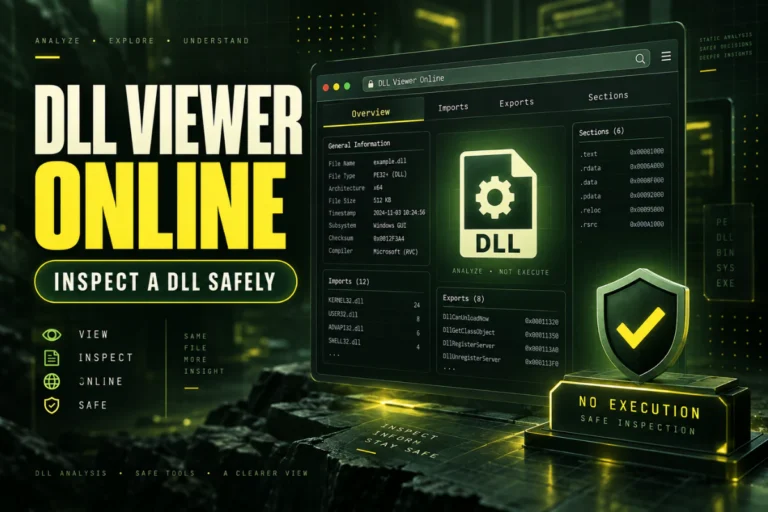
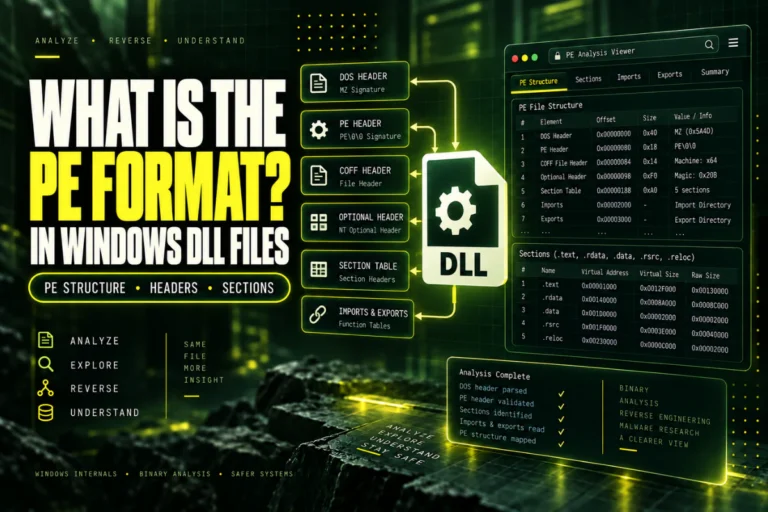
Our Open DLL File Online tool can inspect PE format, architecture, imports, exports, sections, SHA-256, and basic .NET indicators without running the DLL.
This can help distinguish a truly missing file from an incompatible or incomplete software environment.
A Quick Diagnosis Table
| Symptom | First thing to check |
|---|---|
| DLL filename is absent | Repair/reinstall application |
| DLL exists but will not load | Architecture and dependencies |
| Entry point not found | Version and exports |
| Works on one PC only | Hashes, runtimes, and dependencies |
| Windows system DLL problem | Windows Update, SFC, and DISM |
Frequently Asked Questions
How do I fix a missing DLL error in Windows?
Repair or reinstall the affected application, install official runtimes, run Windows Update for system components, and use SFC or DISM if protected Windows files are damaged.
Should I download the missing DLL by itself?
Usually no. Prefer the installer or runtime package that normally supplies the DLL.
Can SFC fix every missing DLL?
No. SFC repairs supported protected Windows system files. It does not generally restore third-party application DLLs.
Can DISM repair third-party DLLs?
No. DISM repairs the Windows image and component store, not arbitrary application files.
Can the DLL be present but still fail?
Yes. Architecture mismatch, missing dependencies, wrong version, or corruption can prevent loading.
What if the DLL works on another computer?
Compare SHA-256 first. If the file is identical, investigate runtimes, dependencies, configuration, and the Windows environment.
The Safest Way to Fix Missing DLL Errors
Fix the software package before replacing individual files.
Use application repair, official reinstall, supported runtime packages, Windows Update, and Windows system-file repair where appropriate.
If the DLL is present but still fails, inspect architecture, dependencies, version, exports, and SHA-256 before changing anything.
Inspect the DLL before replacing it
Check architecture, PE format, imports, exports, sections, SHA-256, and basic .NET indicators without executing the file.
Inspect DLL File