How to View the Contents of a DLL File
A DLL file can contain much more than a few lines of code. It may include compiled instructions, imported libraries, exported functions, resources, version details, text strings, and Portable Executable metadata.
The problem is that most of this information is stored in binary form. If you open a DLL in Notepad, you will usually see random characters. That does not mean the file is broken. It means you are looking at binary data with a text editor.
If you want to know how to view the contents of a DLL file, the best approach is to use a DLL or PE viewer. This lets you inspect the file structure without trying to run it.
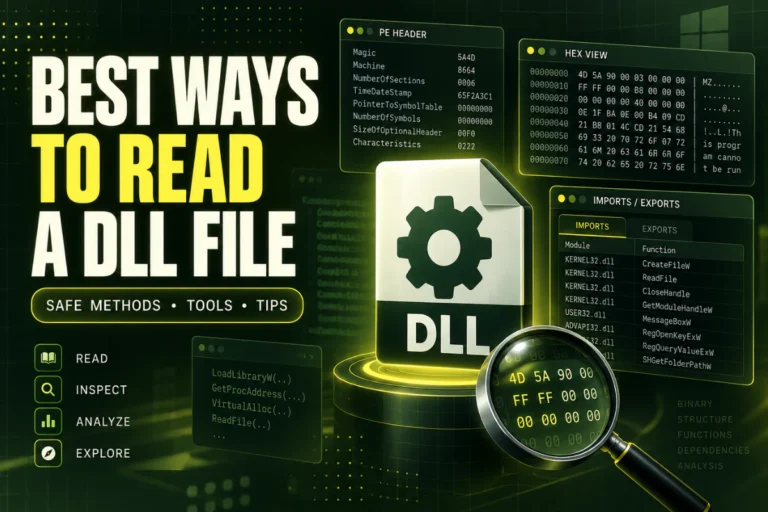
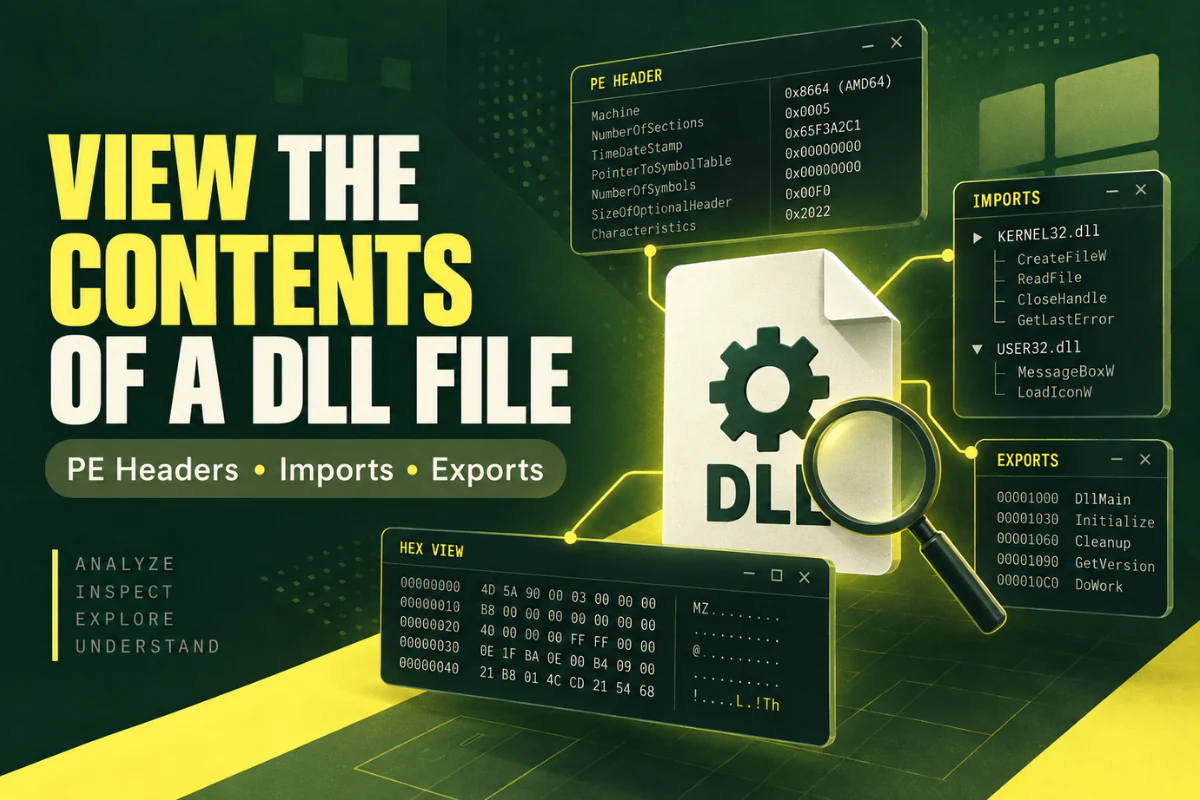
Use a DLL viewer to inspect the file’s architecture, imports, exports, sections, headers, and hash. You can use our Open DLL File Online tool if you want to check these details without installing software.
On this page
What Does “View the Contents of a DLL” Mean?
A DLL is not like a ZIP archive where you can simply open a folder and browse everything inside it.
When people ask how to view DLL contents, they usually want one of these things:
See which functions the DLL exports.
See which DLL files or system libraries it imports.
Look for icons, version details, strings, or embedded resources.
Read PE headers, sections, architecture, and other technical fields.
These are all different parts of the same file. A good DLL viewer organizes them so you can understand what you are looking at.
The Main Parts You Can Inspect
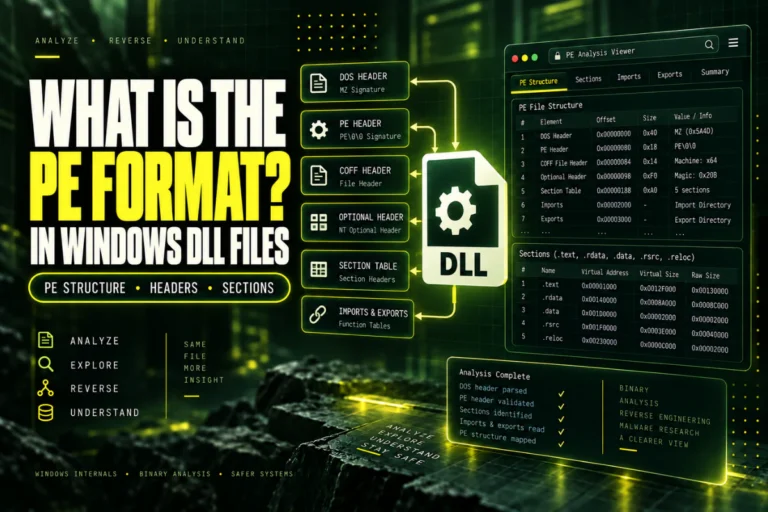
DLL files that use the Windows Portable Executable format are divided into headers, tables, and sections.
| Part of the DLL | What you can learn |
|---|---|
| PE headers | Architecture, entry point, image base, characteristics, and format details. |
| Import table | Libraries and functions the DLL expects to use. |
| Export table | Functions or symbols the DLL makes available to other programs. |
| Sections | How code, data, resources, and relocation information are arranged. |
| Resources | Icons, strings, manifests, version blocks, dialogs, and other embedded data. |
| Strings | Readable text such as paths, messages, URLs, names, and identifiers. |
Method 1: Use an Online DLL Viewer
If you only need to inspect the file structure, an online viewer is the fastest option.
You do not need to install a debugger, disassembler, or development suite.
- Open the online DLL viewer.
- Select the DLL file from your computer.
- Upload it for analysis.
- Check the architecture and PE format first.
- Review the import and export tables.
- Look at the section list and file hash.
This method is useful when you want to inspect the DLL without changing anything on your computer.
If you want a full guide to this approach, read how to open DLL files online without installing software.
Method 2: View Exported Functions
One of the most useful parts of a DLL is its export table.
Exports are functions or symbols that other programs can call.
A DLL might expose names such as:
LoadConfiguration
ProcessFile
GetVersion
ShutdownEngine
If you are troubleshooting a program, the export list can tell you whether a required function exists in that DLL build.
This is especially useful when two DLL files have the same name but come from different software versions.
Keep in mind that some functions are exported by ordinal instead of a readable name. Also, internal functions will not appear in the export table.
Method 3: View DLL Imports and Dependencies
The import table shows libraries the DLL expects to use.
You may see common system names such as:
USER32.dll
ADVAPI32.dll
GDI32.dll
WS2_32.dll
You may also see application-specific libraries or runtime files.
Imports are useful when you are trying to understand why a DLL will not load. A missing dependency is one possible cause.
Other causes include the wrong architecture, a damaged file, an incompatible version, or a missing runtime package.
Method 4: View the PE Headers
Most Windows DLL files use the Portable Executable format.
The PE headers describe important properties of the file.
A viewer may show values such as:
- Machine type
- Number of sections
- Entry point
- Image base
- PE32 or PE32+ format
- Characteristics
- Data directory locations
These values are useful because they tell you how Windows understands the file.
For example, the machine type can help you determine whether the DLL is x86 or x64.
Method 5: View DLL Sections
DLL files are split into sections. Each section has a name and a set of memory properties.
Common names include:
These names are common, but they are not guaranteed. Developers and build systems can use custom section names.
Can You View Resources Inside a DLL?
Yes. Many DLL files contain resources in addition to executable code.
Resources may include:
- Icons
- Images
- Menus
- Dialog layouts
- Version details
- Text strings
- Application manifests
A resource editor or PE analysis tool can often display these items.
Be careful if you edit them. Changing resources can break a digital signature or make the DLL incompatible with the program that uses it.
Can You Read DLL Contents in Notepad?
You can open a DLL with Notepad, but it is not a useful way to inspect the full file.
Most of the content will look like random symbols because DLL files contain binary data.
You may still notice readable strings such as:
Configuration error
Version 3.2.1
plugin-settings.json
KERNEL32.dll
Those strings can provide clues, but they do not show you the file structure.
A proper viewer is much easier to understand.
Can You See the Original Source Code?
Usually, no.
A compiled DLL does not normally contain the original source code in the same form the developer wrote it.
Native DLL files often contain machine code. A disassembler can convert that code into assembly instructions. A decompiler may try to produce higher-level code, but the result is not the same as the original project.
.NET DLL files are different. They often contain managed metadata and intermediate language, which dedicated .NET decompilers can reconstruct more clearly.
If you only need to view DLL contents such as imports, exports, sections, and headers, a decompiler is unnecessary.
How to Tell If a DLL Is 32-Bit or 64-Bit
The DLL architecture is stored in the PE header.
Common values include:
- x86 for 32-bit software
- x64 for 64-bit software
- ARM and ARM64 for supported ARM systems
You may also see PE32 and PE32+.
PE32 is normally associated with 32-bit images. PE32+ is used for 64-bit images.
This information matters because architecture mismatches can stop an application from loading a DLL.
If you are working on Windows, see our detailed guides for Windows 10 and Windows 11.
A Practical DLL Inspection Order
If you are not sure where to begin, check the file in this order:
This sequence gives you a quick picture of what the DLL is and how it may be used.
Is It Safe to View DLL Contents?
Inspecting a DLL as data is different from executing it.
That said, unknown DLL files should still be treated carefully because they can contain executable code.
Do not register, replace, or load an unknown DLL just to see what it does.
A normal-looking DLL is not automatically safe. Imports, exports, and PE headers are useful technical information, but they are not a malware verdict.
If a DLL comes from an unknown source and you are concerned about security, use reputable security tools or a controlled analysis environment.
What If the DLL Will Not Open?
If Windows does not open the file when you double-click it, that is usually expected.
DLL files are designed to be loaded by applications. They are not normal document files.
If your real problem is a missing or broken DLL error, the correct fix may be to repair or reinstall the original software instead of opening the DLL.
For a basic explanation of how DLLs work, see What Is a DLL File and What Does It Do?.
Frequently Asked Questions
How do I view what is inside a DLL file?
Use a DLL or PE viewer. It can show imports, exports, sections, headers, architecture, and other metadata in a readable format.
Can I view a DLL file online?
Yes. An online DLL viewer can inspect common PE information without requiring a desktop installation.
Can I open a DLL in a text editor?
You can, but most of the content will be unreadable because the file contains binary data. A text editor may show a few readable strings.
Can I see all functions inside a DLL?
No. A basic viewer can show exported functions, but internal functions that are not exported will not appear in the export table.
Can I extract icons or resources from a DLL?
Many DLL files contain resources such as icons, strings, manifests, or version data. A resource viewer or editor can often display or extract them.
Can I view DLL source code?
Not directly. Native DLLs contain compiled machine code. .NET DLLs can often be decompiled more easily with a dedicated .NET decompiler.
The Easiest Way to View DLL Contents
If you only need basic information, do not make the process harder than it needs to be.
Start with a DLL viewer. Check the architecture, imports, exports, sections, PE format, and file hash. Those details often answer the first questions people have about an unfamiliar library.
Use a decompiler or debugger only when you need deeper code-level analysis.
View your DLL file now
Inspect architecture, PE details, imports, exports, sections, and hashes without installing a desktop DLL viewer.
Open DLL File Online